
Several new feature enhancements are included in the product update released in late May 2021. The major enhancements in this release include new tracking transaction correction history feature, improvements to reports, improvements to the Ledger, and new fields on power reports that work with data from the Ledger.
New tracking transaction correction history feature
We have enhanced axiUm Ascend to now track transactions' complete history of corrections, including deletions, to generate more accurate data on the Ledger and on reports. Users can now generate reports for any chosen dates to view the exact status of the ledger as of that date, including patient payments, insurance collections, and provider payments.
Several changes have been made to the Ledger (Patient > Financial > Ledger) to accommodate the new feature:
-
When you make any adjustments to a transaction, axiUm Ascend automatically creates 2 (new) transaction records: the Transaction Cancellation and the previous state of the transaction.
The Transaction Cancellation displays with a negative charge of the previous transaction amount from the database. It also displays with a (new)
 icon, which indicates it was created automatically by the system. You can also see this new icon on other transactions that were created automatically. Above the Transaction Cancellation, you can see the previous state of the transaction. You can select it to see the previous transaction details, but you can't edit it.
You can locate these 2 transaction records under the updated transaction record, which now displays as an expandable item. To view the historical data, you need to select the updated transaction to view its complete history of corrections.

Every time you make any adjustments, axiUm Ascend keeps a record of each saved adjustment(s) under the updated transaction record.

If the updated transaction has related transactions, such as an insurance claim with a payment and an adjustment, axiUm Ascend automatically updates any tracking information for all related transactions.
Example: You decide to delete a claim that was processed normally and was paid by the insurance company.

When you delete the claim, the associated payment and adjustment transactions are deleted and automatically have full tracked history data.

-
To help provide a complete history of transactions, axiUm Ascend now stores deleted transactions in the database. They display on the Ledger with a
strikethroughtext with the (new) DELETED status in the descriptions.
When you select a deleted claim to view its details, the Status/Notes tab > status now display as DELETED, and a (new) Claim deleted entry displays in the Notes section.
-
You can choose to view or remove transaction correction history from the Ledger by setting the View drop-down menu > (new) Show transaction history toggle switch accordingly. If the toggle switch is set to Yes, all modified transactions display as expandable rows, which you can expand or collapse to view or close its' transaction history. If necessary, you can use the (new) Expand All or Collapse All buttons to expand or collapse all modified transaction rows.

Also, deleted transactions display.
If the toggle switch is set to No, the Ledger only displays the updated transactions, and deleted transactions doesn't display.
-
For insurance payments, the Enter Payment window has been updated to display a (new) error message when the total amount of adjustment amount and the applied amount exceeds the charge amount.

-
We have added a (new) Created on column that displays the date when a transaction was created or modified. This date can't be changed.
Several changes have been made throughout axiUm Ascend to accommodate the new feature:
-
Whenever you view and edit a transaction, the generated window has a (new) Reason for Correction tab that allows you to document the reason for the adjustment.
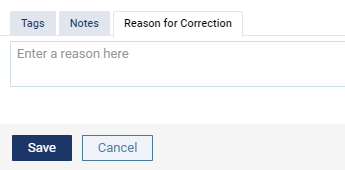
The tab only becomes visible when you make any adjustments.
-
Whenever you delete a transaction, a (new) Delete [transaction type] window displays, which allows you to enter the reason behind the deletion and to confirm if you want to delete it.

Note: When you delete a claim that has any associated payments or adjustments, a Reason for Correction tab displays when you view the associated transactions. You can use the tab to view the documented reason behind the deletion.
-
If necessary, administrators can make it mandatory for all users to document the reason for corrections, including deletions. To make it mandatory, the Ledger Options page (Settings > Ledger Options) > Ledger Rules tab > Other section > the (new) Require reason(s) for transaction correction toggle switch must be set to Yes. Once set, the Enter a reason here field on the Delete [transaction type] window and the Reason for Correction tab becomes highlighted in red. On the Reason for Correction tab, a (new)
 icon also displays.
Important: This section of the release notes doesn't address any changes that were made to power reporting and reports to accommodate the new transaction correction history feature. To read about these changes, please read the Improvements to reports and the New fields on power reports that work with data from the Ledger sections.
Improvements to reports
Several changes have been made to reports:
-
The Date Range filter on the Deposit Slip report (Home > Reports > Deposit Slip Report) has been renamed to Period. We've also added a new filter option that allows you to run the report by its service date or the last modified date.

When you run the report by its service date, the report will include transactions with service dates within the set date range. When you run the report by its last modified date, the report will include transactions with last modified dates that fall within the set date range, and will only show the most recent transaction data for those set dates.
Example: You adjust yesterday's insurance payment of $163.30 (original amount) to $201.30 (adjusted amount). If you run the report by its service date for yesterday, the report will display the adjusted $201.30 amount. However, if you run the report by its last modified date for yesterday, the report displays its original amount of $163.30. If you run the report by its last modified date for today, the report would display the adjusted $201.30.
On preview, you can easily identify whether it's a service date or the last modified date version by the displayed filter options below the Print button.
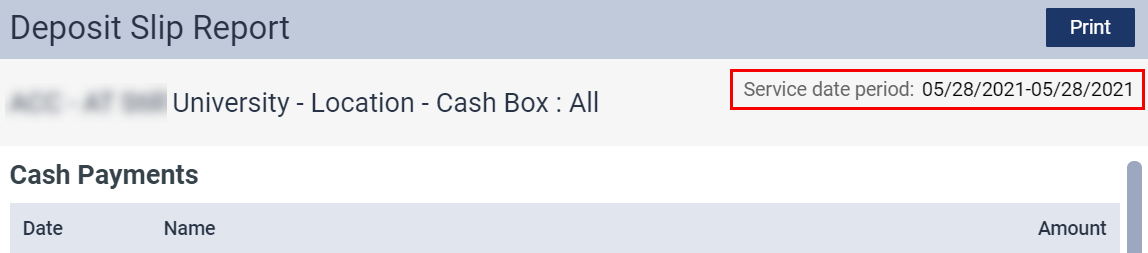
On print, you can identify by the (new) Generated by field, which indicates which version it is.

-
The Location Methods section > Credit Card Payment method of the Payment Analysis report (Home > Reports > Payment Analysis) is now an expandable item that displays credit card payments from 3 separate sources:
-
Manually entered - Payments entered by hand
-
In-office card read - Payments entered through a card reader using the axiUm Ascend Pay feature
-
Online - Payments entered online through the soon-to-be-release Patient Online Payments feature
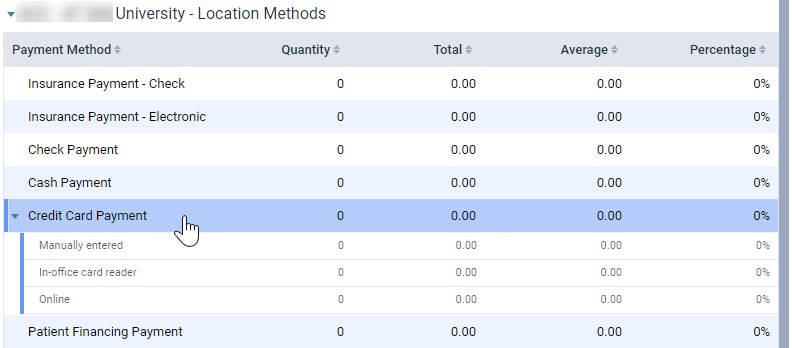
On print, the Credit Card Payment method displays expanded.
Also, the new filter options and behavior changes on the Deposit Slip report is also applied to this report. You can run the repot by the service date or modified date by using the (new) Run by filter options, under the Date range filter. Unlike the Deposit Slip report, the generated report doesn't have any new fields or labels that you can use to identify whether it's the service date or the modified date version. This also applies to the print version.
-
-
The Day Sheet report (Home > Reports > Day Sheet) now includes the history of all transaction corrections to display a detailed data of a specific day, including cancelations.
Example: You decide to modify a transaction that was made yesterday, on Jan 20th.

After modification, you run the Day Sheet report for yesterday, and the modified transaction displays the original transaction. However, the modified transaction will display the modified date, Jan 21st, in the Created Date column.

Also, the Transaction Date column now corresponds to the Ledger's Service Date, and the Created Date column corresponds to the Ledger's Created On date.
-
Billing statements (Home > Location > Billing Statements) have been adjusted to accommodate the transaction correction history feature. It now only displays current transaction versions, and cancelations doesn't display on statements. Also, dates on statements reflect the Ledger service dates.
-
As the Provider A/R Totals report (Home > Reports > Provider A/R Totals) displays data on provider production and collections within a set date range, the transaction correction history feature is applied to this report. To preserve historical data, the report now excludes any changes to transactions after the set date range. Also, we've removed the Report By filter option, as the report will now always include data by the applied date.
Improvements to the Ledger
Several changes have been made to the Ledger (Patient > Financial > Ledger):
-
We have removed the Th and Surface columns, and updated the Description column to now also include tooth and surface information.
-
Fields and columns that deal with the service date of procedures and charges have been renamed to Transaction Date.
Note: The Patient Walkout window > Send Claims tab > Service Date column remains unchanged because the data is from the Unsent Claims page.
-
On the View drop-down menu, the Sort by and the View Mode sections have been re-organized into 2 columns, and are located beside each other. We have also removed the "by" and "view" from the names of the options in these 2 sections.

Also, we have added a (new) Show transaction time toggle switch that you can use to include time stamps in the Modified Date column.
-
On the Enter Procedure window, the General Information tab now displays as 2 new tabs: Insurance Estimates and Options. The Insurance Estimates tab displays the Insurance Estimate Overrides section of the previous General Information tab, and the Options tab displays the Start/Completion Dates section.
New fields on power reports that work with data from the Ledger
New fields have been added to power reports (Home > Reports > Power Reporting) that work with data from the Ledger to support the new transaction correction history feature and to capture Ledger activity. These new fields are:
-
Revision History - Indicates whether a transaction is Current or Obsolete. The current transaction record displays as Current, and the previous state of the transaction and the Transaction Cancellation displays as Obsolete.
-
Revision Order - Displays the related transaction records in chronological order and identifies its place in the order. This allows you to see the sequence in which the transactions were created. The previous state of a transaction is labeled as 1, the Transaction Cancellation is labeled as 2, and the current transaction record is labeled as 3.
-
Revision Type - Identifies which one is the Original (previous state of a transaction), Cancellation (Transaction Cancellation), or Revision (current transaction record).
-
Created Date - Date a transaction was created or modified.
-
Service Date - Service date of procedure(s) and charge(s).

Improvements to the Calendar
Several changes have been made to the Calendar (Schedule > Calendar):
-
Users can now view the net production totals for an appointment by clickingtapping the (new) Show production link on an appointment card.

-
The Renew links on the Location Production reports have been replaced by (new)
 icons. Just like the links, the icons only display when change(s) to production by appointment, provider, and/or location occurs, and the displayed data is no longer current.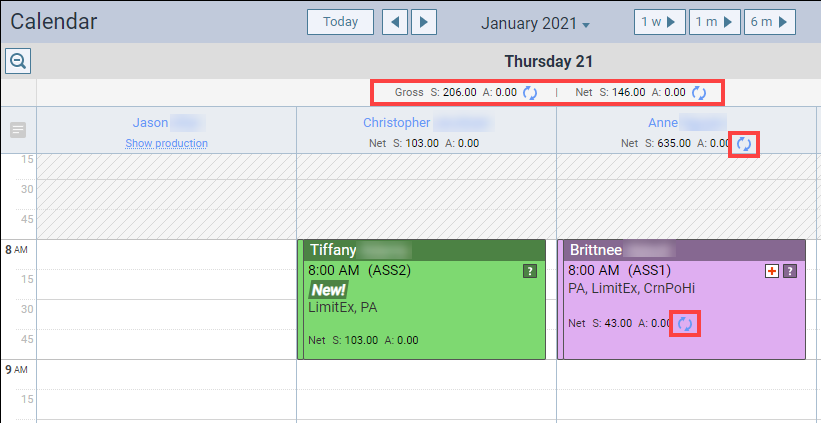
-
On the Production Totals button > Production Totals window, we have added a new date navigator.

You can use these buttons to view past or future production totals for your location, and to whether view data within a week or a month. If necessary, you can always navigate back to the current week or month by selecting the Today button.
You can further customize the view settings of the window by clickingtapping the (new) Change to Table View to view the data as a table, instead of the default graphic chart.

You can select a specific day to view production totals per provider. To return to the default graphic view, clicktap the Change to Graphic View link.
If you prefer to see data from specific provider(s) instead of all providers, you can clicktap the (new) All providers link to generate the Provider Filter. You can set the filter to the desired provider(s) to only view their data.

You can set the filter by either scrolling through the list of providers or entering the desired provider's name in the text box to narrow down the list. When found, you can select them from the list.
Improvements to patient forms
To collect more information to improve the quality of the gathered data, we have added new mandatory fields on patient forms that only display when users provide certain answers to the following:
-
Demographics
-
If you answer the "Who is filling our the form today?" question as Other, new fields display that requires you to provide your first name, last name, phone number, and other information that describes your relationship to the patient.

-
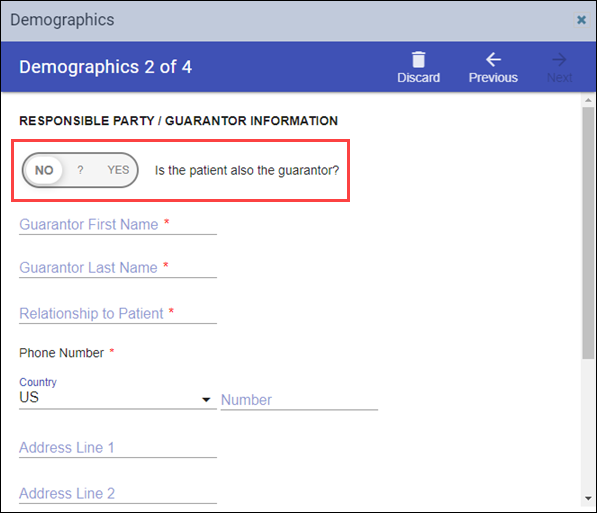
In the RESPONSIBLE PARTY / GUARANTOR INFORMATION section of the form, if you set the Is the patient also the guarantor? toggle switch to No, new fields display that requires you to enter the guarantor's information.
-
-
Dental History
-
If you set the Is the patient a minor? toggle switch to Yes, new fields display to collect more information on the patient's dental history that is commonly useful to a pediatric dental practice.

-
-
Medical History
-
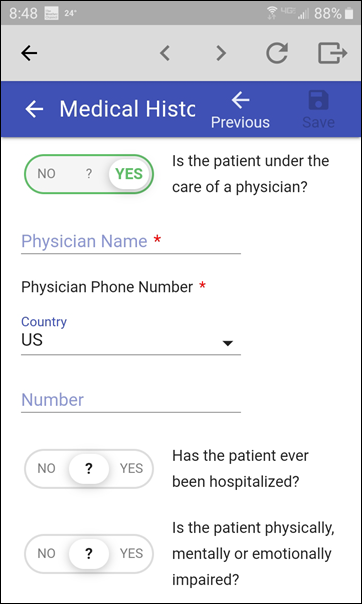
If you set the Is the patient under the care of a physician? toggle switch to Yes, new fields display that requires you to provide the physician's name and phone number.
-
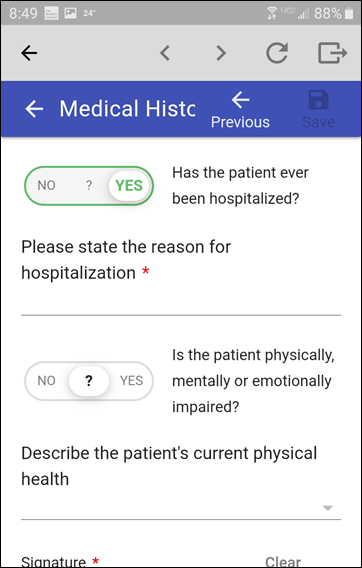
If you set the Has the patient ever been hospitalized? toggle switch to Yes, a (new) Please state the reason for the hospitalization field displays.
-
Improvements to Imaging
Several changes have been made to Imaging (Patient > Clinical > Imaging):
-
We have added new CDT 2021 codes from the Image-capture only service category:
-
D0701 - Pano
-
D0702 - 2D ceph
-
D0703 - 2Doral/fac'l (photo-capture only)
-
D0705 - E/O posterior
-
D0706 - I/O occlusal
-
D0707 - I/O periapical
-
D0708 - I/O bitewing
-
D0709 - I/O comp ser
Note: Ascend Imaging doesn't perform 3D photographic image capture for D0704.
These new codes are only used when the acquisition is performed at one place, and the interpretation/evaluation (diagnosis) is performed at another location or through another provider. They do not replace or duplicate any of the comparable Image Capture with Interpretation codes, D0210 - D0371, that are used when the acquisition and interpretation are performed in the same setting.
When users acquire or import image(s), these CDT codes can be applied to image(s) by selecting the (new) Without interpretation/analysis using code [code number] check box on the acquisition options.

When selected and the image is acquired, the new CDT code displays in the Ledger.
-
-
We have added 2 new supported imaging convertors/imaging extractors:
-
Imaging Conversions -MiPACS
-
Imaging Conversions - CS7
We have also added a new integration of a bidirectional software bridge with axiUm Ascend: Morita iDexel.
-
Improvements to bulk insurance payments
Several changes have been made to bulk insurance payments (Home > Insurance > Bulk Insurance Payments):
-
On the Create New Bulk Insurance Payment and the Edit Bulk Insurance Payment window > Select Claims tab, we have added a (new) page navigation system that allows you to navigate between pages more easily. If necessary, you can also use the (new) search field to locate a specific insurance payment on all the pages, not just the one you're currently on.

Also, if you sort the list of claims by a specific column, it is applied to all the pages, not just the one you're currently on.
-
The Carrier name search field on the Create New Bulk Insurance Payment window has been updated to display a longer search results to display more matches. Also, users can now use the search field to search by payer ID number, not just the carrier name.
Removal of the Request Approval button on treatments for all non-providers
As axiUm Ascend doesn't allow non-provider users to perform clinical actions, we have removed the Request Approval button on treatments (Patient > Clinical > Treatment Planner) for all non-providers. Even if they have the Requires approval for Treatment Plan cases user role permission set, the button will not display.
Comments
0 comments
Please sign in to leave a comment.