
Several new feature enhancements are included in the product update released in late April 2021. The major enhancements in this release include display of confidential patients' appointments regardless of security rights, improvements to the Remind Faculty feature of evaluation requests, and new button behavior on progress notes.
Display of confidential patients' appointments regardless of security rights
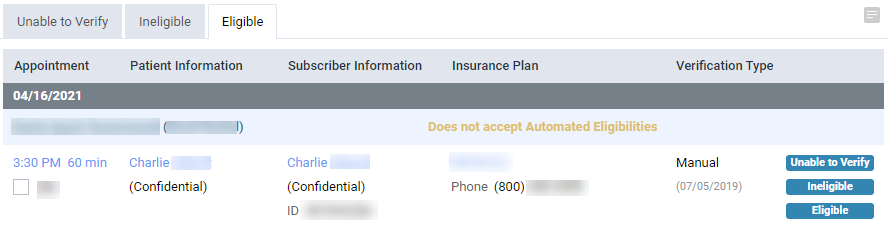
Previously, users without the proper security right settings couldn't view information on confidential patients, including their appointments. Now, axiUm Ascend displays basic information on confidential patients' appointments to prevent double-booking of same time slots. For users that don't have the proper security rights, axiUm Ascend only displays the full name of the patient, date and time of the appointment, the assigned provider, the status of the appointment, and the appointment note set to (Confidential).
Specifically, you can view their appointment information in the following areas:
-
The Calendar (Schedule > Calendar)

-
The Calendar > Fill Openings panel (Schedule > Fill Openings)

-
The Unconfirmed Appts. page (Schedule > Unconfirmed Appointments)

-
The Lab Cases page (Schedule > Lab Cases)

-
The Insurance Eligibility page (Schedule > Insurance Eligibility)
-
The Patient Follow-up page (Schedule > Patient Follow-up)

-
The Appointment Requests page (Schedule > Appointment Requests)

-
The Provider Overview > Schedule widget (Home > Location > Overview)

-
The Patient Routing panel

Important: If you clicktap a confidential patient's appointment on the Calendar page, the Calendar > Fill Openings panel, the Provider Overview > Schedule widget, or the Appointment Requests page, the Access Confidential Patient window doesn't display. However, if you clicktap the patient link on the Unconfirmed Appts. page, the Lab Cases page, the Insurance Eligibility page, or the Patient Follow-up page, the window displays.
Improvements to the Remind Faculty feature of evaluation requests
When a student provider clicktap the Remind Faculty button on the Student Evaluations page (Academic > Student Evaluations) the following occurs:
-
If the evaluation request doesn't have an assigned faculty provider, axiUm Ascend doesn't send any notifications to faculty. However, the Reminder Sent notification will display on the student provider's workstation.
-
If the evaluation request's assigned faculty evaluator isn't a provider, they do not receive a notification message.
-
If the assigned faculty provider is offline when the reminder was sent, axiUm Ascend will not display any notifications when they log back in.
Also, the notification message has been updated to include the full name of the student provider that sent the reminder. The name displays in the 'First Name Last Name' format.

Important: When a faculty provider receives an Evaluation Reminder notification message, they can clicktap the notification to open the evaluation request and complete it. When a faculty has multiple Evaluation Reminder notification messages, they can use the notification messages to navigate and address multiple evaluation requests. However, if the faculty provider selects a notification message to open an evaluation request while they already have a different evaluation request open, axiUm Ascend doesn't display the selected evaluation request. Instead, the evaluation request that was already open remains open, and the URL of their workstation is set to the selected evaluation request that didn't open. To navigate through multiple evaluation requests by using the notification messages, the faculty must complete or save and exit one evaluation request and then open a different one.
New button behavior on progress notes
We have updated the Request Procedure Approval button on patients' clinical records > Progress Notes tab (Patient > Clinical > Progress Notes) to be disabled if the patient doesn't have any treatment plans in Accepted status.
All treatment plans on power reports display with incorrect status
Issue: When users generate a power report that involves treatment plan data, all treatment plans display with the Unassigned status on the report.
Solution: Fixed so treatment plans displays with its correct status.
Report may incorrectly identify the provider that signed clinical report
Issue: When users view a patient's clinical report that was created by the assigned provider and signed by the attending provider, the report may incorrectly identify the assigned provider as the one that created and signed the report.
Solution: Fixed so the report displays information correctly.
Unable to login properly without the Review Treatment Planner user role permission set
Issue: When users without the Review Treatment Planner user role permission set login to axiUm Ascend, the Homepage doesn't display properly, and users can't navigate to other pages or logout properly.
Solution: Fixed so axiUm Ascend behaves as expected.
Comments
0 comments
Please sign in to leave a comment.