
You can quickly schedule appointments for the procedures in a patient's treatment plan. You can also submit a predetermination claim while scheduling an appointment.
To schedule a treatment plan
How to get there
-
From the Patient menu, under Clinical, select Treatment Planner.
The patient's clinical record displays with the Tx Planner tab selected.
Tip: You can also access the treatment planner from the Patient Information ribbon > Tx Planner link or the patient's Overview page > Treatment Plan widget.
Patient Information ribbon

Treatment Plan widget
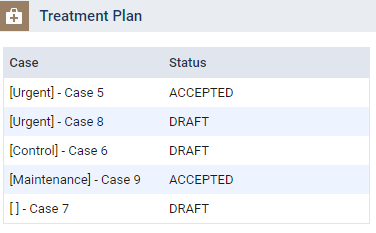
Note: If the correct patient is not already selected, use the Patient Search field to access the patient's record.
-
On a patient's Treatment Planner page, under Accepted or Pending Patient Consent, select a treatment plan.
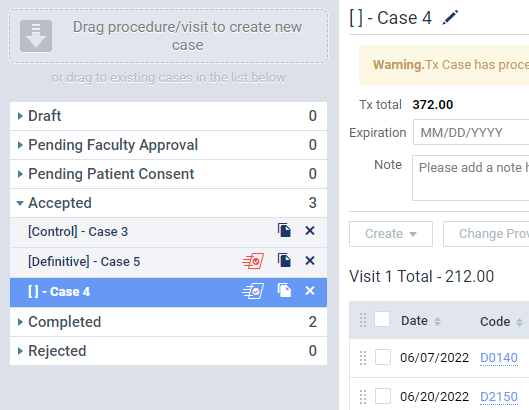
Note: A treatment plan case displays with a
 icon if it has a procedure that is marked as requiring predetermination for one of the patient's insurance plans in Ascend Academic. The icon only acts as a visual reminder, and doe not restrict your ability to schedule an appointment. You can schedule an appointment regardless of the icon.
 The procedures (arranged by visit) that are associated with the selected treatment plan display.
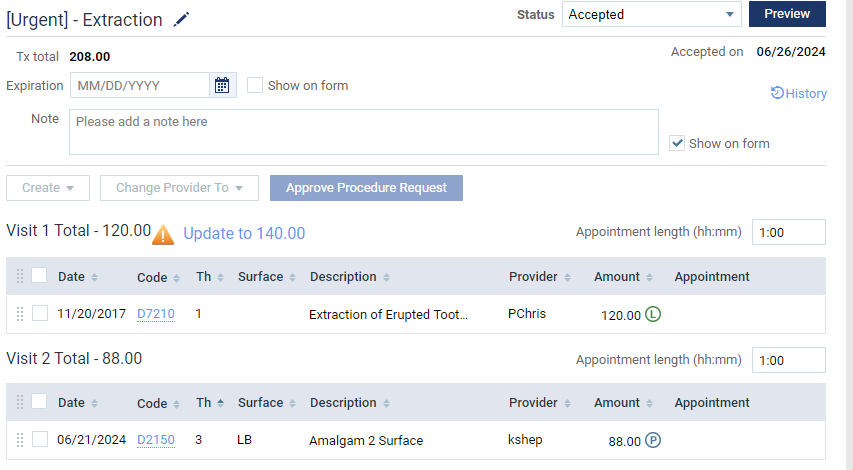
-
Next to a procedure, select the checkbox.
Tip: You can also select the checkbox at the top of the visit to select all listed procedures.
-
Click Tap the Create menu and select Appointment.

Note: The Appointment option is only enabled if all procedures are selected.
-
If prompted with the Create Appointment window, clicktap Create Appt..

Note: The window displays if any of the procedures have the
icon. If necessary, you can submit a predetermination claim from the window by selecting the patient's primary/secondary insurance plan from the Create Predetermination menu.
Comments
0 comments
Please sign in to leave a comment.