
If you require approval for completed procedures, you must request approval from a faculty provider for a treatment you completed during an appointment. You must receive approval before you can post the completed procedure(s) to the ledger.
You can request approval from three areas of Ascend Academic:
-
The Patient Routing panel
-
The Progress Notes tab
-
The Tx Plan tab
Important: You can only request an approval from treatment plans that are in Unassigned or Accepted status.
Important: You can only request approval if you are set as the provider for the procedure and the procedure status is set to Tx Plan.
To request an approval
How to get to there
-
From the Patient menu, under Clinical, select Progress Notes.
The Progress Notes page displays.
Tip: You can also open the Progress Notes page from the Patient Routing panel. ClickTap the
 icon, clicktap the Schedule Peek tab, and clicktap the correct appointment.
Note: If more than one appointment is scheduled for the day, under Filters, select the correct appointment time radio button.
How to get to there
-
Use the Patient Search field to access a patient's record.
Notes:
-
If the last patient record you accessed since you last logged on is the correct patient's record, you do not need to re-enter the patient's name in the Patient Search field.
-
You can include inactive patients in the search results by setting the Include inactive patients toggle to On.
Important: If the Access Confidential Patient window displays after selecting the patient from the search results, it means the patient is a confidential patient and you don't have the security rights to access their record. To continue, a user with the security rights must enter their credentials into the window. Once given access, you have access to the patient's information until your session expires.
-
-
Complete one of the following:
-
From the Patient Information ribbon, clicktap the Tx Planner link.

-
From the Patient menu, under Clinical, clicktap Treatment Planner.
-
From the Patient menu, under General, clicktap Overview.
The patient's Overview page displays.
ClickTap the Treatment Plan widget.
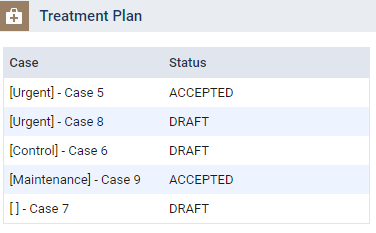
The patient's clinical record displays with the Treatment Planner tab selected.
-
How to get to there
-
ClickTap the
icon, clicktap Chair, and review the listed patients.
-
ClickTap Request Procedure Approval from one of the following areas of the system:
-
A patient's Progress Notes tab

-
A patient's treatment planner > Unassigned or Accepted status

-

Note: You can only request from an appointment that are in Chair and Checkout.
Important: If the Approve Procedure Request button displays instead of the Request Procedure Approval button, it means you have a previously submitted approval request that is still pending for approval. The Request Procedure Approval button will not display until your submitted request is approved or rejected.
The Submit Request for Approval window displays.

-
-
(Optional) Enter the faculty provider that is associated with and supervised the appointment in the Attending Provider field.
Notes:
-
If the procedure is associated with an appointment that has an attending provider, the field defaults to the appointment's attending provider.
-
If your organization has multiple locations, a faculty provider is only available for selection if they have rights to the current location.
Important: This does not limit which faculty provider can approve the procedure.
-
-
(Optional) Set the Operatory field.
When you submit the request from the Patient Routing panel, the field displays the operatory associated with the appointment. When you submit the request from the Progress Notes page, the field displays based on the set Procedures radio buttons:
-
If you select the Scheduled for today radio button and open the window, the field displays the appointment's operatory.
-
If you select the All radio button and open the window, the field displays -Select- as the procedures are not associated with an operatory.
If necessary, you can set the field to a new or different operatory:
-
ClickTap the Operatory field.
-
Select an operatory from the drop-down list.

-
-
(Optional) Deselect the check box(es) of displayed procedure(s) that you do not want in the request.
-
ClickTap Submit to send the request and close the Submit Request for Approval window.
Comments
0 comments
Please sign in to leave a comment.