
You can delete a condition in a patient's clinical chart as needed.
Note: If a condition has been marked as having been treated, and if there is planned or completed treatment for that condition, to delete the condition, you must first change its status to Active and save it.
To delete a condition
How to get there
-
Use the Patient Search field to access a patient's record.
Notes:
-
If the last patient record you accessed since you last logged on is the correct patient's record, you do not need to re-enter the patient's name in the Patient Search field.
-
You can include inactive patients in the search results by setting the Include inactive patients toggle switch to On.
Important: If the Access Confidential Patient window displays after selecting the patient from the search results, it means the patient is a confidential patient and you don't have the security rights to access their record. To continue, a user with the security rights must enter their credentials into the window. Once given access, you have access to the patient's information until your session expires.
-
-
From the Patient menu, under Clinical, clicktap Progress Notes.
The patient's clinical record opens with the Progress Notes tab selected.
-
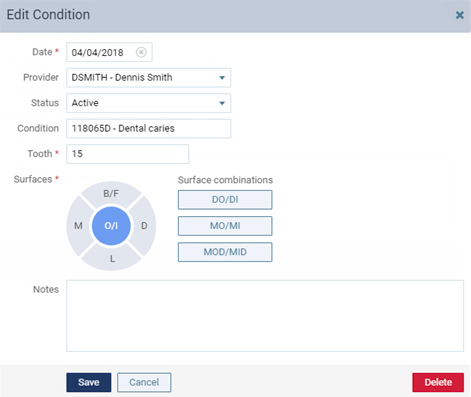
Select a condition.

The Edit Condition dialog box appears.
-
Click Tap Delete.
Comments
0 comments
Please sign in to leave a comment.