
When necessary, you can mark started procedures as In-Progress.
Note: Only procedures that are associated with an accepted treatment plan can be set to In-Progress.
Once set, you can see the In-Progress status in the following areas:
-
A patient's Tx Planner

-
A patient's Progress Notes

Note: The In-Progress status is only meant for identification purposes. It does not impact any workflow.
To mark a procedure as In-Process
How to get there
-
Use the Patient Search field to access a patient's record.
Notes:
-
If the last patient record you accessed since you last logged on is the correct patient's record, you do not need to re-enter the patient's name in the Patient Search field.
-
You can include inactive patients in the search results by setting the Include inactive patients toggle to On.
Important: If the Access Confidential Patient window displays after selecting the patient from the search results, it means the patient is a confidential patient and you don't have the security rights to access their record. To continue, a user with the security rights must enter their credentials into the window. Once given access, you have access to the patient's information until your session expires.
-
-
From the Patient menu, under Clinical, clicktap Progress Notes.
The patient's clinical record displays with the Progress Notes tab selected.
How to get there
-
Use the Patient Search field to access a patient's record.
Notes:
-
If the last patient record you accessed since you last logged on is the correct patient's record, you do not need to re-enter the patient's name in the Patient Search field.
-
You can include inactive patients in the search results by setting the Include inactive patients toggle to On.
Important: If the Access Confidential Patient window displays after selecting the patient from the search results, it means the patient is a confidential patient and you don't have the security rights to access their record. To continue, a user with the security rights must enter their credentials into the window. Once given access, you have access to the patient's information until your session expires.
-
-
Complete one of the following:
-
From the Patient Information ribbon, clicktap the Tx Planner link.

-
From the Patient menu, under Clinical, clicktap Treatment Planner.
-
From the Patient menu, under General, clicktap Overview.
The patient's Overview page displays.
ClickTap the Treatment Plan widget.
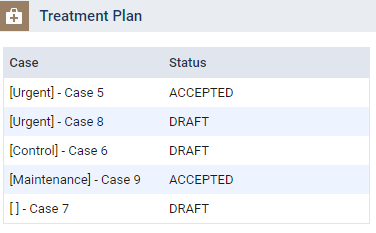
The patient's clinical record displays with the Tx Planner tab selected.
-
How to get there
-
Use the Patient Search field to access a patient's record.
Notes:
-
If the last patient record you accessed since you last logged on is the correct patient's record, you do not need to re-enter the patient's name in the Patient Search field.
-
You can include inactive patients in the search results by setting the Include inactive patients toggle to On.
Important: If the Access Confidential Patient window displays after selecting the patient from the search results, it means the patient is a confidential patient and you don't have the security rights to access their record. To continue, a user with the security rights must enter their credentials into the window. Once given access, you have access to the patient's information until your session expires.
-
-
Complete one of the following:
-
From the Patient menu, under Financial, clicktap Ledger.
-
From the Patient menu, under General, clicktap Overview.
The patient's Overview page displays.
ClickTap the Ledger widget.

The patient's Ledger page displays.
-
-
Complete one of the following:
-
Open a patient's record > Progress Notes tab.

-
Open a patient's record > Treatment Planner tab and select a treatment plan.
-
Open a patient's Ledger page.

-
-
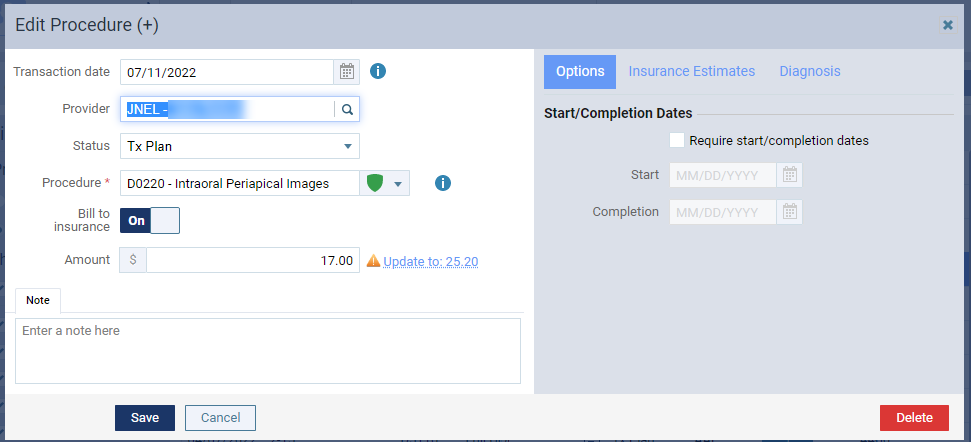
Select a procedure to display the Edit Procedure window.
-
ClickTap the Status drop-down list and select In-Process.

Note: If In-Process does not display on the list, the procedure is associated with a treatment plan that is not set to Accepted.
-
ClickTap Save.
Comments
0 comments
Please sign in to leave a comment.