
Operatories are displayed on your location’s Calendar page alphabetically by name, and the only way to control the display order of the operatories was to change their names. With this update, you can now customize the display order of the operatories regardless of their names.
To accommodate this change, the Operatories page, where you manage operatories for a location, has been enhanced.
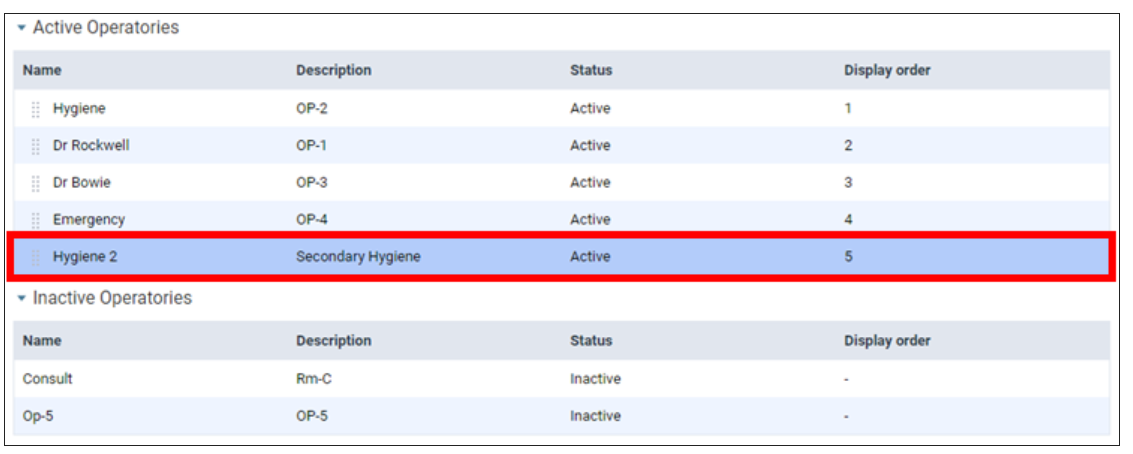
The page is now divided into two sections:
-
Active Operatories
-
Inactive Operatories
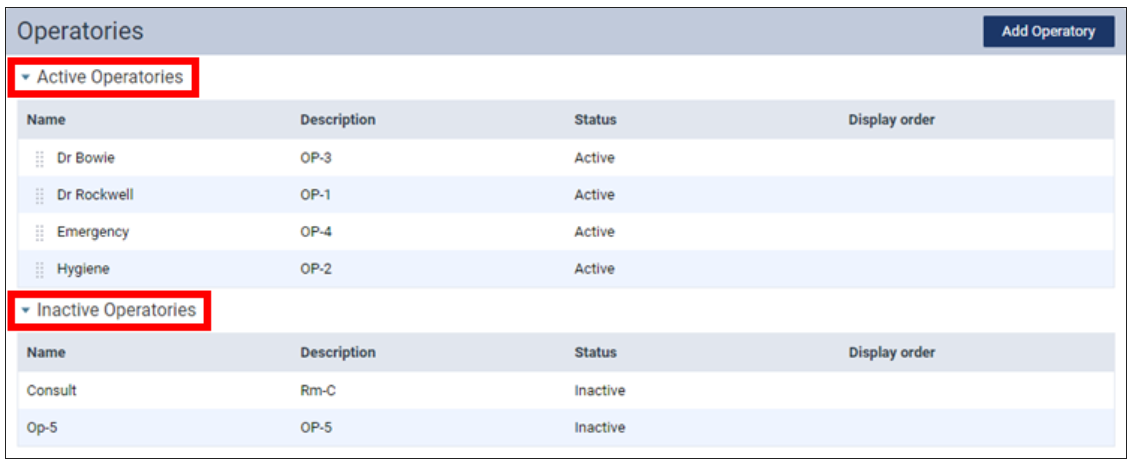
Note: You can collapse and expand these sections as needed.
When you initially access this page, the Display order column is blank for all operatories. The displayed order of the Active Operatories will continue to be the displayed order on the Calendar page unless you change the order. Once you edit an operatory or change the order, the applicable numbers appear in the Display order column for the Active Operatories, and dashes appear in the Display order column for the Inactive Operatories.

Changing the display order of operatories
You can customize the order in which operatories (columns where you can schedule appointments and events) appear on the schedule from left to right.
-
Under Active Operatories, drag an operatory by the handle to the preferred position in the list.

Note: The change is saved automatically, and the other operatories’ display orders update automatically as needed.
-
For every other operatory that you want to rearrange, drag it by the handle to the preferred position in the list.
Editing operatories
You can edit the details of a location's operatories as needed.
-
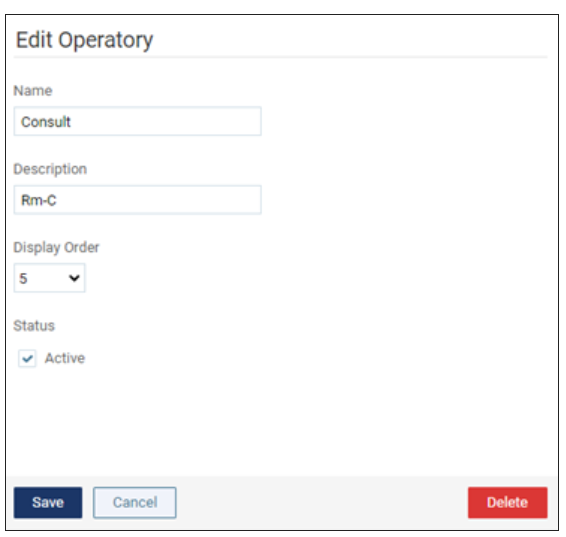
Under Active Operatories, click an operatory to open the Edit Operatory page.


-
If you had to use a less-than-ideal name prior to this update as a workaround to getting the operatories to be displayed in a particular order, go ahead and change the Name as needed to suit your preference.
-
Select the preferred Display Order.
Note: The other operatories’ display orders will update automatically as needed.
-
Click Save.
Inactivating operatories
You can inactivate operatories, which correspond to columns on your schedule, if those operatories do not have any future appointments scheduled in them. An inactive operatory does not show on the schedule and is unavailable as a view option for the schedule.
-
Under Active Operatories, click an operatory to open the Edit Operatory page.

-
Clear the Active checkbox.
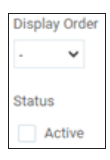
Note: The dash (–) is selected for Display Order automatically. The active operatories’ display orders will update automatically as needed.
-
Click Save.
Reactivating operatories
You can reactivate operatories, which correspond to columns on your schedule, that were previously inactivated. When you reactivate an operatory, it can again be displayed on the schedule.
-
Under Inactive Operatories, click an operatory to open the Edit Operatory page.


-
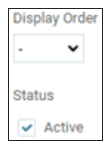
Select the Active checkbox.
-
The dash (–) is selected for Display Order automatically. Do one of the following:
-
To insert the operatory as the last one in the display order, leave – selected for Display Order.
-
To insert the operatory somewhere in the existing order, select the preferred Display Order.
Note: The other active operatories’ display orders will update automatically as needed.

-
-
Click Save.
Adding operatories
You can add operatories as needed. Operatories appear on the schedule as columns where you can schedule appointments and events.
-
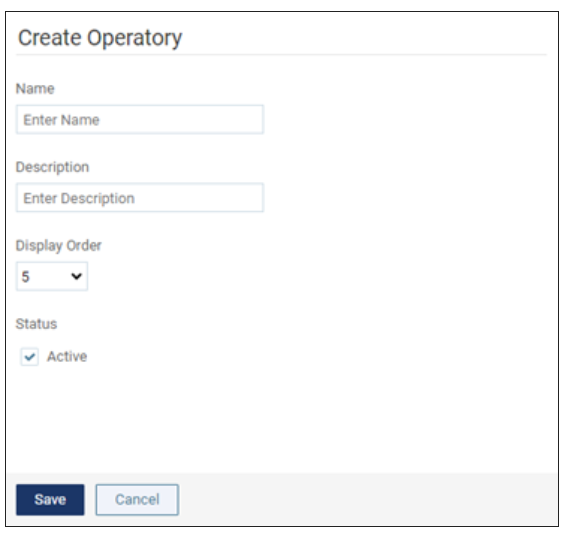
Click Add Operatory to open the Create Operatory page.

-
Enter a Name and Description.
-
The number of the next available position is selected for Display Order automatically. Do one of the following:
-
To insert the operatory as the last one in the display order, leave the number of the next available position selected for Display Order.
-
To insert the operatory somewhere in the existing order, select the preferred Display Order.
Note: The other operatories’ display orders will update automatically as needed.

-
-
Click Save.
Deleting operatories
You can delete any of a location's operatories that do not have any appointments scheduled in them, but you can delete operatories that have only events scheduled in them.
-
Under Active Operatories or Inactive Operatories, click an operatory to open the Edit Operatory page.

-
Click Delete.
Note: The Delete button is available only if the operatory does not have any appointments scheduled in it.
-
On the confirmation message that appears, click OK.
Comments
0 comments
Please sign in to leave a comment.