
A user group is a collection of users that perform similar functions, share a common purpose, or have a similar status in the organization. These groups can be users with a particular specialty, students by graduating year, or sub-set of students overseen by particular faculty. Grouping users allows you to search for data by specific groups, filter schedule views to display by user groups, or search for available time slots openings for all providers that belong to a selected group.
If necessary, you can set a faculty provider as the group leader. The group leader can access the group members' patient list to assess their progress with their patients, and to confirm the treatments are being completed properly. The faculty doesn't need to be a member of the user group to be set as the group leader.
To create a user group
How to get to there
-
From the Settings menu, under Location, select User Groups.
The User Groups page displays.
-
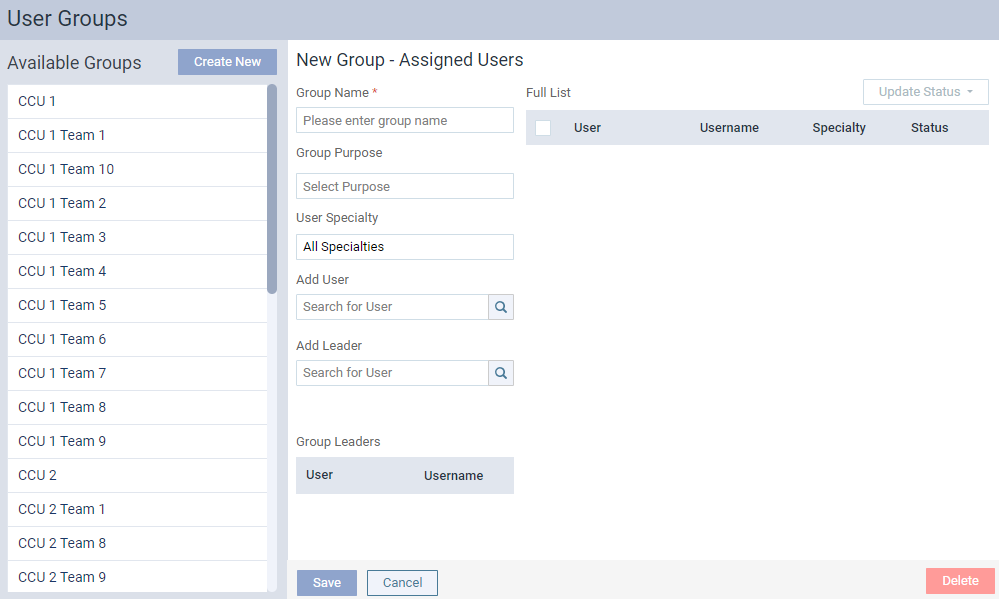
On the User Groups page, next to Available Groups, clicktap Create New to open the New Group - Assigned Users pane.
-
Complete the following fields.
-
Group Name - Enter a name for the user group.
Note: There is a maximum limit of 25 characters.
-
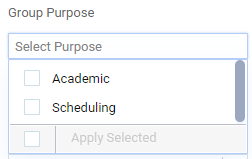
Group Purpose - (Optional) ClickTap the field and select the check box(es) to indicate the group purpose.
Tip: If you select Scheduling, this user group will display on the Group Working Hours page and can be configured with a working hours schedule that applies to the entire group.
-
User Specialty - Ignore. This field is currently under development.
-
Add User - To add a user as part of this group, enter the user's first, last, or username in the field, and select the user from the search results.
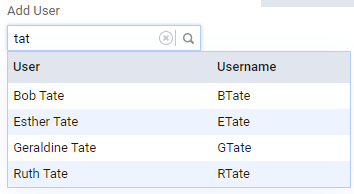
The user is added to the Full List. To add multiple users, continue using this field.
Tip: To remove an incorrectly added user, clicktap their X icon under Full List.
-
Add Leader - You can add a faculty provider as the group's leader. You can have up to 5 faculty providers set as the group's leaders. To set a faculty as the group leader, enter their first name, last name, or username in the search field. Select the user from the generated search results. The group leader displays under Group Leaders.
-
-
ClickTap Save.
The new group displays at the top of the Available Groups list.
Comments
0 comments
Please sign in to leave a comment.