
You can view your past punches on your timecard. You can review your punch record to analyze your work patterns, your overall worked hours, and to locate any missing or incorrect punches. If necessary, you can also export your record as a .CSV file.
To view and report my timecard
-
From the Hi, [user name] menu, select My Timecard.

The My Timecard page displays.

-
Set the Date Range filter to display punches within a set date range. Skip this step if you're satisfied with the default Last 7 Days setting.
-
ClickTap the Date Range field and select one of the following:
-
Today
-
Yesterday
-
Last 7 Days
-
This Month
-
Specific Date
-
Custom Range
-
-
If you selected Specific Date, select a date from the generated calendar and clicktap Done.
-
If you selected Custom Range, select two dates from the generated calendars and clicktap Done.
-
-
ClickTap Search to generate a report based on the set date range.

Important: Your punches are automatically adjusted for any time zone differences that apply.
Your individual punches display by location. Any punches that weren't made at the location you clocked in or out of will display with a
 icon.
icon. Example: You have access to Office A, B, and C. You check in at Office A, and Ascend Academic records that you checked in at Office A, B, and C. As you checked in at Office A, the recorded check ins under Office B and C display with the
icon. To view when and where the punch was made, you can clicktap a
icon to generate the Location of Punch ([IN for check in, OUT for check out]) tooltip. 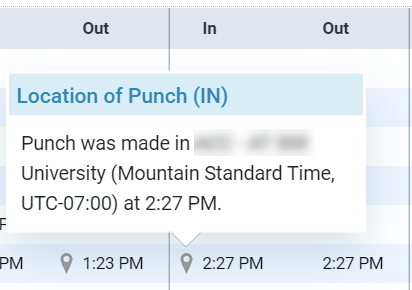
If you're missing any punches at a location, the date that's missing it displays with a
 icon under Total Hours and the Daily Subtotal.
 -
(Optional) ClickTap Export to export the displayed report as a .CSV file.
Note: The exported data only displays your total worked hours, and doesn't display any individual punches or organize data by date or location.
Comments
0 comments
Please sign in to leave a comment.