
You can activate multiple providers that are in the same user group.
Note: You need the Review User Group and Inactivate User user role permissions set to activate them.
Tip: You can also use this method to activate non-provider users in bulk.
To activate multiple providers
How to get there
-
From the Settings menu, under Location, clicktap User Groups.
The User Groups page displays.
-
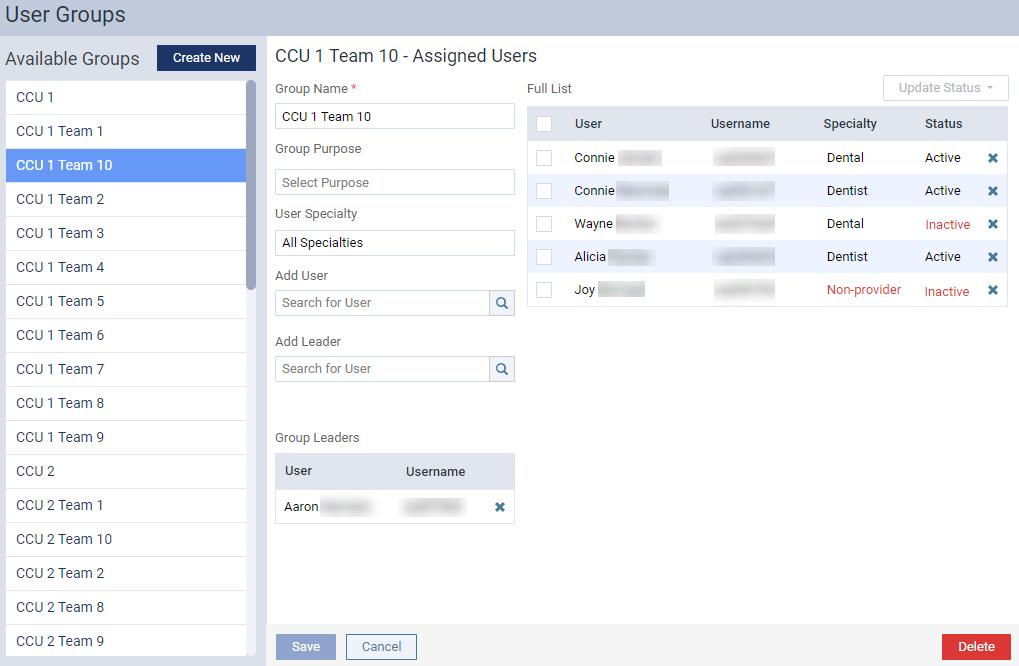
On the User Groups page, select a user group listed under Available Groups to open it.
-
Select the check boxes of the providers you want to activate.
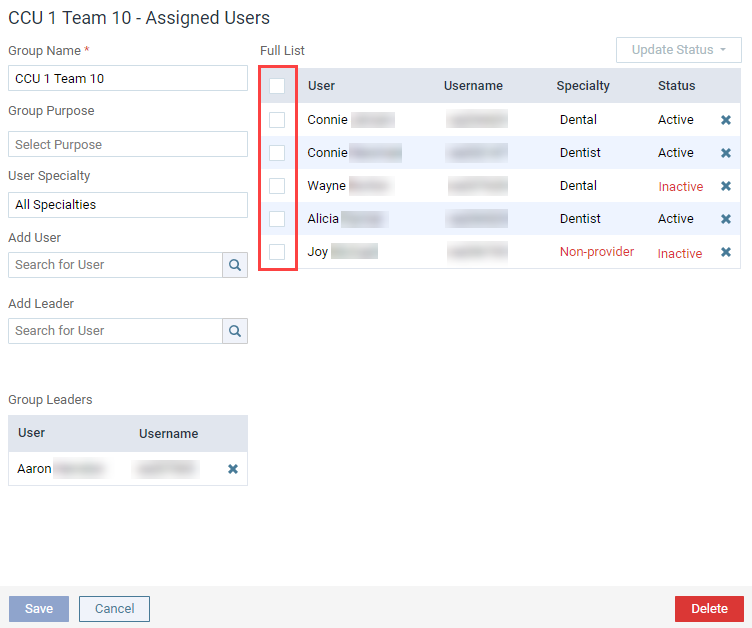
Tip: To select all providers, select the check box in the header.
The Update Status drop-down menu is enabled.
-
ClickTap the Update Status drop-down menu.

Note: If the selected providers are all active, only the Inactive option is enabled. If the selected providers are all inactive, only the Active option is enabled. If the selected are a mix of active and inactive providers, both options are enabled.
Tip: If the Update Status drop-down menu remains disabled, it might be because you don't have the Inactive user user role permission set.
-
Select Active.
If the providers were activated successfully, the "The user(s) ihave been activated" notification message, and the action is audited in the Audit Log. An audit log is created for each activated provider with the following information in Details: Bulk activate: [Firstname Lastname of the provider] - [username of the provider].
Comments
0 comments
Please sign in to leave a comment.