
You can deactivate multiple providers that are in the same user group. If you deactivate providers that have any pending patient items and/or active patients that have the providers set as their primary providers, you will need transfer them to a active provider to complete the deactivation.
Note: You need the Review User Group and Inactivate User user role permissions set to deactivate them.
Tips:
-
For any deactivation of large user groups, it may take the system few seconds or few minutes to complete the process depending on the amount of pending patient items and/or active patients that need to be transferred to new providers. In this situation, it is recommended you inactivate in smaller batches, preferably not during the peak work hours, to perform the process faster and smoother.
-
You can also use this method to deactivate non-provider users in bulk.
To inactivate multiple providers
How to get there
-
From the Settings menu, under Location, clicktap User Groups.
The User Groups page displays.
-
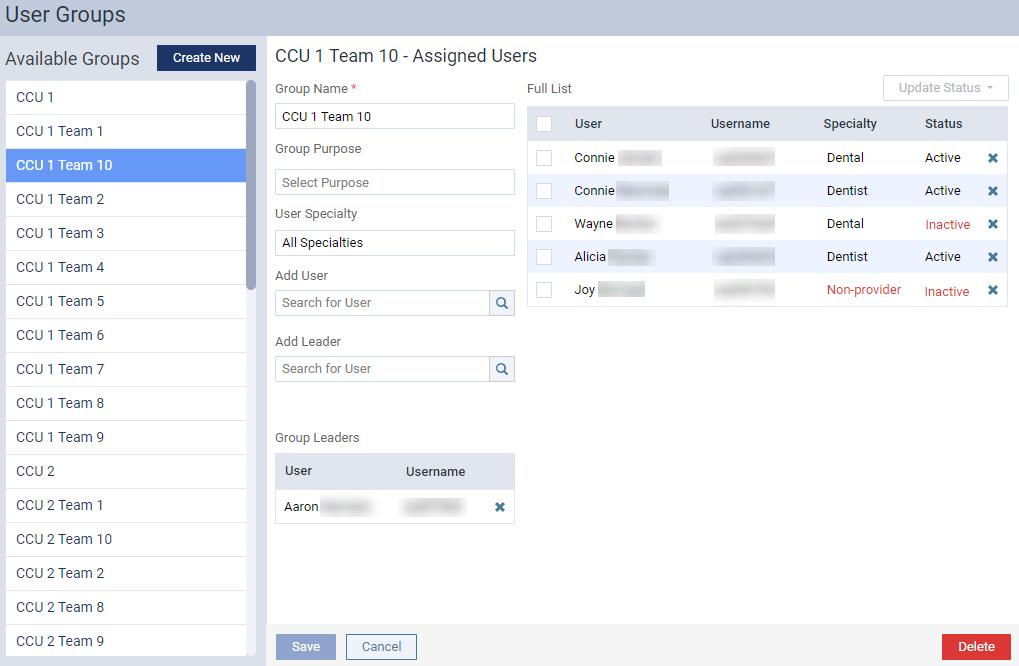
On the User Groups page, select a user group listed under Available Groups to open it.
-
Select the check boxes of the providers you want to deactivate.
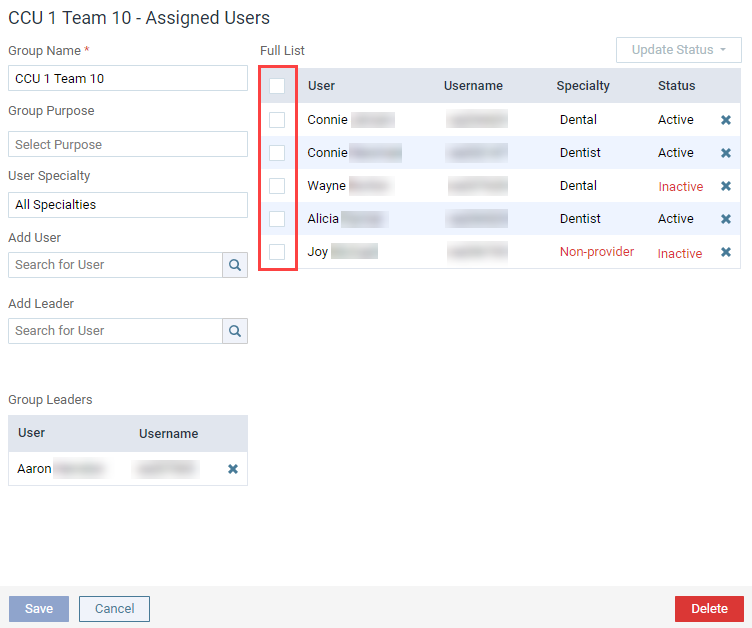
Tip: To select all providers, select the check box in the header.
The Update Status drop-down menu is enabled.
-
ClickTap the Update Status drop-down menu.
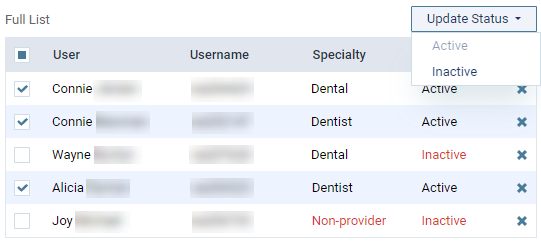
Note: If the selected providers are all active, only the Inactive option is enabled. If the selected providers are all inactive, only the Active option is enabled. If the selected are a mix of active and inactive providers, both options are enabled.
Tip:If the Update Status drop-down menu remains disabled, it might be because you don't have the Inactive user user role permission set.
-
Select Inactive.
If the providers were deactivated successfully, the "The user inactivation has been initiated and may require some time to process" notification message, and the action is audited in the Audit Log. An audit log is created for each deactivated provider with the following information in Details: Bulk deactivate: [Firstname Lastname of the provider] - [username of the provider].
If any of the deactivated providers have pending patient items and/or are assigned as active patients' primary providers, the Inactive Providers window displays.

To complete the bulk inactivation, you need to reassign them to active providers. To reassign them to a new provider, you need to use the Select a provider search field to select a new provider. To apply the same provider to the rest of the items, you can click Apply To All after it's been enabled. The button is enabled when you set a new provider to the first item. When ready, clicktapInactivate to confirm the inactivation.
Along with the bulk deactivation, the reassignment is also audited in the Audit Log.
Comments
0 comments
Please sign in to leave a comment.