
Users can change the password for his or her own user account. Prior to this, for users to be able to change their passwords, they had to be granted the “Edit User” right, which meant they had permission to modify any user’s account details.
The new security right is called Change Password and is under the Settings category on the User Roles page (go to Settings > User Roles). By default, this right is not selected for any user role, so each role must be updated manually:
-
If a given role has the Edit User checkbox selected but shouldn’t any longer, clear that checkbox, and select the Change Password checkbox.
-
If a given role does not have the Edit User checkbox selected and still shouldn’t, select the Change Password checkbox.

To save the change, click Save. The change will take effect the next time users log in to Ascend Academic.
Note: The user does not have to have the Change Password right selected if the Edit User right is selected. But if the user does not have access to modify other users’ accounts, the Change Password right is required to allow the user to change his or her own password.
With either of these rights granted, you can change your password by doing the following:
-
On the User menu, click (or tap) My Account.

The My Account page opens.
-
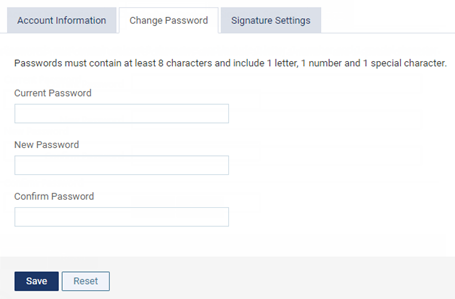
On the Change Password tab, enter your Current Password, and then enter a new password in the New Password and Confirm New Password boxes.
-
Click (or tap) Save.
Comments
0 comments
Please sign in to leave a comment.