
A user can have a punch missing in their records for multiple reasons: forgetting to clock in/out, deleting it by accident, and so forth. To correct the mistake, you can manually add the punch.
Important: You need the Time Clock Summary use role permission set to add a punch.
To manually add a punch
How to get there
-
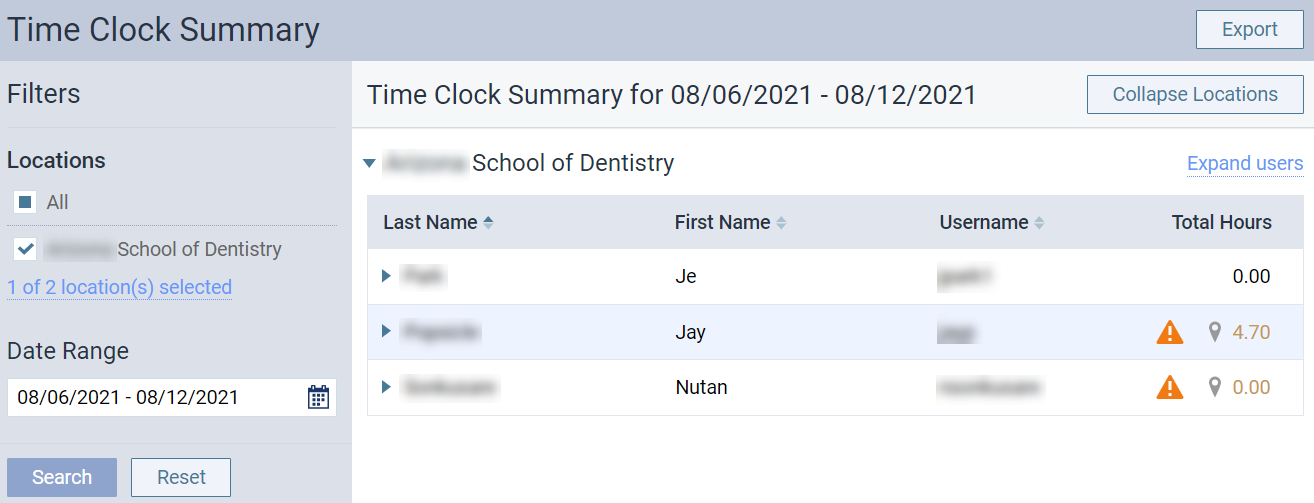
From the Home menu, under Location, clicktap Time Clock Summary.
The Time Clock Summary page displays.
-
On the Time Clock Summary page, set the filters as necessary. Skip this step if you're satisfied with the default filter settings.
Note: By default, the following filters are set to only display data from the location you're currently logged into and from the last 7 days.
-
Complete one of the following to set the Locations filter to displays punches from specific location(s). Skip this step if you're satisfied with the default setting:
-
To view data from all your locations, select the All check box.
-
To view data from other location(s), clicktap the link located below the selected location to display the Select Locations window.

From the window, select the necessary location(s) and clicktap Save.
-
-
Set the Date Range filter to display punches within a set date range. Skip this step if you're satisfied with the default Last 7 Days setting.
-
ClickTap the Date Range field and select one of the following:
-
Today
-
Yesterday
-
Last 7 Days
-
This Month
-
Specific Date
-
Custom Range
-
-
If you selected Specific Date, select a date from the generated calendar and clicktap Done.
-
If you selected Custom Range, select two dates from the generated calendars and clicktap Done.
-
-
-
ClickTap Search to generate a list of total worked hours based on the filters.
Important: Punches are automatically adjusted for any time zone differences that apply.
-
Select a user that has a
 icon under Total Hours to view their individual punches.
 Note: The
icon only displays for users that are missing punch(es). 
-
ClickTap the
 icon on the date that's missing a punch.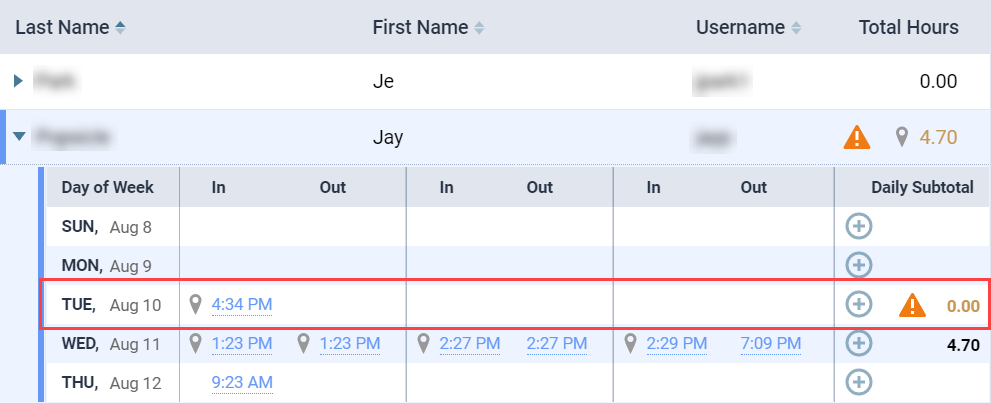
The Add Punch on [selected calendar date in MM/DD/YYYY format] tooltip displays.

-
Setup the following options:
-
Time - Enter the time of the punch in 12-hour format.
-
AM/PM - Set the toggle to AM or PM accordingly based on the Time field.
-
Location - Select the location of the punch from the drop-down list.
-
-
ClickTap Add.
Tip: If the button is disabled, press the Enter key or clicktap the tooltip to bring focus away from the Time field.
The added punch displays in bold text, and the action is audited in the Audit Log.

Comments
0 comments
Please sign in to leave a comment.