
Both completed forms and forms that are due now display in the Patient Information page on the Patient Forms tab. By default, the due date of a patient form is determined by the expiration date of that form. If necessary, you can change the due date to a different date.
To change the due date of a patient form
How to get there
-
From the Patient menu, under General, select Overview.
The patient's Overview page displays.
Note: If the correct patient is not already selected, use the Patient Search field to access the patient's record.
-
ClickTap the Patient Forms widget.
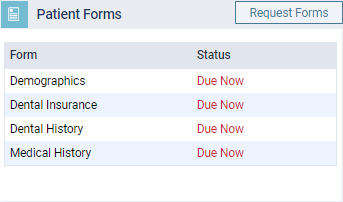
The Patient Information page displays with the Patient Forms tab selected.
-
On a patient's record > Patient Forms tab, review the listed patient forms.
-
Under the Due Date column, clicktap the Due Now or linked date that corresponds to a patient form.

Note: In the Last Received column, completed patient forms display the form's completion date, and patient forms that haven't been completed display Never.
-
From the displayed menu, select one of the following options:
-
Now - Changes the due date to today.
-
Tomorrow - Changes the due date to tomorrow.
-
Next Week - Changes the due date to seven days from today.
-
Next Month - Changes the due date to next month on the same day as today. If today's date is not applicable for next month (for example, today is the 31st but next month only has 30 days), the last day of next month will be the date that the form is due.
-
Six Months - Changes the due date to six months from today. If today's date is not applicable on the sixth month (for example, today is the 31st, but the sixth month from today only has 30 days), that month's last day will be the date that the form is due.
-
One Year - Changes the due date to a year from today.
Note: If today's date is the 29th of February, the 28th of February next year will be the due date.
-
Reset Due Date - Changes the due date according to the date the form was last received and the form's expiration date.
-
Custom Date - Changes the due date to a specific calendar date. If selected, choose a date on the calendar and clicktap Done.

-
Comments
0 comments
Please sign in to leave a comment.