
You can preview a patient's consent form for an accepted or rejected treatment plan case. If necessary, you can also print it.
To preview a patient consent form
How to get there
-
Use the Patient Search field to access a patient's record.
Notes:
-
If the last patient record you accessed since you last logged on is the correct patient's record, you do not need to re-enter the patient's name in the Patient Search field.
-
You can include inactive patients in the search results by setting the Include inactive patients toggle switch to On.
Important: If the Access Confidential Patient window displays after selecting the patient from the search results, it means the patient is a confidential patient and you don't have the security rights to access their record. To continue, a user with the security rights must enter their credentials into the window. Once given access, you have access to the patient's information until your session expires.
-
-
Complete one of the following:
-
From the Patient Information ribbon, clicktap the Tx Planner link.

-
From the Patient menu, under Clinical, clicktap Treatment Planner.
-
From the Patient menu, under General, clicktap Overview.
The patient's Overview page displays.
ClickTap the Treatment Plan widget.
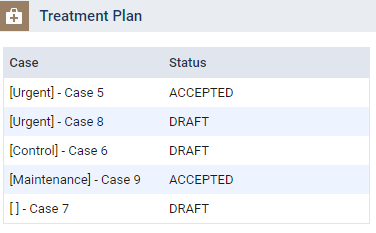
The patient's clinical record displays with the Tx Planner tab selected.
-
How to get there
-
Use the Patient Search field to access a patient's record.
Notes:
-
If the last patient record you accessed since you last logged on is the correct patient's record, you do not need to re-enter the patient's name in the Patient Search field.
-
You can include inactive patients in the search results by setting the Include inactive patients toggle switch to On.
Important: If the Access Confidential Patient window displays after selecting the patient from the search results, it means the patient is a confidential patient and you don't have the security rights to access their record. To continue, a user with the security rights must enter their credentials into the window. Once given access, you have access to the patient's information until your session expires.
-
-
Complete one of the following:
-
From the Patient menu, under General, clicktap Document Manager.
-
On the Patient Information ribbon, select the Document Manager link.
If the ribbon is not visible, click the arrow button below the Patient Search field.

The patient's Document Manager displays.
-
-
Preview a patient consent form from one of the following areas:
-
The Tx Planner tab of a patient's clinical record
-
On the Tx Planner tab of a patient's clinical record, select a case listed under a category.

The procedure(s) associated with the selected case display.
-
ClickTap the History link.

The History window displays.

-
On the displayed History window, clicktap a Patient Consent Form link.
Important:
-
If a treatment plan case was accepted or rejected by the patient without their e-signature, the link does not display.
-
The link only displays the consent form from the associated date and time. It does not display the latest form associated with the treatment.
-
-
(Optional) If there is no Patient Consent Form link, use the Preview button to preview the latest version of the treatment plan.
-
(Optional) To print the patient consent form, clicktap Print.
-
-
A patient's Document Manager
-
Navigate to a patient's Document Manager.
Important: The Document Manager page only displays signed consent forms. Any treatment plan cases that were accepted or rejected by the patient without their e-signature doesn't display on this page.
-
(Optional) Filter the list of patient's document(s) as necessary:
-
Search field - To locate a specific consent form, enter the location associated with the consent form, name of the associated treatment case, or the signed date in the MM/DD/YYYY format. As consent form's name is in [Location] - [Name of Tx Case] - [Signed date as MM/DD/YYYY], you can search by any one of the 3.

-
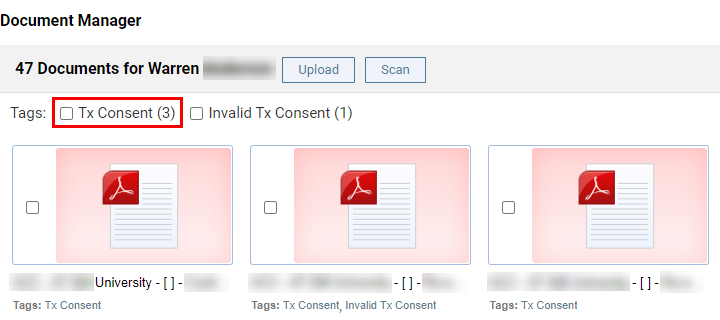
Tx Consent tag - Select the Tx Consent tag to display a list of patient's consent form(s).
-
Invalid Tx Case - Select the Invalid Tx Case tag to display a list of patient's consent form(s) that are no longer valid. A patient's consent form is no longer valid when the associated treatment plan went through a modification that required a re-submission of patient's consent. Once a new patient consent form is submitted with their e-signature, the Invalid Tx Consent tag is added to the consent form for the original treatment plan, and is considered invalid.

-
-
ClickTap a patient consent form to display a print version of the consent form on a new window tab. If desired, you can print or save the print version from the tab.
-
A patient's consent form displays.

Important:
-
If the patient consent form is invalid, the INVALID watermarks display on the top right corners of all pages of the report. A patient consent form is invalid if the associated treatment plan is not in the Accepted or Rejected status or if it's not the latest version for the treatment plan.
-
When there's an entry in the Date Updated and Approved by columns under Planned Procedure, it means the treatment plan was previously approved, but required re-approval and recollection of the patient's e-signature. This happens when changes are made to an approved procedure. The Date Updated column captures the calendar date of the change to the procedure was approved and the Approved by column displays the full name of the faculty that made the approval.
-
The patient consent form displays with the patient's e-signature and the full name of the provider that presented the treatment plan and captured the patient's signature.

-
At the end of the patient consent form, the e-signature and the full name of the faculty that approved the treatment plan displays with the date of the approval. If the treatment plan went through multiple approval due to changes when it was in Accepted status, the consent form displays the the e-signature of the faculty that initially approved the treatment plan.
-
Comments
0 comments
Please sign in to leave a comment.