
You can view and edit a completed patient form from various areas of Ascend Academic.
To view and edit a completed patient form
How to get there
-
From the Patient menu, under General, select Overview.
The patient's Overview page displays.
Note: If the correct patient is not already selected, use the Patient Search field to access the patient's record.
-
Scroll to the Patient Forms widget.
How to get there
-
From the Patient menu, under General, select Overview.
The patient's Overview page displays.
Note: If the correct patient is not already selected, use the Patient Search field to access the patient's record.
-
ClickTap the Patient Forms widget.
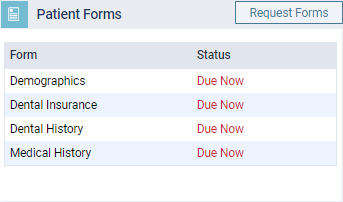
The Patient Forms tab of the patient's record displays.
-
ClickTap a patient form.
Tip: If a section has multiple patient forms, you can expand the list of patient forms associated with the section and clicktap the correct patient form.

Note: Completed patient forms display the completion date in the Last Received column.
How to get there
-
From the Schedule menu, select Calendar.
The Calendar page displays.
-
ClickTap an appointment.
The Appointment Information panel displays.
-
ClickTap Forms.

A window opens to display the patient forms that have been completed and those that are due.
Tip: You can also clicktap See all Forms to open the patient's Document Manager page and clicktap a document with a Forms tag.
Note: You cannot edit any forms from here.

-
ClickTap a form that has a Received on status.
How to get there
-
From the Schedule menu, select Unconfirmed Appointments.
The Unconfirmed Appts page displays.
-
ClickTap Forms.

A window opens to display the patient forms that have been completed and those that are due.
How to get there
-
From the Patient menu, under General, select Document Manager.
The patient's Document Manager page displays.
Note: If the correct patient is not already selected, use the Patient Search field to access the patient's record.
-
ClickTap a document with a Forms tag.
Note: You cannot edit any forms from here.
How to get there
-
From the Patient menu, under Clinical, select Chart.
The patient's clinical record displays with the Chart tab selected.
Note: If the correct patient is not already selected, use the Patient Search field to access the patient's record.
-
ClickTapForms.

A window opens to display the patient forms that have been completed and those that are due.
-
ClickTap a form that has a Received on status.
-
On a patient's Overview page > Patient Forms widget, clicktap a form that has a Received on status.
Tip: You can also display a completed form from the Patient Forms tab, the Calendar page > Appointment Information panel, the Unconfirmed Appointments page, the patient's record > Document Manager or the patient's record > Chart tab.

One of the following occurs:
-
The completed form displays on a new tab of your Web browser.

-
The completed form displays in a pop-up window.

Note: If a patient has completed a patient form multiple times, Ascend Academic displays the current version by default. Any information updated from the previous version displays in blue text.
-
-
(Optional) To view a previous version of the form, set the toggle on the top of the form to Previous.

Note: The toggle only displays for patient forms that have been completed multiple times.
-
(Optional) Edit the current version of the patient form.
Note: The form can only be edited if it displays in a pop-up window.
-
ClickTap the
 icon.
icon. -
Make all necessary changes.
-
In the Signature field, sign the form by using the mouse or a finger (on touch-enabled devices only) .
-
ClickTap Save to save the changes.
The updated form is saved as a new, separate patient form. On the Patient Information page > Patient Forms tab, the form displays Updated on next to the form name as well as the date the changes were made and the ID of the user logged in to Ascend Academic when the changes were saved.

-
Comments
0 comments
Please sign in to leave a comment.