
With Ascend Detect AI activated, you can open the Huddle dashboard on Videa Health's website from Ascend Academic Imaging. The dashboard can help you review patients that are that are due for bitewings, perio charting, or a prophy. It also identifies patients with potential periodontal disease and/or potential restorations. This is the first phase of development for this feature.
The information on the dashboard is gathered when you acquire images in Ascend Academic Imaging. Initially, you will use the dashboard retroactively to review patients that were seen that day. Later, as you acquire more patient images, you will be able to use the Huddle dashboard more proactively.
Use the Huddle dashboard at the end of the day to review the patients that were just seen to see if treatment was missed. This gives you an opportunity to check a patient's perio exam to see if periodontal disease was noted or to check if a treatment plan for restorations was created for a patient. Even during its initial use, the Huddle dashboard can help you find potential production for your practice.
Later, in the next six-month recare cycle, you will be able to see patients who are due for bitewings, perio charting, or a prophy. This can be extremely useful; for example, if a patient is coming in for a filling, you can see that they are due for prophy and bitewings. You can either schedule an appointment before the patient leaves or try to schedule the treatment for that day if there is an opening in the hygiene schedule.
To open the Huddle dashboard
How to get to there
-
From the Patient menu, under Clinical, select Imaging.
The patient record displays with the Imaging tab selected.
Tip: You can also access imaging from other clinical areas such as Chart, Progress Notes, Quick Exam, Perio, or Tx Planner.
Note: If the correct patient is not already selected, use the Patient Search field to access the patient's record.
-
On the patient's record > Chart tab, complete one of the following:
-
View an image from the patient's image history list.
-
ClickTap the Imaging tab's menu and select Show Image History.

-
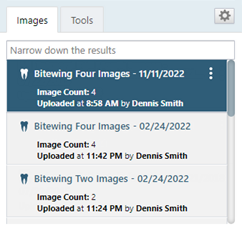
On the Images tab, select an exam for an individual image or a series.
-
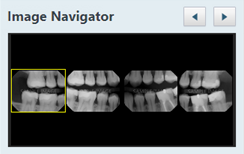
If you have selected a series, under Image Navigator, clicktap an image of that series.
-
-
View one of the patient's most recent images.
-
ClickTap the Imaging tab's menu and select Show Most Recent Images.
-
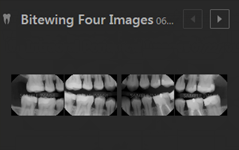
ClickTap an individual image or an image in a series.
-
The selected image displays in the viewing area.

-
-
ClickTap the Tools tab.

-
ClickTap the AI tool and clicktap the AI Patient List link.

Note: You are logged in automatically.
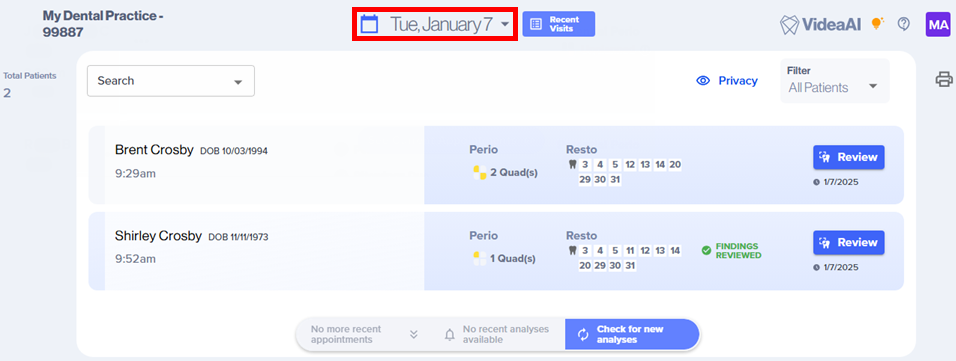
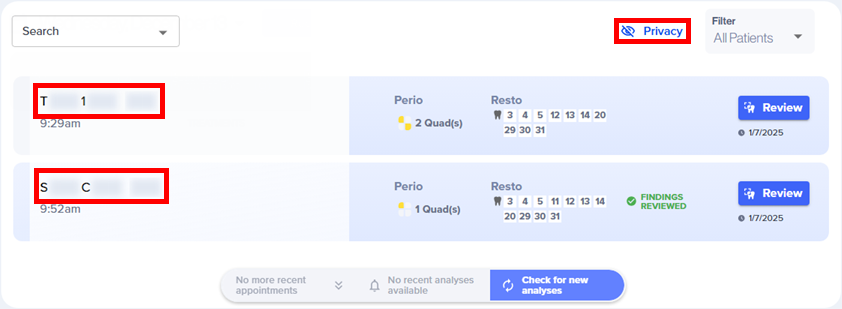
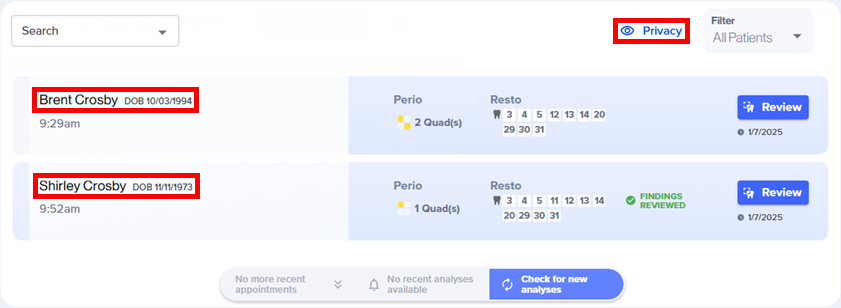
By default, the website displays the dashboard for today's date with patient names and ages hidden. The dashboard displays treatments, tasks, and AI findings for each patient listed if they are due. Additionally, the dashboard displays potential periodontal disease or caries requiring restorations for a patient if detected by the AI.
Notes:
-
The dashboard automatically updates about five to fifteen minutes after images are acquired in Ascend Academic Imaging. You can view the number of hours, time, and date of the last update at the top of the dashboard. You can also see the update for each patient.

-
If names and ages are hidden, to show them, clicktap Privacy On or the crossed-out icon.
-
If names and ages are visible, to hide them, clicktap Privacy Off or the icon.
-
To view a patient's birth date, clicktap the corresponding ellipsis.

-
-
Complete any of the following:
-
Review the toolbar
At the top of the dashboard, a toolbar displays the total number of appointments for that day and a task filter that displays the total number of: Patients with bitewings due, Patients with a perio chart due, and Patients with a prophy due.

Note: These numbers automatically update within 5 to 15 minutes after you acquire patient images. So, the numbers will update throughout the day as you see patients.
-
Filter information
-
Filter by task - To filter the information on the dashboard by task, clicktap Patients with Bitewings Due, Patients with Perio Chart Due, or Patients with Prophy Due.

Note: When you first start using the dashboard, these numbers will be zero because they are calculated on patient images that were acquired since this feature was enabled. As you continue to acquire images, these numbers will automatically update so that in the next six-month cycle, you will be able to monitor patients that are due for bitewings, a perio exam, or prophy.
Example: If you clicktap Patients with Bitewings Due, the dashboard lists the patients who are due for bitewings that day even if bitewings may not be among the procedures planned for today.

-
Filter by time, radiographs, or findings - To filter the information on the dashboard, select an option from the Sort & Filter list: Appt. Time (earliest), Appt. Time (latest), Radiographs available, Resto Findings, or Perio Findings.

Note: By default, Appt. Time (earliest) is selected.
-
Filter by operatory - To filter the information on the dashboard by operatory, select the checkboxes of the desired operatories on the Operatories list.

Note: By default, no operatories are selected.
-
-
Review patient information
-
ClickTap the status icon under Potential Perio or Potential Resto (Potential Restoration) to view a thumbnail image and review the AI findings.
 ?
?
Note: Radiographs and findings are from the image set taken on (or closest to) the selected appointment date.
-
ClickTap Review to open the full image in VideaAssist and review all AI findings.

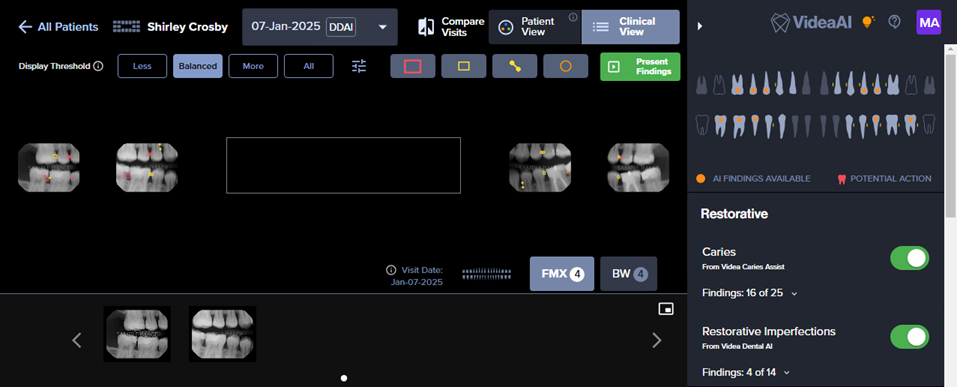
Note: After you clicktap Potential Perio, Potential Resto, or Review, a green checkmark and Findings Reviewed displays.

-
ClickTap the printer icon to print the information on the dashboard to refer to at the end of the day so you can check the following for patients seen that day:
-
If bitewing radiographs, perio exams, or prophy treatments that were due were performed.
-
If perio restorative treatments were charted (in Chart, Quick Exam, or Treatment Planner).

-
-
ClickTap Recent Visits to display historical patient information.

-
-
Comments
0 comments
Please sign in to leave a comment.