
With Ascend Detect AI activated, as you acquire an individual bitewing or a series that contains bitewings, each image is submitted to Videa Health automatically.

When you finish the acquisition, the results of the caries analysis display on the image automatically. Boxes display on the image where areas of concern were detected, and the number of areas that were detected displays in fine print at the bottom of the image.

Note: If an error occurs during submission, on the error message that displays, complete one of the following:
-
To resubmit the image for analysis, clicktap Re-Submit.
-
To end the acquisition mode without resubmitting the image for analysis, clicktap Finish Acquisition. You can manually submit the image for analysis later.
-
To continue to the next step in the acquisition sequence without resubmitting the current image for analysis, clicktap the X. You can manually submit the image for analysis later.
Complete any of the following:
-
If you have acquired a series with other bitewings, to view the caries detection results for another image in that series, clicktap that image under Image Navigator.
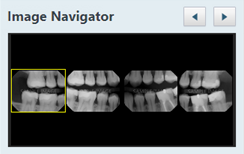
-
For a selected bitewing, select the AI tool.

The number of areas of concern that were detected displays on the left.
Notes:
-
If the Auto-Submit Historical Images checkbox is selected, when you view any image that was not analyzed previously, the image is submitted for analysis automatically.
-
To switch between showing and hiding the caries indicator boxes, clicktap the Select object(s) to Display
 icon to display the Select Object(s) to Display window, select or clear the AI Findings checkbox, and clicktap Confirm.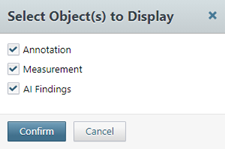
-
To switch between showing and hiding all annotations, measurements, and caries indicator boxes for the image, clicktap the Show/hide annotations and measurements
 icon. The icon is available only if an annotation, a measurement, or caries analysis has been applied to the image.
-
Note: If you rotate an image or zoom in or out, it is automatically resubmitted for analysis, and it may take 3-5 seconds for the indicator boxes to redisplay.
Comments
0 comments
Please sign in to leave a comment.