
You can choose which types of Ascend Detect AI findings to show on an image: caries, radiographic bone levels (RBL), and/or root tips. You can also show or hide all findings or a specific finding on an image. Being able to filter certain findings allows you to simplify and focus on patient education while presenting treatment plans.
Note: Changing the view options for Detect AI findings is temporary and affects only the image being viewed. Each time you view an image, whether or not you have previously hidden findings for that image, all findings are shown by default.
To hide and show Detect AI findings
How to get to there
-
From the Patient menu, under Clinical, select Imaging.
The patient record displays with the Imaging tab selected.
Tip: You can also access imaging from other clinical areas such as Chart, Progress Notes, Quick Exam, Perio, or Tx Planner.
Note: If the correct patient is not already selected, use the Patient Search field to access the patient's record.
-
On the patient's record > Chart tab, complete one of the following:
-
View an image from the patient's image history list.
-
ClickTap the Imaging tab's menu and select Show Image History.

-
On the Images tab, select an exam for an individual bitewing or a series of bitewings.

-
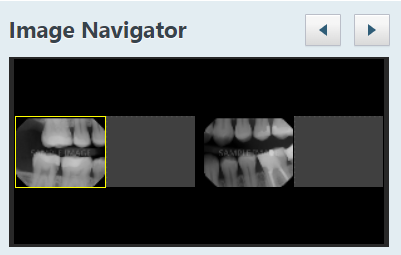
If you have selected a series, under Image Navigator, clicktap an image of that series.
-
-
View one of the patient's most recent images.
-
ClickTap the Imaging tab's menu and select Show Most Recent Images.
-
ClickTap an individual bitewing image or an image in a series of bitewings.

-
The selected image displays in the viewing area.

-
-
Complete any of the following as needed:
-
Hide all visible findings
-
ClickTap anywhere on the image where there is not a finding and select Hide all findings.

-
-
Hide a specific finding
-
ClickTap a finding on the image and select Hide this finding.

-
-
Hide all but one specific finding
-
ClickTap a finding on the image and select Show only this finding.
-
-
Show all findings if any are hidden
-
ClickTap anywhere on the image (except where there is a finding if any are visible) and select Show all findings.
-
-
Hide or show findings by type
By default, all types of findings are shown on an image, but you can hide and re-show findings by type as needed.
-
ClickTap anywhere on the image and clicktap one of the following options (or deselect/select the checkbox) to hide or show the corresponding type of finding:
-
Show Caries - A checkmark next to this option indicates that caries detections are currently being shown but will be hidden when you clicktap this option or clear the checkbox. No checkmark next to this option indicates that caries detections are currently being hidden but will be shown when you clicktap this option or select the checkbox.
-
Show RBLs - A checkmark next to this option indicates that radiographic bone loss measurements are currently being shown but will be hidden when you clicktap this option or clear the checkbox. No checkmark next to this option indicates that radiographic bone loss measurements are currently being hidden but will be shown when you clicktap this option or select the checkbox.
-
Show Root Tips - A checkmark next to this option indicates that root tips are currently being shown but will be hidden when you clicktap this option or clear the checkbox. No checkmark next to this option indicates that root tips are currently being hidden but will be shown when you clicktap this option or select the checkbox.
-
-
-
Comments
0 comments
Please sign in to leave a comment.