
With Ascend Detect AI activated, you can open VideaAssist on Videa Health's website from Ascend Academic Imaging. The website provides tools for viewing images in greater detail, filtering caries by severity (size), and comparing two images to see changes over time.
To open VideaAssist
How to get to there
-
From the Patient menu, under Clinical, select Imaging.
The patient record displays with the Imaging tab selected.
Tip: You can also access imaging from other clinical areas such as Chart, Progress Notes, Quick Exam, Perio, or Tx Planner.
Note: If the correct patient is not already selected, use the Patient Search field to access the patient's record.
-
On the patient's record > Chart tab, complete one of the following:
-
View an image from the patient's image history list.
-
ClickTap the Imaging tab's menu and select Show Image History.

-
On the Images tab, select an exam for an individual image or a series.

-
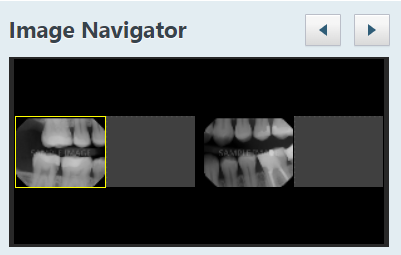
If you have selected a series, under Image Navigator, clicktap an image of that series.
-
-
View one of the patient's most recent images.
-
ClickTap the Imaging tab's menu and select Show Most Recent Images.
-
ClickTap an individual image or an image in a series.

-
The selected image displays in the viewing area.

-
-
ClickTap the Tools tab.

-
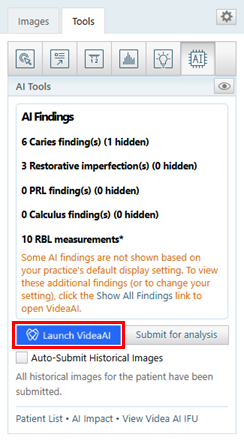
ClickTap the AI tool and clicktap the Launch Videa AI link.
Note: You are logged in automatically.

The website opens the current image automatically.

Note: If you rotate an image or zoom in or out, it is automatically resubmitted for analysis, and it may take 3-5 seconds for the indicator boxes and lines to redisplay.
While viewing the AI tools for an image, you can now open the Videa AI website by clicking the Launch VideaAI button.
Comments
0 comments
Please sign in to leave a comment.