
When ready, you can post a treatment-planned procedure as complete in a patient's clinical chart. You can also post a procedure that is attached to an appointment that is scheduled for today.
Important: Completed procedures display in the clinical record and financial record. Posting or editing a completed procedure in either of these areas affects the other area.
Tip: If a condition has not already been linked to the procedure, you can do so now. This can help reduce the number of rejected insurance claims due to missing condition codes.
To complete treatment
How to get there
-
Use the Patient Search field to access a patient's record.
Notes:
-
If the last patient record you accessed since you last logged on is the correct patient's record, you do not need to re-enter the patient's name in the Patient Search field.
-
You can include inactive patients in the search results by setting the Include inactive patients toggle to On.
Important: If the Access Confidential Patient window displays after selecting the patient from the search results, it means the patient is a confidential patient and you don't have the security rights to access their record. To continue, a user with the security rights must enter their credentials into the window. Once given access, you have access to the patient's information until your session expires.
-
-
From the Patient menu, under Clinical, clicktap Progress Notes.
The patient's clinical record opens with the Progress Notes tab selected.
How to get there
-
Use the Patient Search field to access a patient's record.
Notes:
-
If the last patient record you accessed since you last logged on is the correct patient's record, you do not need to re-enter the patient's name in the Patient Search field.
-
You can include inactive patients in the search results by setting the Include inactive patients toggle to On.
Important: If the Access Confidential Patient window displays after selecting the patient from the search results, it means the patient is a confidential patient and you don't have the security rights to access their record. To continue, a user with the security rights must enter their credentials into the window. Once given access, you have access to the patient's information until your session expires.
-
-
ClickTap the thin, vertical bar on the left side of your browser window.
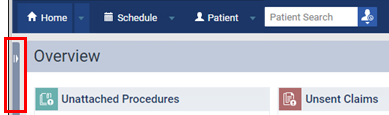
The Patient Routing panel displays.
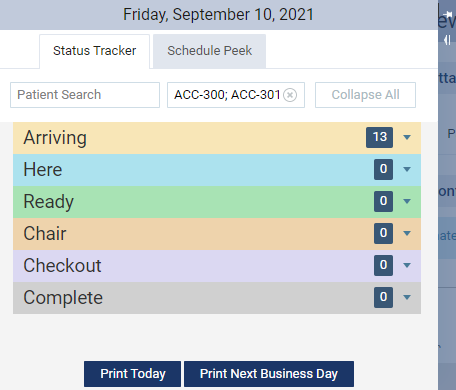
Note: By default, the Status Tracker tab is selected and the status sections are collapsed. The number of patients within a status displays on the section header.
-
Access one of the following:
-
Open the patient's record > Progress Notes tab to display any procedures scheduled for today and the patient's procedure history.
-
Open the Patient Routing panel.
-
-
(Optional) If necessary, modify the procedure to link a condition.
Note: You cannot modify procedures from the Patient Routing panel.
-
Perform any of the following:
-
Post a procedure scheduled for today to the ledger from the Progress Notes tab.
-
Select the Scheduled for today radio button.
-
Next to a listed procedure, clicktap Post.
-
If prompted that the procedure requires that treatment areas (such as, a tooth number and surfaces), enter the correct treatment areas as necessary.

-
-
Complete and post a treatment-planned procedure to the ledger from the Progress Notes tab.
-
Select the All radio button.
-
Next to a listed procedure, clicktap Complete.

-
-
Mark a condition as treated from the Progress Notes tab.
Note: This condition remains part of the patient's clinical record, but nothing is posted to the Ledger.
-
Select the All radio button.
-
Next to a listed condition, clicktapTreat for a condition that you have treated.

-
-
-
Complete a treatment-planned procedure from the Patient Routing panel.
-
Open the correct section to locate the appointment.
Note: You can only complete treatment-planned procedures that are attached to an appointment with a Chair, Checkout, or Completed status.
-
Next to a single treatment-planned procedure, clicktap Complete.
Tip: To complete all the treatment-planned procedures at once, clicktap Complete All.

-
Comments
0 comments
Please sign in to leave a comment.