
You can delete a punch to remove it from the records. However, the action will be audited in the Audit Log.
Important: You need the Time Clock Summary use role permission set to delete a punch.
To delete a punch
How to get there
-
From the Home menu, under Location, clicktap Time Clock Summary.
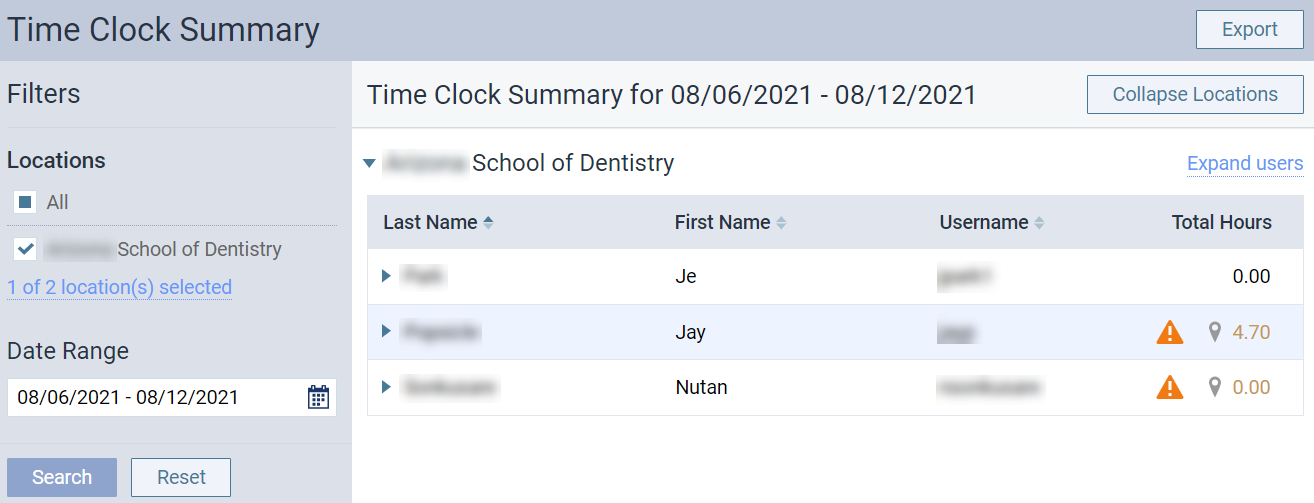
The Time Clock Summary page displays.
-
On the Time Clock Summary page, set the filters as necessary. Skip this step if you're satisfied with the default filter settings.
Note: By default, the following filters are set to only display data from the location you're currently logged into and from the last 7 days.
-
Complete one of the following to set the Locations filter to displays punches from specific location(s). Skip this step if you're satisfied with the default setting:
-
To view data from all your locations, select the All check box.
-
To view data from other location(s), clicktap the link located below the selected location to display the Select Locations window.

From the window, select the necessary location(s) and clicktap Save.
-
-
Set the Date Range filter to display punches within a set date range. Skip this step if you're satisfied with the default Last 7 Days setting.
-
ClickTap the Date Range field and select one of the following:
-
Today
-
Yesterday
-
Last 7 Days
-
This Month
-
Specific Date
-
Custom Range
-
-
If you selected Specific Date, select a date from the generated calendar and clicktap Done.
-
If you selected Custom Range, select two dates from the generated calendars and clicktap Done.
-
-
-
ClickTap Search to generate a list of total worked hours based on the filters.
Important: Punches are automatically adjusted for any time zone differences that apply.
-
Select a user to view their individual punches.

-
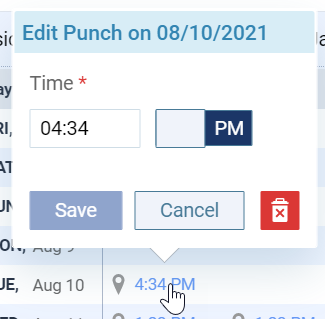
Select a punch to display the Edit Punch on [calendar date of the punch in MM/DD/YYYY format] tooltip.
-
ClickTap
 . When prompted to confirm the deletion, clicktap Delete.
Comments
0 comments
Please sign in to leave a comment.