
From the Patient Routing panel, you can quickly view a day's appointments in a specific operatory or for a specific provider. This is useful, for example, if you are in an area of axiUm Ascend other than the Calendar page, you just need a quick peek at the schedule, and you do not want to have to leave the page you are on and then return to it after you look at the schedule.
To peek at the schedule
ClickTap the Schedule Peek tab.

Do any of the following as needed:
Change the day - By default, today is selected. To view a different day's appointments on the panel, clicktap the Back or Forward button at the top of the panel. You can view only yesterday's, today's, or tomorrow's appointments on the panel.
Specify an operatory - To view appointments scheduled in a specific operatory, from the left-hand list, select Operatory, and then select an operatory from the right-hand list.

Specify a provider - To view appointments scheduled with a specific provider, from the left-hand list, select Provider, and then select a provider from the right-hand list.
Note: If your organization has multiple locations, a provider will be available for selection only if that provider has been set up with rights to the current location.
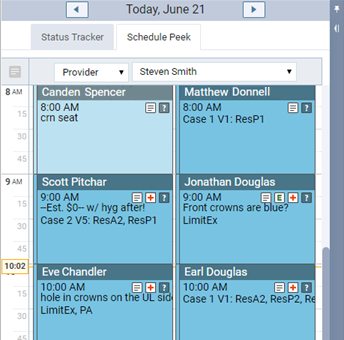
Open a patient's record - To open a patient's record, clicktap his or her appointment on the panel. The corresponding patient now appears in the Patient Search field at the top of axiUm Ascend.
Note: If you haven't selected a patient since you opened your browser and logged in to axiUm Ascend, this patient's clinical record opens with the Chart tab selected. Otherwise, the page of this patient's record that opens is the same page as the one that you last viewed in the record of the patient previously selected. For example, if you are viewing the Chart tab of John's clinical record, when you clicktap Susan's appointment, Susan becomes the selected patient, and her clinical record opens with the Chart tab selected.
Open a patient's appointment - To view a patient's appointment on the Calendar page, with the Appointment Information panel open so that you can edit the appointment as needed, double-clickdouble-tap his or her appointment on the panel.
Comments
0 comments
Please sign in to leave a comment.