
For the current date, you can print route slips for all patients with appointments in all operatories or a specified operatory, and you can print a route slip for an individual patient. Also, you can print route slips for patients with appointments scheduled on your location's next business day.
To print route slips
-
To open the Patient Routing panel, clicktap the thin, vertical bar on the left side of your browser window.
Tip: The Patient Routing panel is available at all times while you are logged in to Ascend Academic.
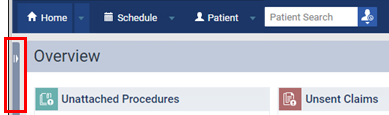
-
(Optional) Use the operatory drop-down list or the Patient Search field to filter the displayed list of patients by specific operatory or name.
Note: You cannot use the operatory drop-down list or the search field together. When you use one of the filters, the other is disabled.

-
Complete one of the following as necessary:
-
To print today's route slips or the route slip for one patient with an appointment today (if the routing panel is being filtered by patient), expand the Print Route Slip menu and clicktap Today.
-
To print the route slips for the next day (relative to today) with appointments, expand the Print Route Slip menu and clicktap Next Business Day.
-
To print the route slips for a specified day with appointments, expand the Print Route Slip menu and clicktap Specific Date, select the correct date on the calendar, and clicktap Print.
-
To print a route slip for one patient with an appointment today, clicktap the section header that corresponds to the patient's current status to expand that section, and click the Print Route Slip link for the patient.
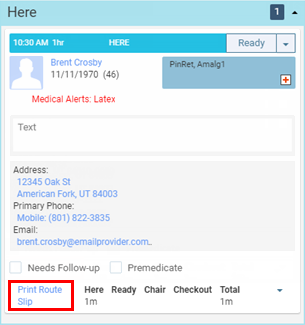

The route slips display on a new browser tab as a .pdf file so that you can save or print it.
-
Comments
0 comments
Please sign in to leave a comment.