
Notifications are generated when a change or action occurs that may require your attention. They display on the bottom-right corner of your screen, and remain until you dismiss them or log out.
Types of notifications
-
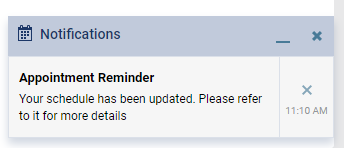
Appointment Reminder - Displays when a user does any of the following to an appointment that has you set as the appointment provider:
-
Create an appointment that is scheduled within the next two hours.
-
Modify an appointment that is outside the 2-hour time frame to within the next two hours.
-
Modify an appointment within the 2-hour time frame to another time within the time frame.
-
-
Evaluation Reminder - Displays when a student provider clickstaps the Remind Faculty button on an evaluation request that has you set as the faculty evaluator. The notification contains the full name of the student provider that sent the reminder, and you can clicktap it to open the evaluation request to complete it.

Important: If you have multiple Evaluation Reminder notification messages, you can use them to navigate and address multiple evaluation requests. However, if you select a notification message to open an evaluation request while you already have an evaluation request open, Ascend Academic does not display the selected evaluation request. Instead, the evaluation request remains open, and the URL of your workstation is set to the selected evaluation request that did not open. To navigate through multiple evaluation requests by using the notification messages, you must complete or save and exit one evaluation request, then open a different one.
-
Operatory Change - Displays when a user edits the operatory of an appointment that has you set as the appointment provider and scheduled within the next two hours.

-
Provider Change - Displays when a user edits the appointment provider of an appointment that has you set as the appointment provider and is scheduled within the next two hours.

Note: This notification only displays for the new appointment provider.
-
Re-scheduled Appointment - Displays when a user edits the date and/or time of an appointment that is originally scheduled within the next two hours outside the 2-hour time frame and has you set as the appointment provider.

-
Status Change - Displays when a user changes the status of an appointment based on your subscriptions. You can clicktap the notification to display the appointment on the Patient Routing panel.
-
Imaging Retake Request - Displays when a user is prompted with a Request Retake Limit Override Approval window, sets you as the attending provider, and clickstaps the Request Approval button. The notification contains the full name of the provider that sent the request and requests override approval to take additional image retakes for a specific patient.

Note: If you are logged out of Ascend Academic when the change or action occurs, the notification does not display when you log in.
Tip: A sound may accompany notifications if your notification settings are configured to allow a sound to be played, your computer has speakers connected, and the volume is properly set.
To handle notifications
-
When generated, review the notification on the bottom-right corner of your screen.

-
When ready, complete any of the following to address the notifications:
-
To dismiss an individual notification, clicktap the X icon next to the notification.
-
To dismiss all notifications, clicktap the X icon on the Notifications title bar.
-
To minimize or restore your notifications, clicktap the
 or
or  icon on the Notifications title bar as necessary.
-
Comments
0 comments
Please sign in to leave a comment.