
You can subscribe to receive notifications as pop-up messages when an appointment's status changes to a different status. You can specify your subscriptions to receive notifications when appointments changes to different status and has specific provider(s) as the appointment provider, is at specific operatories, and/or updates to specific status(es).
Note: Each Ascend Academic user can have different subscription settings.
To subscribe to notifications
-
From the Hi, [user name] menu, select Notifications.

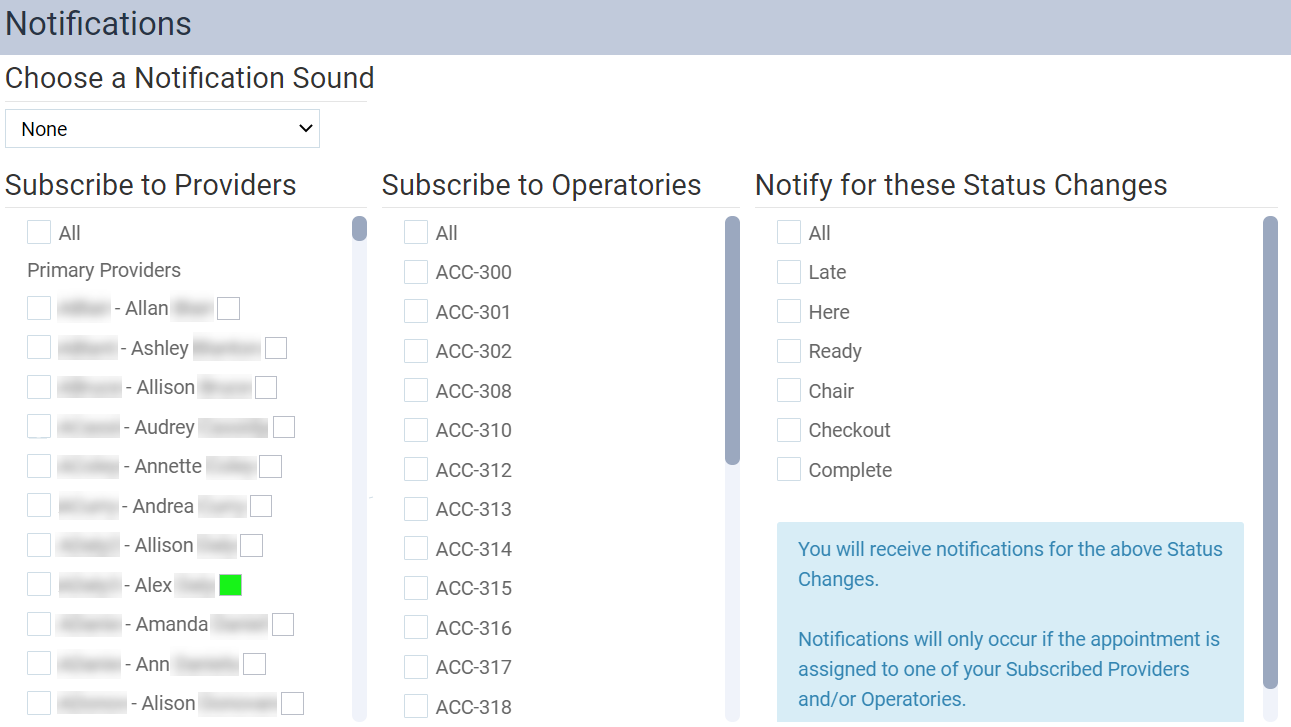
The Notifications page displays.
-
Configure any of the following options.
-
Choose a Notification Sound - Select the sound you want as your notification sounds from the drop-down menu. Once selected, you can play it to hear what it sounds like by clickingtapping the generated Play button. If you do not want your notifications to be accompanied by a sound, you can set the field to None.
Tip: Confirm your device's audio settings are properly checked before you test any sounds.
-
Subscribe to Providers - Select the check boxes of providers that you want to be notified when their appointments update to a different status. If you want all providers to be notified, select All. A notification displays if another user changes the status of an appointment for which one of the selected providers is the appointment provider (regardless of the operatories and statuses that you are subscribed to) to Late, Here, Ready, Chair, or Complete.
Note: Only providers who have access to the current location are available.
-
Subscribe to Operatories - This provides notifications for changes in the status of appointments in the specified operatories. Select the All check box to include all operatories, or select only the check boxes of specific operatories. A notification displays if another user changes the status of an appointment that is in one of the selected operatories (regardless of the providers and statuses that you are subscribed to) to Late, Here, Ready, Chair, or Complete.
-
Notify for these Status changes - This provides notifications for changes in the specified statuses of appointments. Select the All check box to include all statuses, or select only the check boxes of specific statuses. A notification displays if another user changes the status of an appointment to one of the selected statuses (according to the providers and operatories that you are subscribed to). Also, the Upcoming Appointments panel (a virtual route slip) displays only the appointments that have one of the selected statuses.
Note: You must subscribe to at least one provider or operatory in order to subscribe to any status changes.
All changes are saved automatically.
-
Comments
0 comments
Please sign in to leave a comment.