
If you have forgotten your password, you can reset it so that you can login to Ascend Academic.
To reset your password
-
From the Login page for Ascend Academic website, clicktap the Forgot Password? link.

The Recover your password page displays.

-
Confirm that your Practice ID (organization name or customer ID) and Username are correct. If either one is not, type the correct information.
Note: You must know both of these pieces of information to reset your password.
-
ClickTap Send.
A confirmation message displays, and an email message is sent to you that contains instructions on how to reset your password.
-
Open your email program, and locate the automated email message that was sent from Ascend Academic Support. ClickTap the Set your password link in that message.
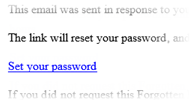
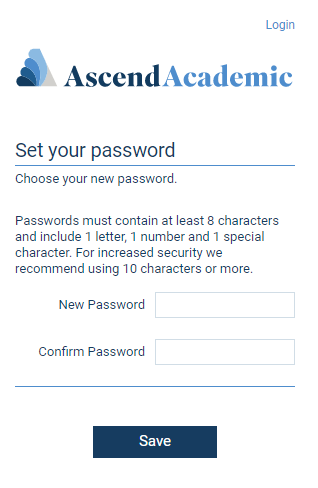
The Ascend Academic website opens to the Set your password page.
-
Type a new password in the New Password and Confirm Password fields. The password is masked as you type.
Important: Passwords must be at least eight characters in length and include at least one letter, one number, and one special character (e.g., #, $, &, and %). Passwords are case-sensitive.
-
ClickTap Save.
Now you can log in using the new password that you have just created.
Comments
1 comment
Can we have updated screenshots to this article? We reference this article a lot and it is confusing to some users since it states Dentrix Ascend.
Please sign in to leave a comment.