
A consent form is a patient form that patients use to provide consent or agreement to the statement on the form by reading it and selecting a check box. You can customize and activate up to five consent forms per location in your organization. By default, three of the five are blank. Activating a form makes it available for all patients to complete online.
Note: Each consent form, including its activation status, is location-specific.
To customize a consent form
How to get there
-
From the Settings menu, under Location, select Patient Forms.
The Patient Forms page displays.
Note: If the correct location is not already selected, use the Location menu to select it.
-
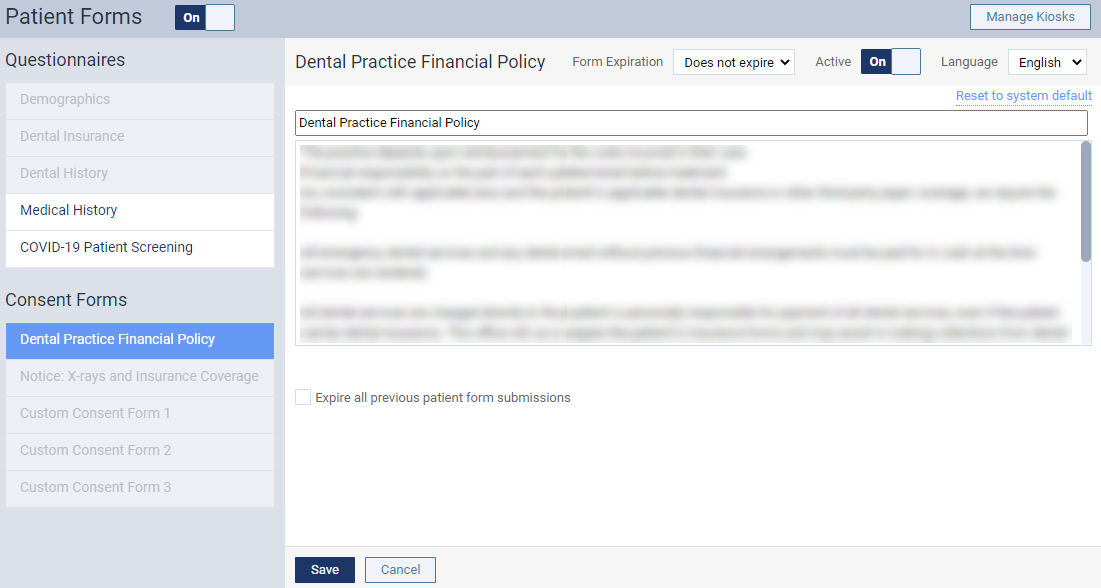
On the location's Patient Forms page, under Consent Forms, select a consent form.
The options for the form become available.
-
Set up the following:
-
Form Expiration - From the drop-down list, select how long the form is valid for before it expires and requires the patient to resubmit the form.
Example: If you select 5 months, the form is valid for five months after a patient completes the form. Five months after the completion date, the patient needs to complete the form again.
-
Language: To customize the English version of the consent form, select English from the drop-down list. To customize the Spanish version, select Spanish.
-
English consent form title and text or Spanish consent form title and text - Enter the title and statement(s) in the appropriate fields. It must be in the language set by the Language drop-down list, and the text must be between 20 to 100,000 characters long.
Important: Ascend Academic will display the Spanish version to a patient if a Spanish version has been created and the patient has Spanish set as their preferred language in their records.
Note: To reset the fields, clicktap the corresponding Reset to system default link.
-
-
(Optional) Repeat Step 2 to customize another language version of the form.
Note: The available language versions include English and Spanish.
-
(Optional) To activate the form, set the Active toggle to On. To deactivate the form, set the Active toggle to Off
-
ClickTap Save.
Comments
0 comments
Please sign in to leave a comment.