
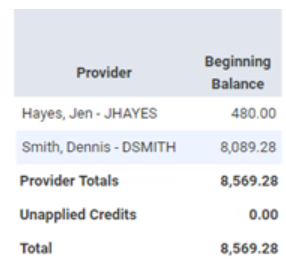
The Provider A/R Totals Report can indicate how effective your collection efforts are. This report displays total accounts receivable, total production, total collections, and a ratio (%) of collections to production. The report can also include unapplied credits. You should run this report and review it with your staff at least once a month (some consultants even suggest running it weekly).
To generate the report
-
On the Home menu, under Reports, clicktap Provider A/R Totals.
The Provider A/R Totals page displays.
-
On the Provider A/R Totals page, set the following options:
-
Locations - The totals for transactions in the selected locations. Complete any of the following:
-
Select the All check box to include totals for transactions in all locations in the organization. Or, clear the check box to not include totals for transactions in any location in the organization.
-
Select or clear the check box next to the current location name to include or to not include the totals for transactions in that location.
-
ClickTap Select Locations to select or deselect locations.
Note: Only locations that you have access to are available.
-
-
Date Range - The date or date range of transactions to include on the report. Leave the current date selected or select the necessary date (Today, Yesterday, or a Specific Date) or date range (Last Week, Last Month, Last Quarter, Last Six Months, Last Year, or a Custom Range).
-
Report By - Select one of the following options:
-
Applied Date - To include totals for transactions according to the date when payments, credit adjustments, and/or unallocated credits were applied to charges.
-
Created Date - To include totals for transactions according to the date when payments, credit adjustments, and/or unallocated credits were entered (when the ledger entries were added to the database).
-
-
Provider - The provider totals to include on the report. Select whether you want the report to display totals for all providers or a specific provider. Locations and business entities that have been set up as billing providers are also available for selection.
-
Include Unapplied Credits - Select whether you want the report to display unapplied credits or not.
-
-
ClickTap Search.
The report displays according to the specified filters.

-
To print the report, clicktap Print.
The report consists of the following sections.


Comments
0 comments
Please sign in to leave a comment.