
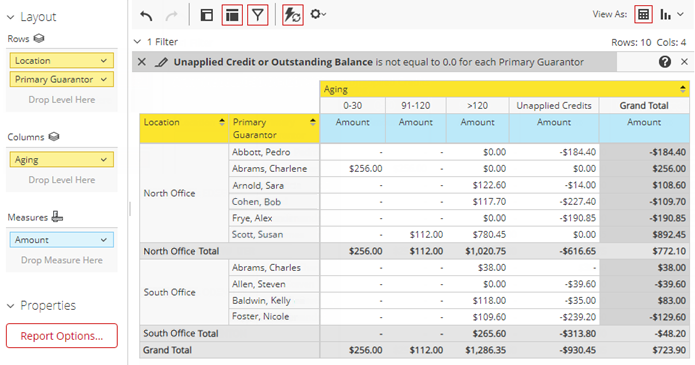
The Multi-location Aged Receivables Report displays the aged receivables by location. By default, the report includes any account with a non-zero balance (a positive or negative dollar amount). For each account on the report, the following information appears: the primary guarantor's name, the aged balances (expressed as positive numbers in each applicable aging bracket), the unapplied credits (expressed as a negative number), and the total account balance (the difference between the sum of the aged amounts and the amount of the unapplied credits).
To generate the report
-
On the Home menu, under Reports, select Power Reporting.
The Power Reporting page displays.
-
ClickTap the Provider Aging icon.
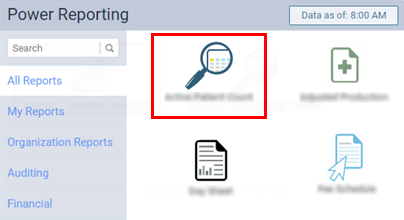
The report displays.
Note: Only the locations that you have access to display on the report.
-
(Optional) To view the time when the next sync is expected to occur, clicktap Data as of.

-
Using the analysis report builder tools, add data fields to the layout, and set up the filters as needed.
-
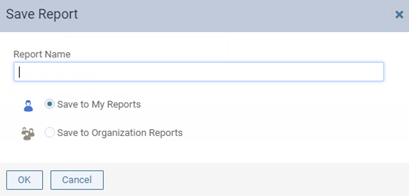
To save the report as a template for later use, clicktap Save.

-
When prompted with a Save Report window, enter a name for the report, select whether you want to save the report as one of your reports (available only to you) or as an organization report (available to all users), and clicktap OK.
-
From the More actions and options
 button menu, select an Export option to export the report as a .pdf, .xslx, or .csv file.
The data from your database syncs with the reporting system automatically and displays the time of the last sync on the Data as of button. Data entered in Ascend Academic after the time shown will not be available on the report until the next sync.
Comments
0 comments
Please sign in to leave a comment.