
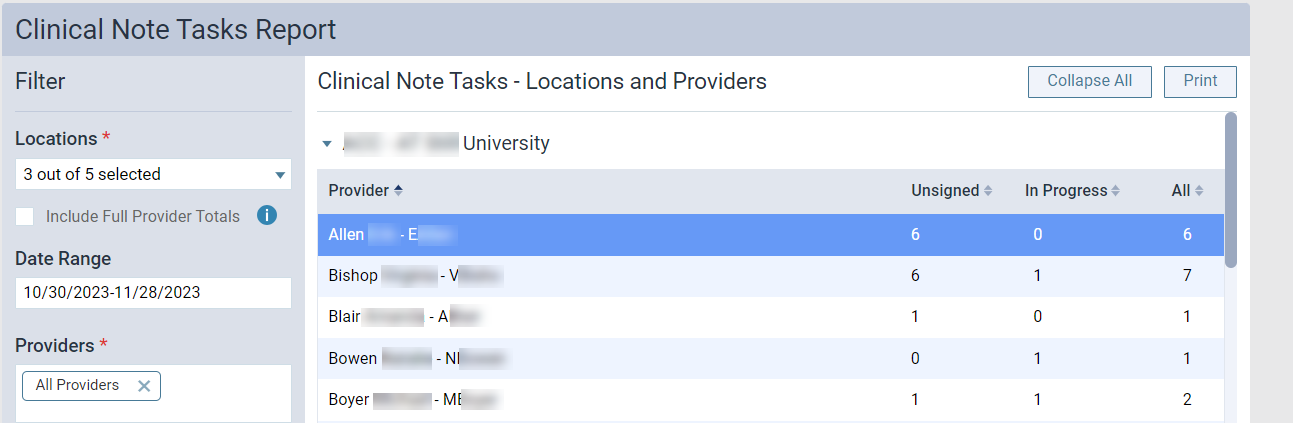
The Clinical Notes Tasks Report displays providers who have any unsigned and/or incomplete clinical notes. For each provider, the report displays the number of applicable clinical notes broken down by status (Unsigned and In Progress) and the total.
Note: You need the Clinical Note Tasks Report security right.
To generate the Clinical Note Tasks Report
How to get there
-
From the Home menu, under Reports, clicktap Clinical Note Tasks.
The Clinical Note Tasks Report page displays.
-
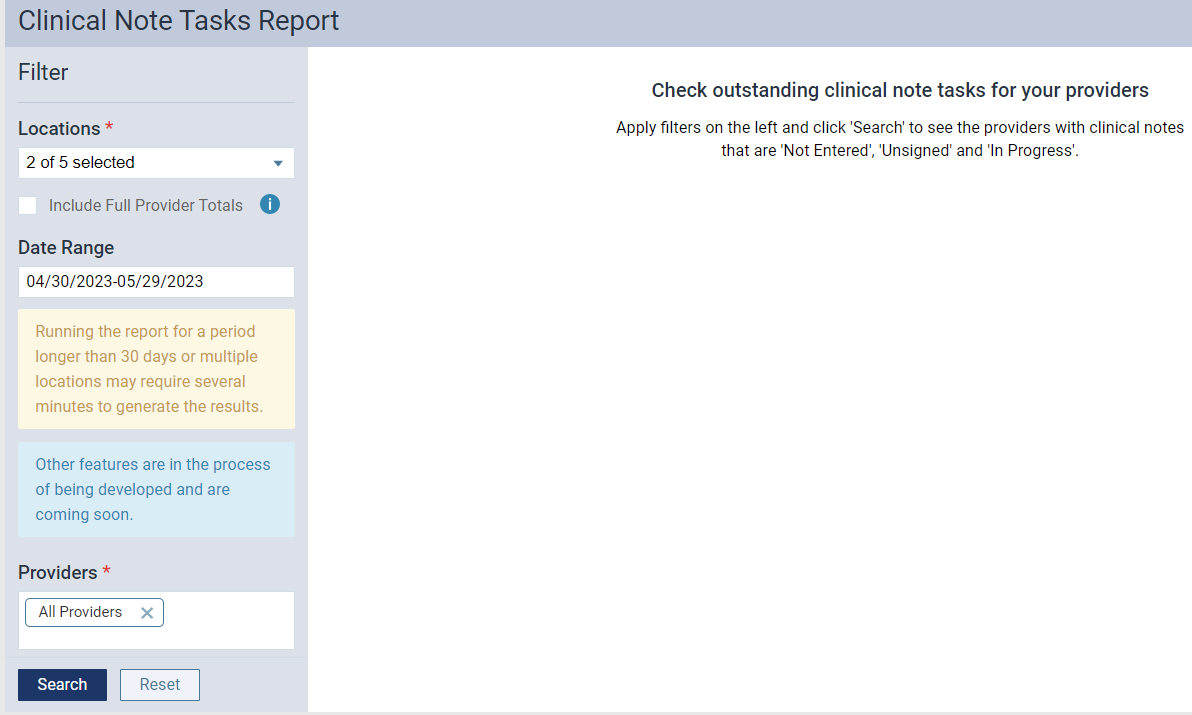
On the Clinical Note Tasks Report page, review the filters.
-
If necessary, modify the filters.
-
Locations - ClickTap the drop-down list and select the check box next to each location you want to include. When ready, clicktap Apply Selected or anywhere outside the list to apply the selection(s).
Tips:
-
You can use the Search field to quickly enter and select location names.
-
To select all locations, select the check box beside Apply Selected.
-
You can also deselect the check box to remove a location.
-
-
Include Full Provider Totals - Select the check box to display a Provider Totals section at the top of the report for all selected locations.
Note: The Provider Totals section includes a breakdown of outstanding clinical note tasks for each provider and a grand total of outstanding clinical note tasks for the selected locations within your organization.
-
Date Range - ClickTap the field and select an option.
If you selected Specific Date, select a date from the calendar and clicktap Done.
If you selected Custom Range, select two dates from the calendars and clicktap Done.
-
Providers - ClickTap in the field and select multiple providers or select All providers to set which provider totals are included on the report.
Note: If you select All providers, the report displays all totals (for the practice and each provider).
Note: If you set the filters to multiple locations and/or to a date range longer than 30 days, a notification will display when you clicktap Search, warning that the report may take more time to generate.
Tip: To clear your selections and return to default settings, you can clicktap Reset.
-
-
ClickTap Search to generate the report.
-
If prompted with a Generate Clinical Note Tasks warning, clicktap Generate.
Tip: ClickTap Cancel if you want to generate the report later when you have more time.

A Please wait, the report is loading... message displays while the report generates.
-
Review the report results as necessary.
-
(Optional) To print the report from a new browser tab, clicktap Print.
-
(Optional) ClickTap a provider name to display a Clinical Note Tasks window and view the clinical notes for that provider.
Comments
0 comments
Please sign in to leave a comment.