
You can register a device as a kiosk, which will be used by patients to complete their online patient forms. Patients can use the kiosk after you push their patient form(s) to the device.
Important:
-
As you are registering it into Ascend Academic, you should only register devices that are owned by your practice.
-
Using a QR code requires that your mobile device meet the following specifications: for an Apple device, iOS 11 and the Safari browser; or for an Android device, Android 4 or newer and the Chrome browser.
To register a kiosk device
How to get there
-
From the Settings menu, under Location, select Patient Forms.
The Patient Forms page displays.
Note: If the correct location is not already selected, use the Location menu to select it.
-
On a location's Patient Forms page, clicktap Manage Kiosks.

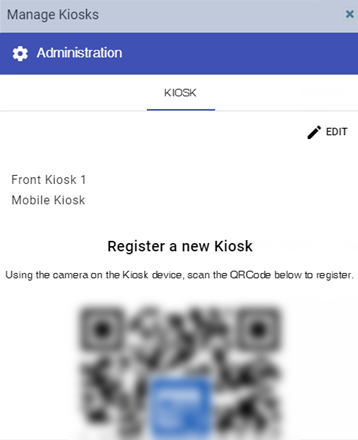
The Manage Kiosks window displays.
-
Use the camera on the kiosk device to scan the QR code, which corresponds to a link that directs you to the website that registers your device.
Once the link has been opened, the device is registered into the system and displays in the Manage Kiosks window.

Tip: You can rename the device to help you and others more easily identify it.
-
Close the Manage Kiosks window.
Comments
0 comments
Please sign in to leave a comment.