
If necessary, you can edit a patient note.
Note: You can also sort the list of patient notes to display in ascending or descending order. If sorted, Ascend Academic maintains your preference and also applies it to the Patient Notes widget.
To edit a patient note
How to get there
-
On the Patient menu, under General, select Patient Information.
The patient's Patient Information page displays.
Note: If the correct patient is not already selected, use the Patient Search field to access the patient's record.
-
ClickTap the Notes tab.
Tip: You can also access patient notes from the patient's Overview page > Patient Notes widget.
-
On the patient's Patient Information page > Notes tab, clicktap the
 icon next to a patient note.
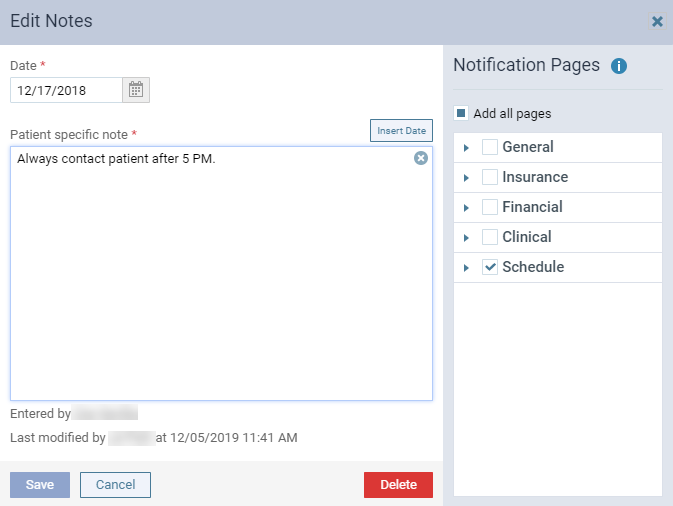
The Edit Notes window displays.
-
(Optional) ClickTap the Date field and select a different date.
-
In the Patient specific note field, change or add to the existing note.
Tip: ClickTap Insert Date to add today's date at your cursor location in the Patient specific note field.
Note: The note can be up to 5000 characters long.
-
(Optional) To modify whether the note displays as a notification, under Notification Pages, complete any of the following:
-
To add the notification to all available areas, select the Add all pages check box.
-
To add the notification to only certain areas, select the necessary check boxes.
Tip: To select all pages within a category (General, Insurance, Financial, Clinical, or Schedule), select the category check box. To select an individual page within a category, expand the category, then select the page check box.
-
To remove the notification from all available areas, deselect the Add all pages check box.
-
To remove the notification from an individual page within a category, expand the category, and then deselect the page check box.
-
-
ClickTap Save.
Comments
0 comments
Please sign in to leave a comment.