
You can add a medical alert for a condition or a disease to a patient's record. If a patient has a medical alert, the  icon displays on their appointments.
To add a medical alert to a patient
How to get to there
-
From the Patient menu, under General, select Overview.
The patient's Overview page displays.
Note: If the correct patient is not already selected, use the Patient Search field to access the patient's record.
How to get there
-
Complete one of the following:
-
Next to the Patient Search field, clicktap the
 icon.
icon.
Note: The
icon only displays if the patient has a medical alert. -
From the Patient menu, under General, select Medical Alerts.
The Patient Information page displays with the Medical Alerts tab selected.
Note: If the correct patient is not already selected, use the Patient Search field to access the patient's record.
-
-
Complete one of the following:
-
On a patient's Overview page, locate the Medical Alerts widget and clicktap Add.

The Patient Information page displays with the Medical Alerts tab selected and the Add Medical Alert window open.

-
On a patient's Patient Information page > Medical Alerts tab, clicktap Add Medical Alert.

The Add Medical Alert window displays.
-
-
Enter the medical condition or disease in the Search for medical alert or enter a new one search field and select it from the generated list. If it does not display in the search results, clicktap Create Patient Specific Alert to add a new alert.

Tip: If you are creating a patient specific alert, it is recommended you enter the full name of the medical alert.
The options to modify the medical alert display.

Important: When you create a patient specific alert, it is added as a medical problem specifically for that patient, and cannot be used for other patients as it does not display on the Medical Alerts Library page. It only displays on the patient's record. If an allergy or a medical problem that should be available for all patients does not display in the search results, it is recommended you add it on the Medical Alerts Library page.
-
(Optional) Modify the medical alert specifically for the patient:
-
Modify an allergy.
-
Show alert - Set the toggle to Yes if you want the alert to display when users access the patient's record.
Note: When set to Yes, the alert displays with an
 icon.
icon. 
-
Is permanent - Set the toggle to Yes if you want this alert to be permanent.
Note: When set to Yes, the alert displays in Ascend Academic whenever you access the patient's information.
-
Note - Enter any additional information regarding the patient's allergy.
-
Reaction and Severity - Select the patient's allergic reaction from the Select a reaction drop-down list and the severity of the reaction from the Select the grade drop-down list. To add multiple allergic reaction, clicktap Add Reaction and complete the added row.

Note: The Select the grade drop-down list and the Add Reaction button are disabled until the Reaction is set.
-
-
Modify a medical problem.
-
Show alert - Set the toggle to Yes if you want the alert to display when users access the patient's record.
Note: When set to Yes, the alert displays with an
icon. -
Is permanent - Set the toggle to Yes if you want this alert to be permanent.
Note: When set to Yes, the alert displays in Ascend Academic whenever you access the patient's information.
-
Note - Enter any additional information regarding the patient's medical problem.
-
Severity - Select the severity of the patient's medical problem from the Select the grade drop-down list.
-
-
Modify a patient specific alert.
-
Medical alert - Enter the name of the alert and clicktap Create Patient Specific Alert.
-
Show alert - Set the toggle to Yes if you want the alert to display when users access the patient's record.
Note: When set to Yes, the alert displays with an
icon. -
Is permanent - Set the toggle to Yes if you want this alert to be permanent.
Note: When set to Yes, the alert displays in Ascend Academic whenever you access the patient's information.
-
Note - Enter any additional information regarding the patient's medical problem.
-
Severity - Select the severity of the patient's medical problem from the Select the grade drop-down list.
-
-
-
ClickTap Add.
The alert displays in the following locations:
-
The Patient Information page > Medical Alerts tab
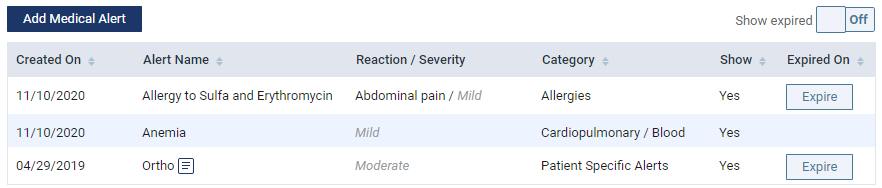
Note: Patient specific alerts display as a Patient Specific Alerts category.
-
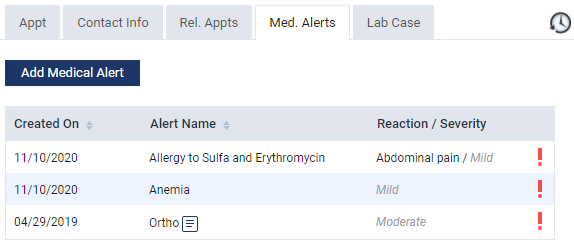
The Appointment Information panel > Med. Alerts tab
-
Comments
0 comments
Please sign in to leave a comment.