
A household is a group of patients that has the same primary contact. When you add new patients to an existing household, you can add one or multiple at once. Once added, these patients are assigned the same primary contact by default. If necessary, you can change the primary contact for a patient at a later time.
Note: You can also add new patients when you edit an existing patient's record.
To add new patients to a household
How to get there
-
From the Patient menu, under General, select Patient Information.
The patient's Patient Information page displays.
Note: If the correct patient is not already selected, use the Patient Search field to access the patient's record.
-
Confirm that the patient does not exist in your practice database.
-
Search for the patient record.
-
If the patient's record displays, clicktap the patient name and confirm they are part of the household. If they are not part of the household, update the Related Patients tab > Primary Contact of the patient's record to the correct primary contact person.
-
If the patient does not have a record, continue to Step 2.
-
-
-
Open an existing household member's Patient Information page and clicktap the Related Patients tab.
-
ClickTap Add New Member.
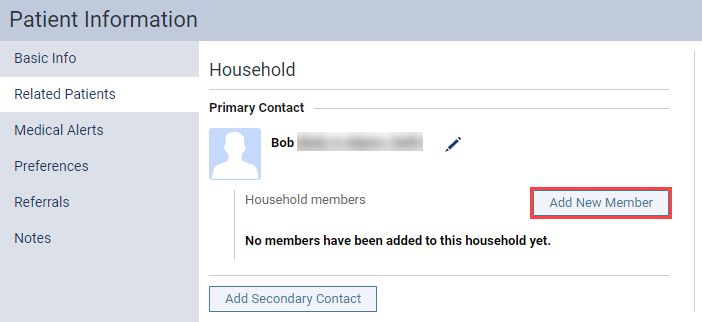
The Add New Patient(s) to Household window displays.

-
Enter the patient's name (first, last, and middle initial), gender, birth date, and preferred name (if applicable).
-
(Optional) To add multiple patients, clicktap Add Patient and repeat Step 4.
Note: If any of the added patients already have a record, their primary contact information, primary guarantor, address, and primary phone number will update to the entered information when you save.
-
(Optional) To remove a patient, clicktap the corresponding
 icon.
icon. -
ClickTap Save.
Comments
0 comments
Please sign in to leave a comment.