
Use the Medical Alert Library to customize which medical conditions and allergies appear in patient forms.
The following procedures explain how to:
-
Include or exclude medical conditions and allergies.
-
Review the Medical History form to verify that the changes display as intended.
To customize medical conditions and allergies
-
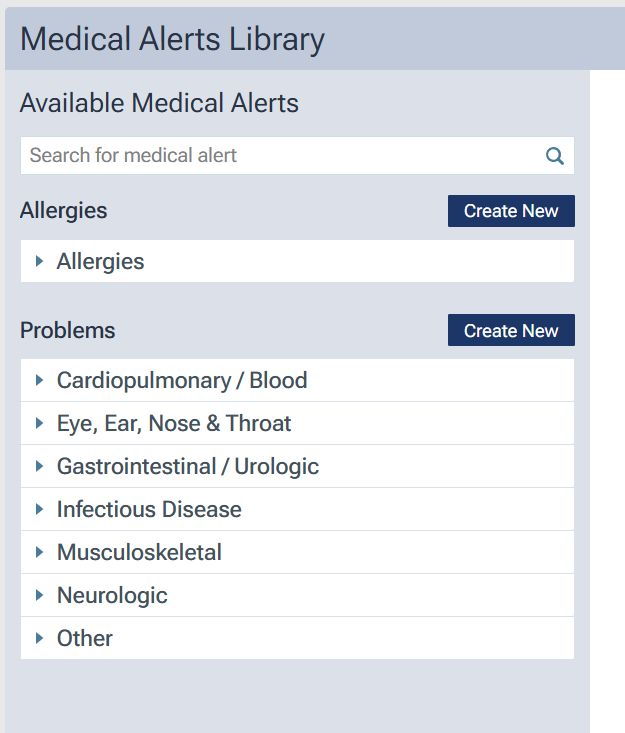
Go to Settings > Medical Alert Library.
-
Under Available Medical Alerts, locate the medical condition or allergy you want to customize. You can expand Allergies or one of the categories under Problems, or use the Search for medical alert field.
-
Select the medical condition or allergy you want to customize.
-
In the Edit window, set Show alert to:
-
Yes to include the medical condition or allergy.
-
No to exclude the medical condition or allergy.
-
-
If needed, update other available settings for the medical alert.
-
Select Save.
-
Repeat these steps for any additional medical conditions or allergies you want to customize.
Note: Medical Alert Library settings are shared across the organization. Changes affect the medical conditions and allergies displayed in patient forms across the organization.
To review the patient form
-
Open the patient record.
-
On the Patient menu, select Patient Forms. Locate the Medical History form.
-
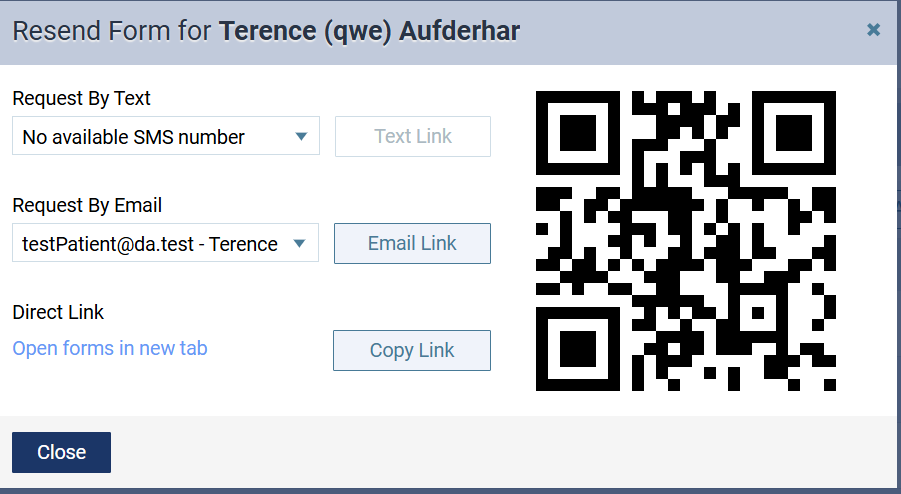
In the Actions column, select the Send icon.
-
In the Resend Form window, under Direct Link, do one of the following:
-
Select Open forms in new tab to open the form directly.
-
Select Copy Link, and open the copied link in a browser.
-
-
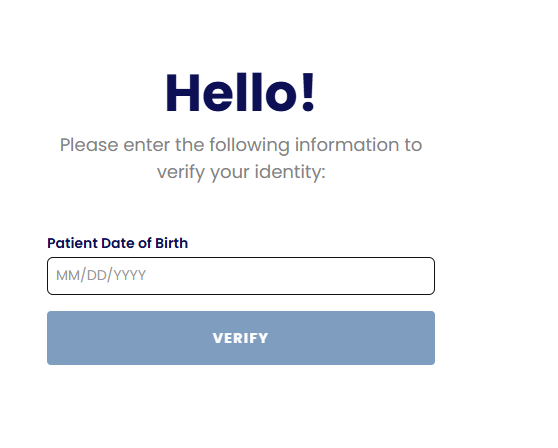
On the verification page, enter the test patient's date of birth, and select Verify.
-
Select Begin to start the Medical History form.
-
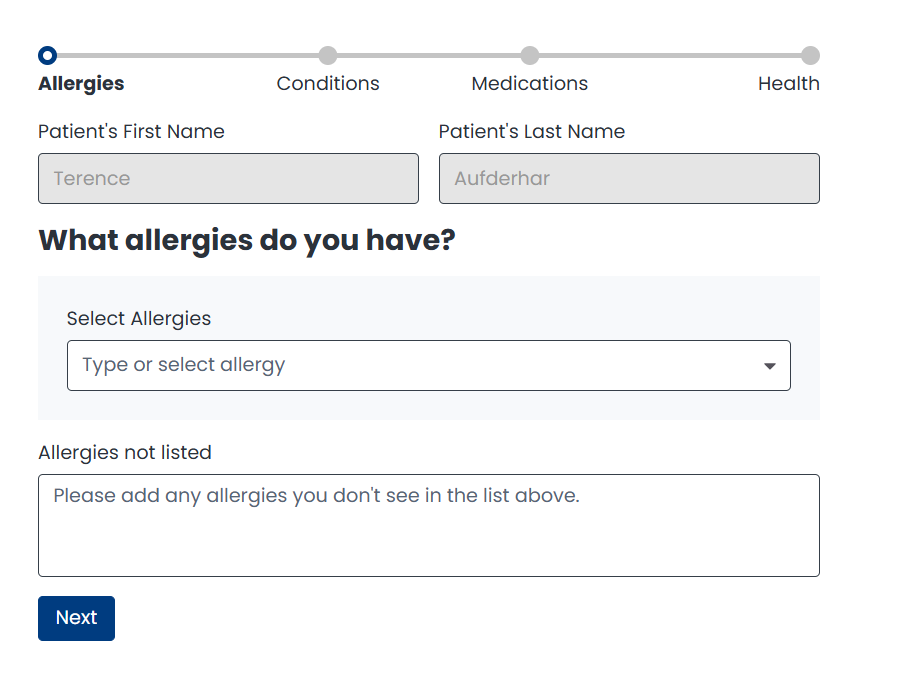
On the Allergies page, review the Select Allergies list and confirm that the expected allergies are available.
-
Select Next to open Conditions.
-
Review the medical conditions and confirm that the expected conditions are displayed with Yes and No response options.
-
Respond to each condition, and select Next.
-
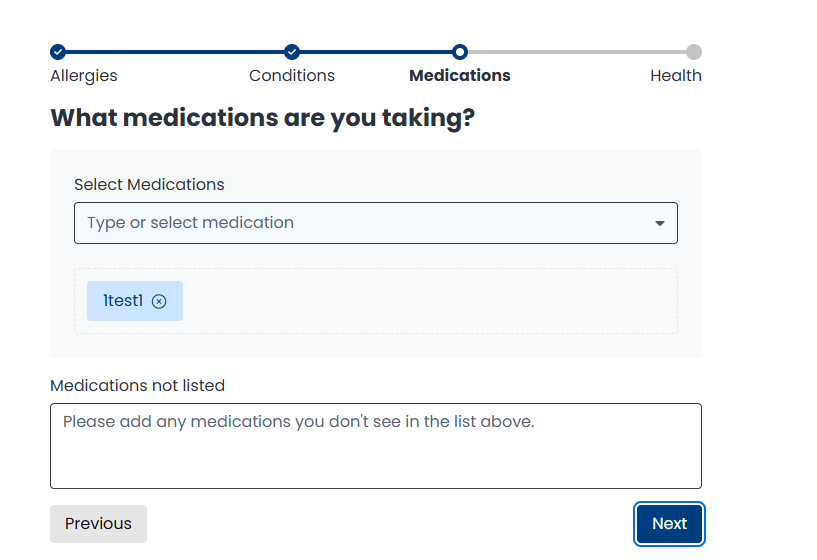
On the Medications page, confirm that medications can be selected and that additional medications can be entered under Medications not listed.
-
Select Next to open Health.
-
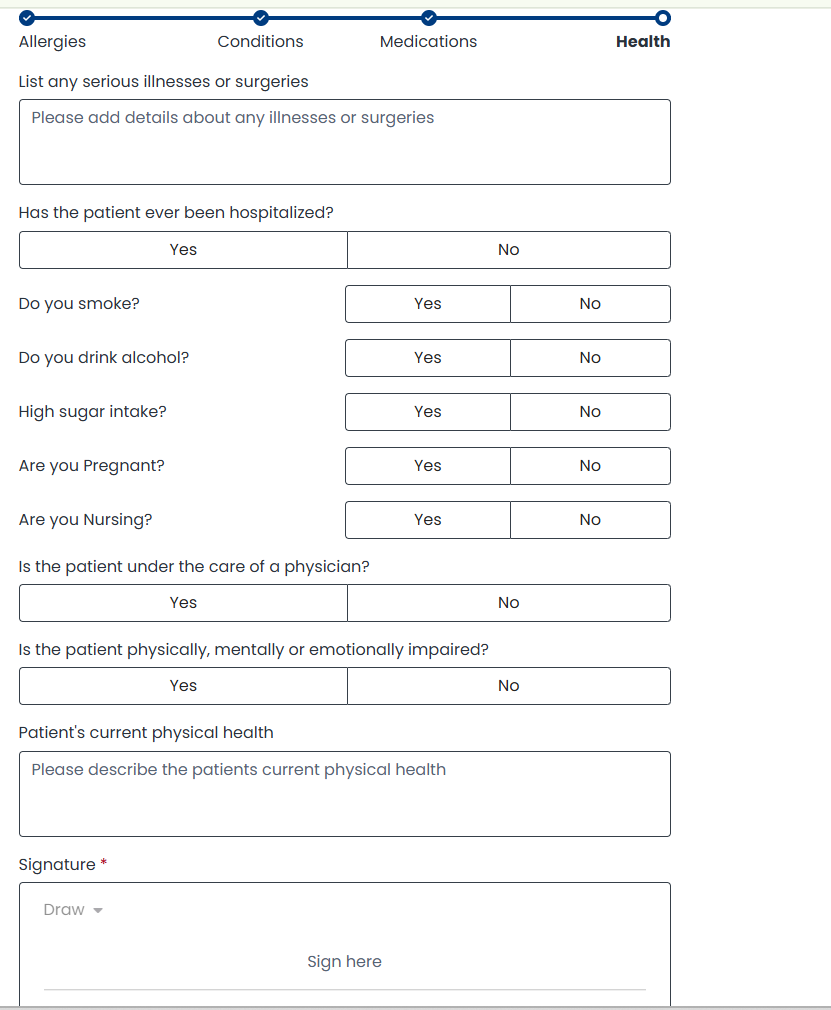
Review the health questions and confirm that the expected questions and response options are displayed.
-
Complete the required Signature, and select Finish.
-
Confirm that the form can be completed successfully and that the medical conditions and allergies configured with Show alert display as intended.
Comments
0 comments
Please sign in to leave a comment.