
As needed, you can change a patient form's status, location assignment, automatic delivery, on-demand delivery, patient type, and completion frequency.
To change a patient form's settings
On the Settings menu, under Location, select Form Builder. The Patient Forms page opens in a new browser tab.
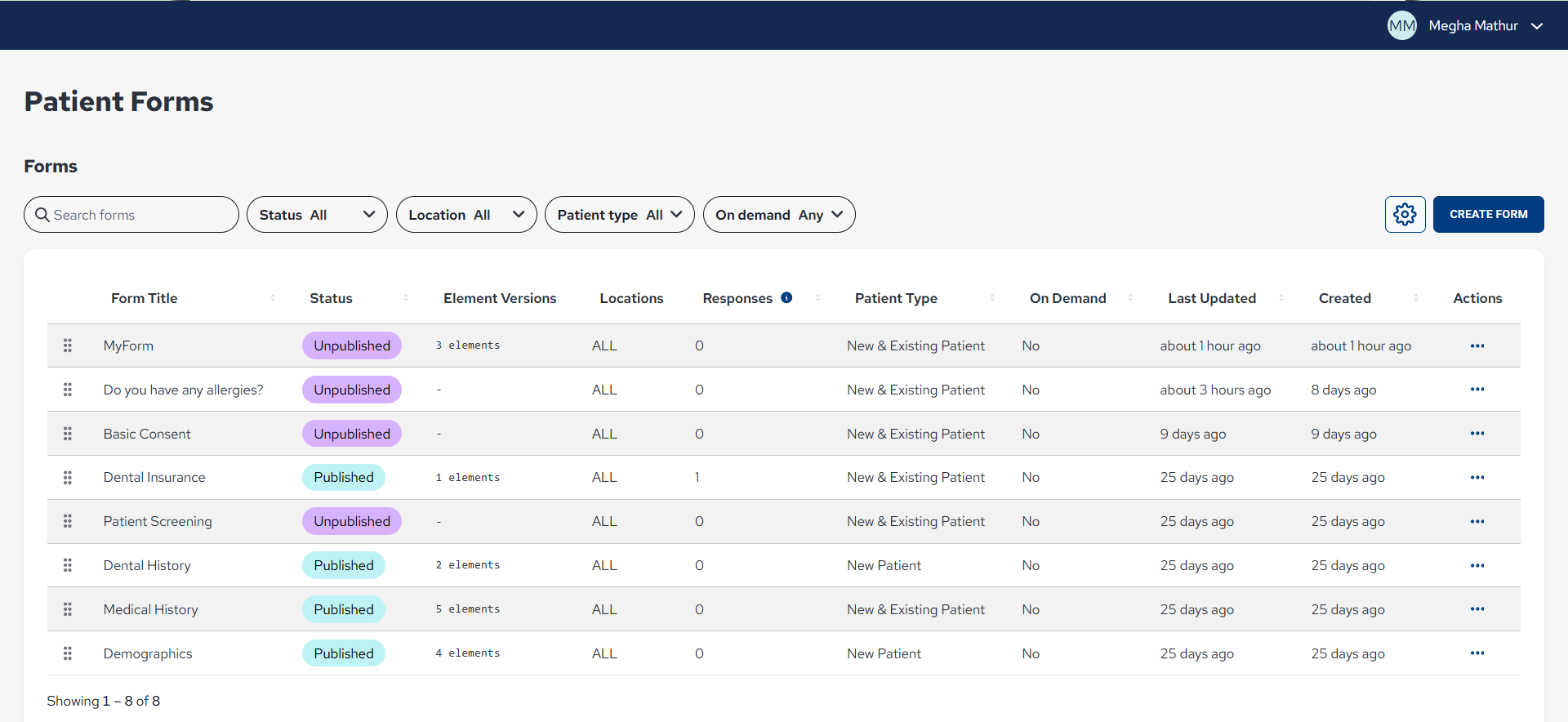
In the Actions column, click the ellipsis (...) for the form whose settings you want to change, and then select Settings. The Form Settings page opens.
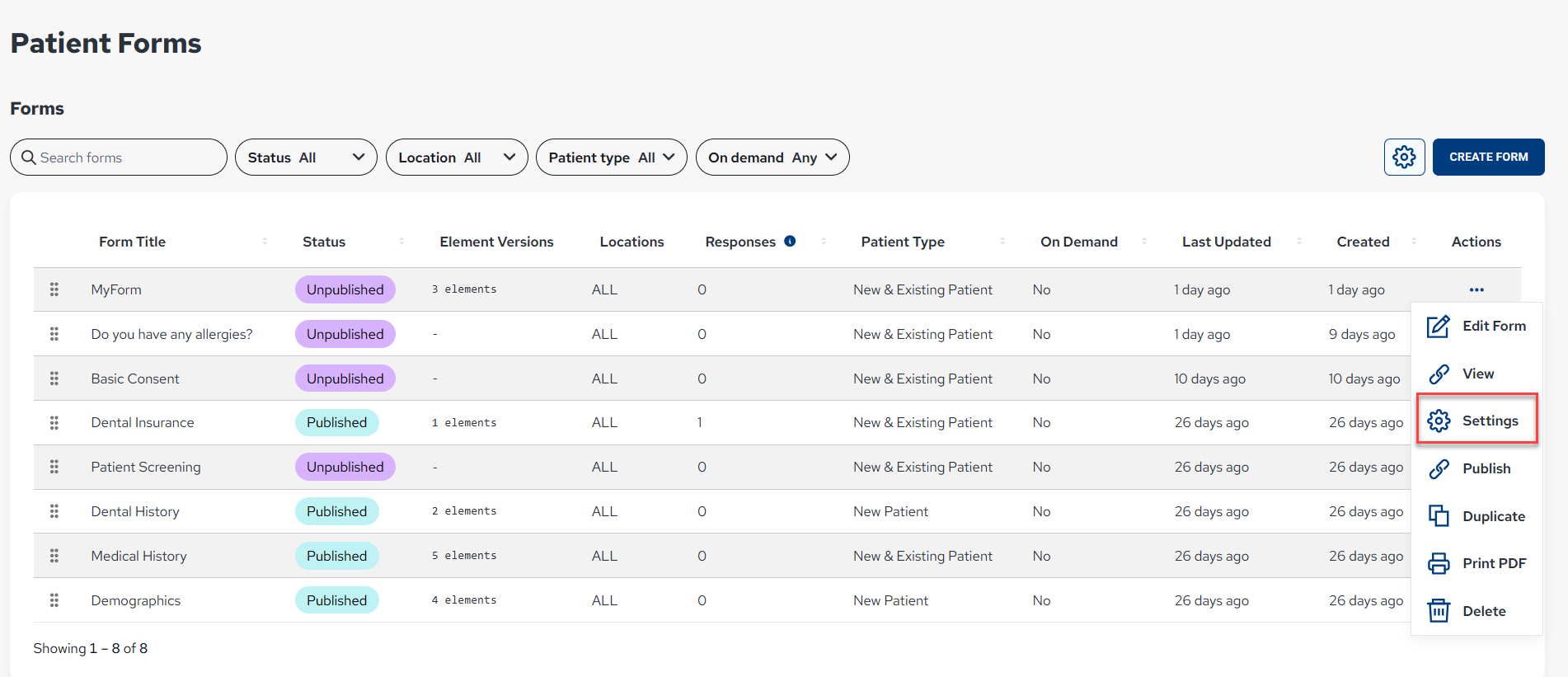
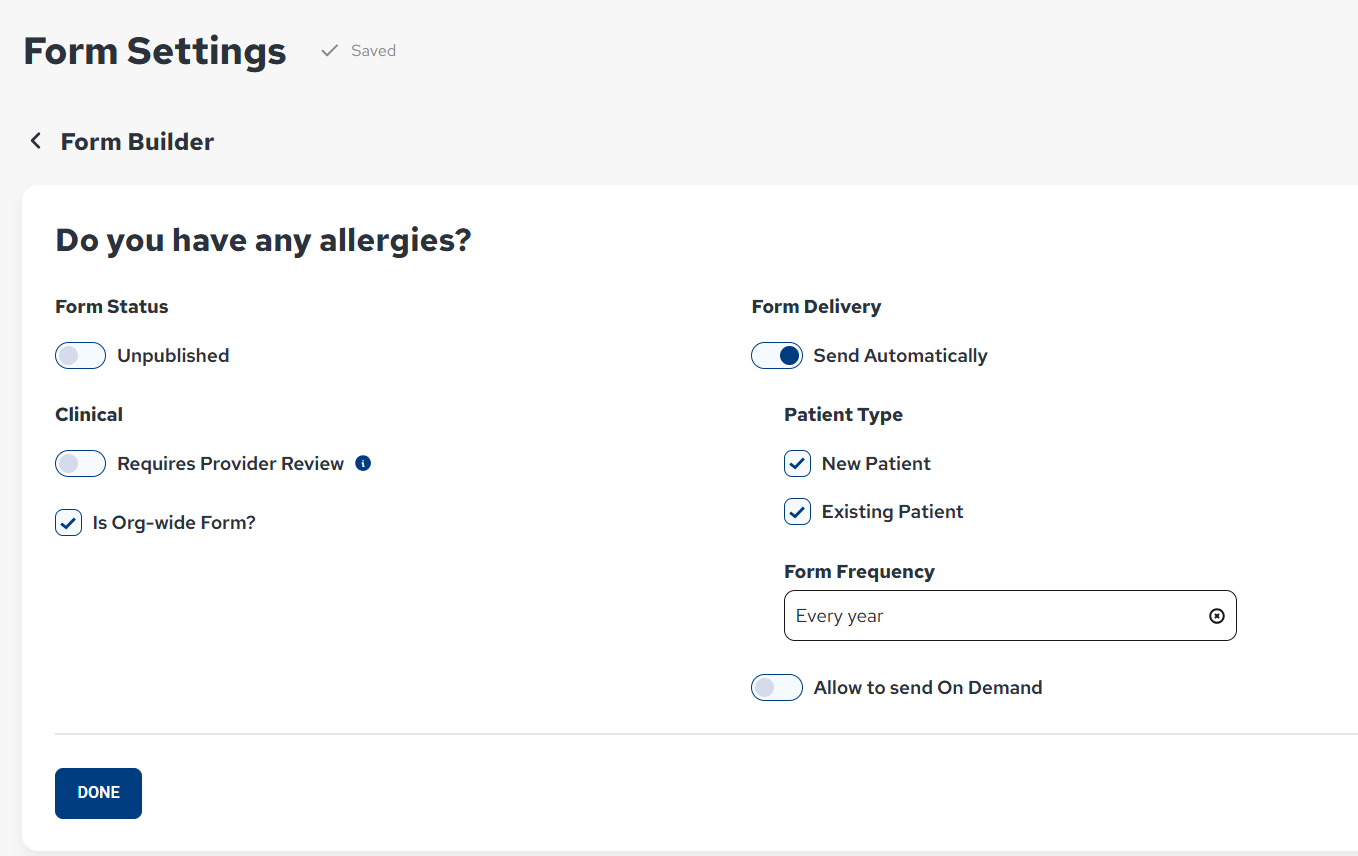
Configure the following settings as needed:
-
Form Status - To publish the form, turn on the toggle. To keep the form unpublished, turn off the toggle.
-
Is Org-wide Form? - Leave the checkbox selected if the form applies to all locations. To assign the form to specific locations, clear the checkbox and select the applicable locations.
-
Send Automatically - To send the form automatically to eligible patients, turn on the toggle.
-
Patient Type - Select New Patient, Existing Patient, or both.
-
Form Frequency - Select how often patients must complete the form.
-
Allow to send On Demand - Turn on to allow the form to be sent to patients on demand.
-
Click Done. The settings are saved, and the Patient Forms page displays.
Important: Only published forms can be sent to patients. Unpublished forms remain available for editing but are not available to patients.
Comments
0 comments
Please sign in to leave a comment.