
You can add an image, such as your practice logo, to a patient form by providing the URL of an image hosted online.
To add an image to a patient form
On the Settings menu, under Location, select Form Builder. The Patient Forms page opens in a new browser tab.
Locate the form you want to update.
In the Actions column, select the ellipsis (...), and then select Edit Form. The form opens in Form Builder.
In the Elements panel, expand Display elements, and locate Image.
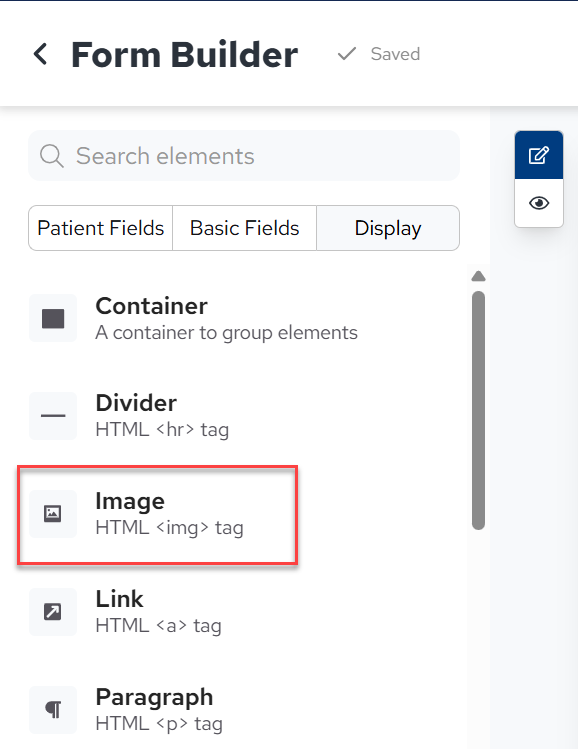
Add the Image element to the design workspace where you want the image to appear.
If the form already contains an image, select the existing Image element instead.
In the Properties panel, enter the image URL in the Image URL field. In the Alternative text field, enter a brief description of the image. For example, Acme Dental Clinic logo.
Save your changes.
Preview the form and confirm that:
- The image displays correctly.
- The image appears in the intended location.
- The alternative text clearly describes the image.
Note: The image must be hosted online for Form Builder to display it. If you do not have an image URL, ask your website administrator to upload the image to your website and provide the URL. An image stored only on your computer cannot be added using the Image URL field.
Comments
0 comments
Please sign in to leave a comment.