
You can temporarily hide the imaging navigation panel so that you can view each image for a patient individually without having to select each single image, series of images, or set of images. With the panel hidden, you use buttons to navigate forward and backward through the patient's entire image history one image at a time.
To hide the navigation panel
How to get to there
-
From the Patient menu, under Clinical, select Imaging.
The patient record displays with the Imaging tab selected.
Tip: You can also access imaging from other clinical areas such as Chart, Progress Notes, Quick Exam, Perio, or Tx Planner.
Note: If the correct patient is not already selected, use the Patient Search field to access the patient's record.
-
On the patient's record > Imaging tab, clicktap the Imaging tab menu and select Show Image History.

The patient's imaging page opens to the history view, and the most recent image or series (such as a full mouth series or bitewings) is selected by default on the Images tab.

-
ClickTap the Hide Panel button. The viewing area continues to display whichever radiograph, photo, CAD/CAM scan, or 3D volume was selected in the image list.

-
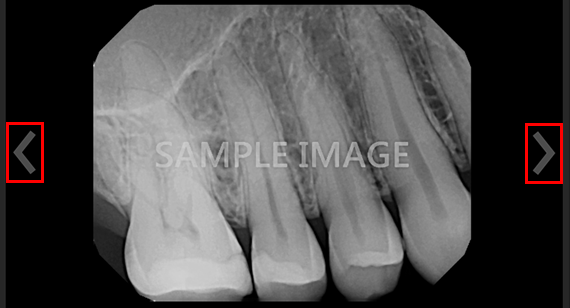
ClickTap the arrow buttons or use the arrow keys on your keyboard to navigate between newer and older images, according to acquisition order.
-
(Optional) To show the navigation panel, clicktap the Show Panel button. For whichever type of image you are viewing (radiograph, photo, CAD/CAM scan, or 3D volume), the corresponding item in the image list is selected automatically.

Comments
0 comments
Please sign in to leave a comment.