
The location overview may display different widgets of information, each designed to provide insight into the financial health of your location. Depending on the security roles your user account has, the number of widgets you see may vary. An administrator will see all widgets.
To use the location overview
How to get to there
-
From the Home menu, under Location, select Overview.
The location's Overview page displays.
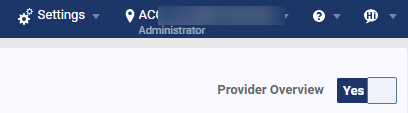
Important: If the Provider Overview page displays instead, set the Provider Overview toggle to No.
-
From the location Overview page (dashboard), review the available widgets.
-
If necessary, clicktap a widget (that allows interaction) to resolve any problems. Any of the following widgets may be available:
-
Unattached Procedures - This widget displays how many patients with insurance coverage have procedures that are not attached to claims and the total charges for those procedures. (A charge for a procedure can be from the rendering providers fee schedule, an amount entered manually, or the default fee.)

Note: The Unattached Procedures widget is only available if your user role has the Review Insurance security right enabled.
-
Unsent Claims - This widget displays how many insurance claims have not been sent and the total charges for those claims. (A charge for a procedure can be from the rendering providers fee schedule, an amount entered manually, or the default fee.)

Note: The Unsent Claims widget is only available if your user role has the Review Insurance security right enabled.
-
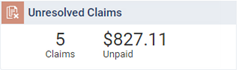
Unresolved Claims - This widget displays the number of unpaid insurance claims and the total charges for those claims. (A charge for a procedure can be from the rendering providers fee schedule, an amount entered manually, or the default fee.)
Note: The Unresolved Claims widget is only available if your user role has the Review Insurance security right enabled.
-
Unconfirmed Appointments - This widget displays how many unconfirmed appointments there are for the next seven days, starting with today. On the graph, clicktap the bar of a day to open the Unconfirmed Appointments page for that day. ClickTap the Settings
 icon to display the Appointment Communications page and set appointment reminders.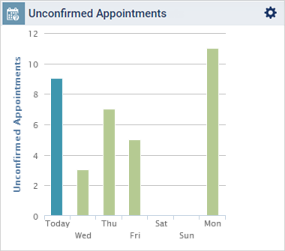
-
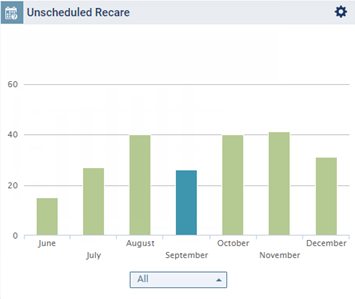
Unscheduled Recare - This widget displays how many recare appointments need to be scheduled for the last 3 months, the current month, and the next three months. To view the graph for all recare types, leave All selected in the list below the graph. To view the graph for a specific recare type, select that type from the list below the graph. On the graph, clicktap a month bar to open the Recare Management tab of the Ongoing Patient Care page and view patients who are due for recare appointments during that month but do not have appointments scheduled. ClickTap the Settings
icon to open the Appointment Communications page and set recare reminders. Note: Inactive and non-patients are not included in the graph.
-
Insurance A/R Overview - This widget displays the percentage of outstanding claims that are over 30 days old during the last three months. You can clicktap Location and Organization to switch between showing and hiding the statistics for the current location and all organization locations.

Note: The Insurance A/R Overview widget is only available if your user role has the Review Insurance security right enabled.
-
Insurance A/R Problematic Payers - This widget displays the percentage of outstanding claims that are over 30 days old by carrier. You can clicktap Location and Organization to switch between showing and hiding the statistics for the current location and all organization locations.

Note: The Insurance A/R Problematic Payers widget is only available if your user role has the Review Insurance security right enabled.
-
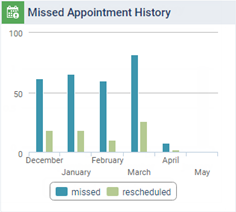
Missed Appointment History - This widget displays the number of missed appointments (those with a status of Broken or No Show) and the number of appointments that were rescheduled during the last six months. You can clicktap missed and rescheduled to switch between showing and hiding the statistics for missed appointments and rescheduled appointments. This information also displays on the Missed Appointments Report. Also, you can clicktap the graph to open the Fill Openings panel of the schedule with the Broken/No Show tab selected.
-
Clinical Note Tasks - This widget displays your organization's total number of unsigned clinical notes.
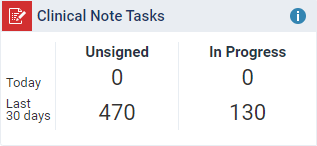
The total count is separated into 2 columns:
-
Unsigned - Displays the total number of notes set as ready to sign.
-
In Progress - Displays the total number of notes set as not ready to sign.
Each column is categorized into 2 rows:
-
Today - Displays the total number of clinical notes that were entered today.
-
Last 30 days - Displays the total number of clinical notes in the last 30 days prior to today.
Tip: If you specifically want to view your own clinical note tasks, open the Provider Overview page and view the Unsigned Clinical Notes widget.
Note: The Unsigned Clinical Notes widget is only available if your user role has the Review Clinical Chart security right enabled and your user account has the Is Provider toggle set to Yes.
-
-
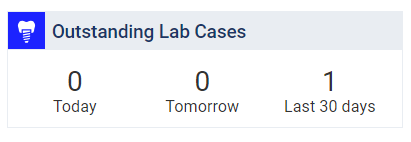
Outstanding Lab Cases - This widget summarizes how many lab cases are outstanding (according to the due date and if they have not been marked as Received) for Today, Tomorrow, and the Last 30 days. You can clicktap the widget to display the Lab Cases page.
Note: The Outstanding Lab Cases widget is only available if your user role has the Manage Appointments security right enabled.
-
Comments
0 comments
Please sign in to leave a comment.