
You can manage a provider's working hours from their user accounts.
To manage a provider's working hours
How to get there
-
From the Settings menu, under Location, clicktap User Accounts.
The User Accounts page displays.
-
On the User Accounts page, select a user account.

Tip: To quickly search for a user account, enter a part of their first name, last name, username, or email address in the Search field. As the search results display a maximum of 100 entries, enter a specific search criteria.
The provider's User Account Information page displays.
-
Select the Working Hours tab.

Note: This tab is only available to providers.
The provider's working hours display.
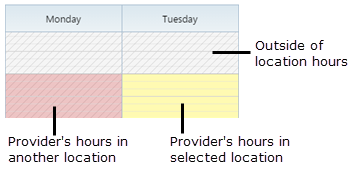
Note: If your organization has multiple locations, the provider's working hours for all the locations display. Their working hours for the selected location display in yellow while their working hours for other locations display in pink. Also, the provider's working hours at the current location cannot overlap with the hours at another location.
-
(Optional) Select the location you want to apply the changes to from the Working Hours for drop-down list.
Note: The drop-down list is only available if your organization has multiple locations.

-
(Optional) Navigate to a desired calendar week by using the following methods:
-
ClickTap the
 or the
  button below the Working Hours tab accordingly to navigate to a specific calendar week.
 -
ClickTap the date range and select a date on the calendar.

-
-
Initiate one of the following:
-
The process of editing the default working hours.
-
Select Default from the drop-down list located on the upper-right side of the page. Skip this step if the drop-down list is already set to Default.

-
ClickTap the
 icon located beside the drop-down list.
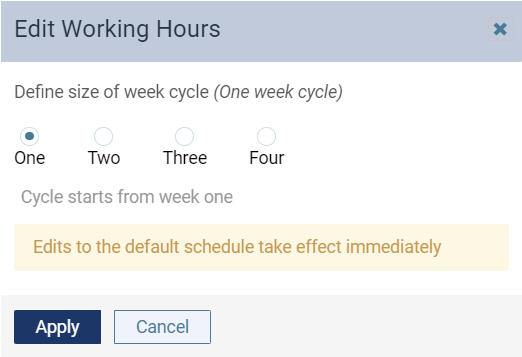
 The Edit Working Hours window displays.
-
-
The process of editing future working hours.
-
Select a future schedule from the drop-down list located on the upper-right side of the page. Skip this step if the drop-down list is already set to a future schedule.

-
ClickTap the
icon located beside the drop-down list. The Edit Working Hours window displays.

-
-
The process of adding future working hours.
-
ClickTap the Manage menu and select Setup Working Hours.
The Setup Working Hours window display.

-
-
-
Set up the following options:
-
Define size of week cycle - Select the appropriate radio button to set the length and frequency of the work schedule:
-
One - Weekly work schedule that repeats every week.
-
Two - Bi-weekly work schedule that repeats every two weeks.
-
Three - Three-week work schedule that repeats every three weeks.
-
Four - Monthly work schedule that repeats every month.
-
-
Set start day - Set the start date of the work schedule by clickingtapping the field and selecting a calendar date.
Note: This option is not available for the default schedule.
-
Set end day - Set the end date of the work schedule by clickingtapping the field and selecting a calendar date.
Note: This option is not available for the default schedule.
-
-
ClickTap Apply.
-
(Optional) ClickTap the
or the button to navigate to a specific week of the work schedule. 
Note: The navigation buttons only display if the week cycle is set to two, three, or four.
-
To set up the schedule for the week, complete any of the following:
-
Set time slot(s) as available.
-
ClickTap a non-yellow time slot to set it as available.
Tip: To set multiple time slots as available, clicktap and drag across the desired time slots.
Note: To select a time slot outside of the location's working hours, clicktap a greay time slot to turn it into a yellow time slot with gray hatched lines.
-
-
Set time slot(s) as not available.
-
ClickTap a yellow time slot to set it as not available.
Tip: To set multiple time slots as available, clicktap and drag across the desired time slots.
-
-
Reset to the location's working hours.
-
ClickTap the Manage menu and select Use Location Hours.
-
-
-
(Optional) Repeat Steps 8-9 as necessary for work schedules that are more than a week long and has different working hours for each week.
Example: A bi-weekly work schedule where the provider only works the morning shift on the first week and the night shift on the second week.
-
ClickTap Done.
-
ClickTap Save.
Comments
0 comments
Please sign in to leave a comment.