
You can view the pharmacy and drug details for each medication added to a patient record in eRx.
Note: You can access eRx according to your security rights.
To view pharmacy and drug details
How to get to there
-
From the Patient menu, clicktap Prescriptions to display the Patient Prescriptions page.
-
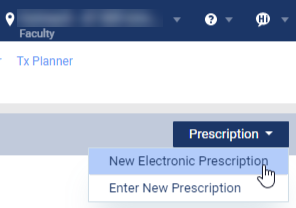
ClickTap the Prescription drop-down menu and select New Electronic Prescription.
Note: If logging in as a proxy clinician, you are prompted to select the clinician you are acting on behalf of.
The Electronic Prescriptions window and the Patient Details page display.
-
On the Patient Details page, clicktap the Active Medications tab.

-
ClickTap the Simple or Detailed tab.
-
Under the Medication column, clicktap View Pharmacy to display the Pharmacy Details window.
Tip: You can view the patient's preferred pharmacy in their information section.

-
Under the Medication column, clicktap View Prescriber to display the Prescriber Details window.
-
Review the details as necessary and clicktap OK to close the window.
Comments
0 comments
Please sign in to leave a comment.