
You can manage which pharmacies a patient's prescriptions are sent to from eRx.
Note: You can access eRx according to your security rights for eRx.
To manage pharmacies
How to get to there
-
From the Patient menu, under General, clicktap Prescriptions.
The Patient Prescriptions page displays.
-
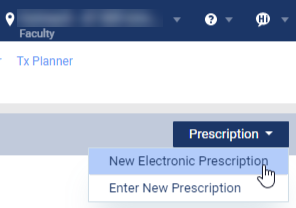
ClickTap the Prescription drop-down menu and select New Electronic Prescription.
Note: If logging in as a proxy clinician, you are prompted to select the clinician you are acting on behalf of.
The Electronic Prescriptions window and the Patient Details page display.
-
On the Patient Details page, clicktap the Add/Edit Pharmacies button to display the Manage Patient's Pharmacies section.

-
Review the listed pharmacies.
-
To add a pharmacy to the patient's list:
-
Search for a pharmacy using one of the following methods:
-
Search by Pharmacy: Enter one of the pharmacy's name, address, specialty, or phone/fax number in the applicable field(s) and then clicktap Search.
-
Search by Patient: ClickTap Search by Patient.
-
Under Pharmacy Results, clicktap the correct pharmacy.
-
To make it the patient's default pharmacy, select the Set As Default check box.
-
To remove a pharmacy from the patient's list, clicktap the X icon and when prompted, clicktap Yes to confirm your removal.

The pharmacy displays in the Current Pharmacies list.
Comments
0 comments
Please sign in to leave a comment.