
If necessary, you can restart an in-progress evaluation to remove the recorded answers and to select another evaluation form. Depending on your role, you can restart student or faculty evaluations.
If you are a faculty provider, you can view the answers of all evaluators associated with an evaluation request from one of the following pages:
-
Faculty Evaluations - This page displays pending evaluations based on the evaluation's generation date.
-
Student Evaluation Search - This page displays evaluations based on the associated student's name. .
Note: You can manage evaluations according to your security rights for Academic Evaluations.
To restart an evaluation
How to get to there
-
From the Academic menu, clicktap Faculty Evaluations.
The Faculty Evaluations page displays.
How to get to there
-
From the Academic menu, clicktap Evaluation Search.
The Student Evaluation Search page displays.
How to get to there
-
From the Academic menu, clicktap Student Evaluations.
The Student Evaluations page displays.
-
Generate a list of evaluations at one of the following pages:
-
The Faculty Evaluations page
-
On the Faculty Evaluations page, under Views, clicktap My Pending Evaluations.
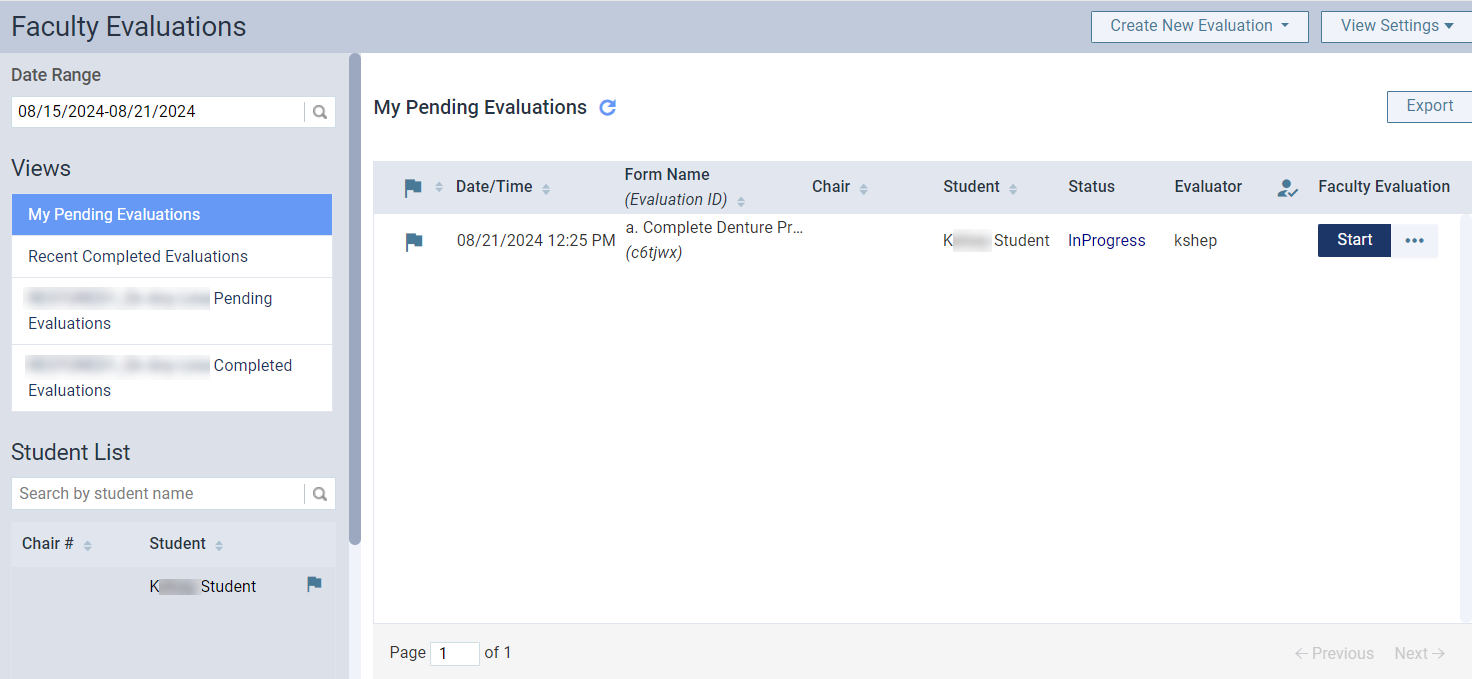
All evaluation requests that require your contribution display.

-
-
The Student Evaluation Search page
-
On the Student Evaluation Search page, select a student under the Student List.

Tip: You can use the search field above the list to locate a specific student by entering their name.
All evaluation requests associated with the student display.

-
-
The Student Evaluations
-
On the Student Evaluations page, select the Pending tab to generate a list of your pending self-evaluations.
Tip: Self-evaluation requests display a
 in the column.
-
-
-
(Optional) Filter the list of evaluations as necessary:
-
Filter the Faculty Evaluations page
-
ClickTap the Date Range field and select an option to display evaluations within a certain range.
Note: The field defaults to today's date.
-
If you selected Specific Date, select a date from the calendar that displays and clicktap Done.
-
If you selected Custom Range, select two dates from the calendar that displays and clicktap Done.
-
-
ClickTap the
 column header as necessary to sort the requests by competency or sessional evaluations.
-
Under Student List, clicktap the Search by student name field and enter the student name to narrow the evaluations list to a particular student.
Tip: Competency evaluation requests display in the list with the
icon. 
-
Under Form List, select an evaluation form to display only evaluation requests with a specific evaluation form.
Tip: If necessary, you can use the Search by form name search field to search for a specific evaluation form.

-
-
Filter the Student Evaluation Search page
-
Enter an evaluation form name in the Search by form name field to narrow the list to requests that were created with that form.

-
-
Filter the Student Evaluations page
-
ClickTap the Date Range field and select an option to display evaluations within a certain range.
Note: The field defaults to today's date.
-
If you selected Specific Date, select a date from the calendar that displays and clicktap Done.
-
If you selected Custom Range, select two dates from the calendar that displays and clicktap Done.
-
-
ClickTap the
column header as necessary to sort the requests by competency or sessional evaluations.
-
-
-
Review the listed evaluation request(s).
Tip: To confirm if an in-progress evaluation requires restarting, clicktap Resume, review the displayed results, and clicktap Back.
-
Next to an in-progress request, clicktap the
 icon, and select Restart.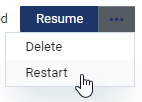
-
When prompted with the Restart Evaluation window, clicktap OK.

-
When prompted with the Select a form window, select the correct evaluation form and clicktap Select.
Tip: You can use the Filter by form name search field to locate a specific evaluation form.
Note: The list of available evaluation forms reflects whether you are restarting a sessional or competency evaluation.
The new selected evaluation form displays.
-
Complete the self evaluation or faculty evaluation as necessary.
Comments
0 comments
Please sign in to leave a comment.