
In some cases, a faculty member may need to edit one of their submitted evaluations.
Notes:
-
You can edit evaluations according to your security rights for Academic Evaluations.
-
You can only edit patient complexity values, answers, and/or comments added by yourself. You cannot change the type of evaluation and, once an evaluation is complete, you cannot remove your answers to change back to New or InProgress status.
-
You cannot edit cancelled evaluations.
To edit a submitted faculty evaluation
How to get to there
-
From the Academic menu, clicktap Faculty Evaluations.
The Faculty Evaluations page displays.
Note: The Faculty Evaluations option only displays if you have the security rights to view the Faculty Evaluations page.
How to get to there
-
From the Academic menu, clicktap Evaluation Search.
The Student Evaluation Search page displays.
-
On the Faculty Evaluations page, under Views, clicktap Recent Completed Evaluations or Completed Evaluations.
A list of completed evaluations within the specified date range displays.
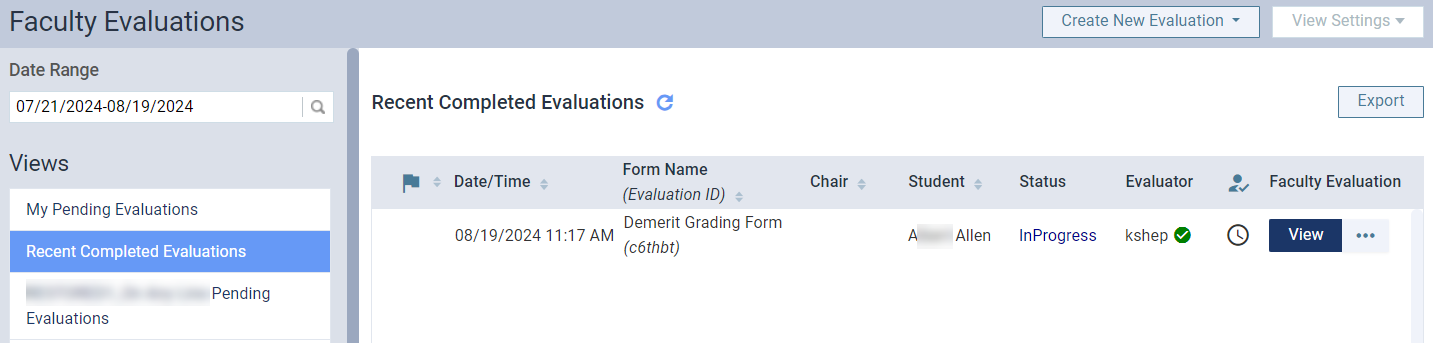
Tip: You can also access and edit submitted evaluations from the Student Evaluation Search page.
-
(Optional) Filter the list of evaluations.
Note: Not all filters are available when working on the Student Evaluation Search page.
-
ClickTap the Date Range field and select an option to display evaluations within a certain range.
Note: The field defaults to today's date.
-
If you selected Specific Date, select a date from the calendar that displays and clicktap Done.
-
If you selected Custom Range, select two dates from the calendar that displays and clicktap Done.
-
-
ClickTap the
 column header as necessary to sort the list by competency or sessional evaluations.
-
Under Student List, clicktap the Search by student name field and enter the student name to narrow the list to a particular student.
Tip: Competency evaluations display in the list with the
icon. 
-
Under Form List, select an evaluation form to display only evaluations with a specific evaluation form.
Tip: If necessary, you can use the Search by form name field to search for a specific evaluation form.

-
-
Next to the correct evaluation, clicktap the ellipsis button and select Edit.

-
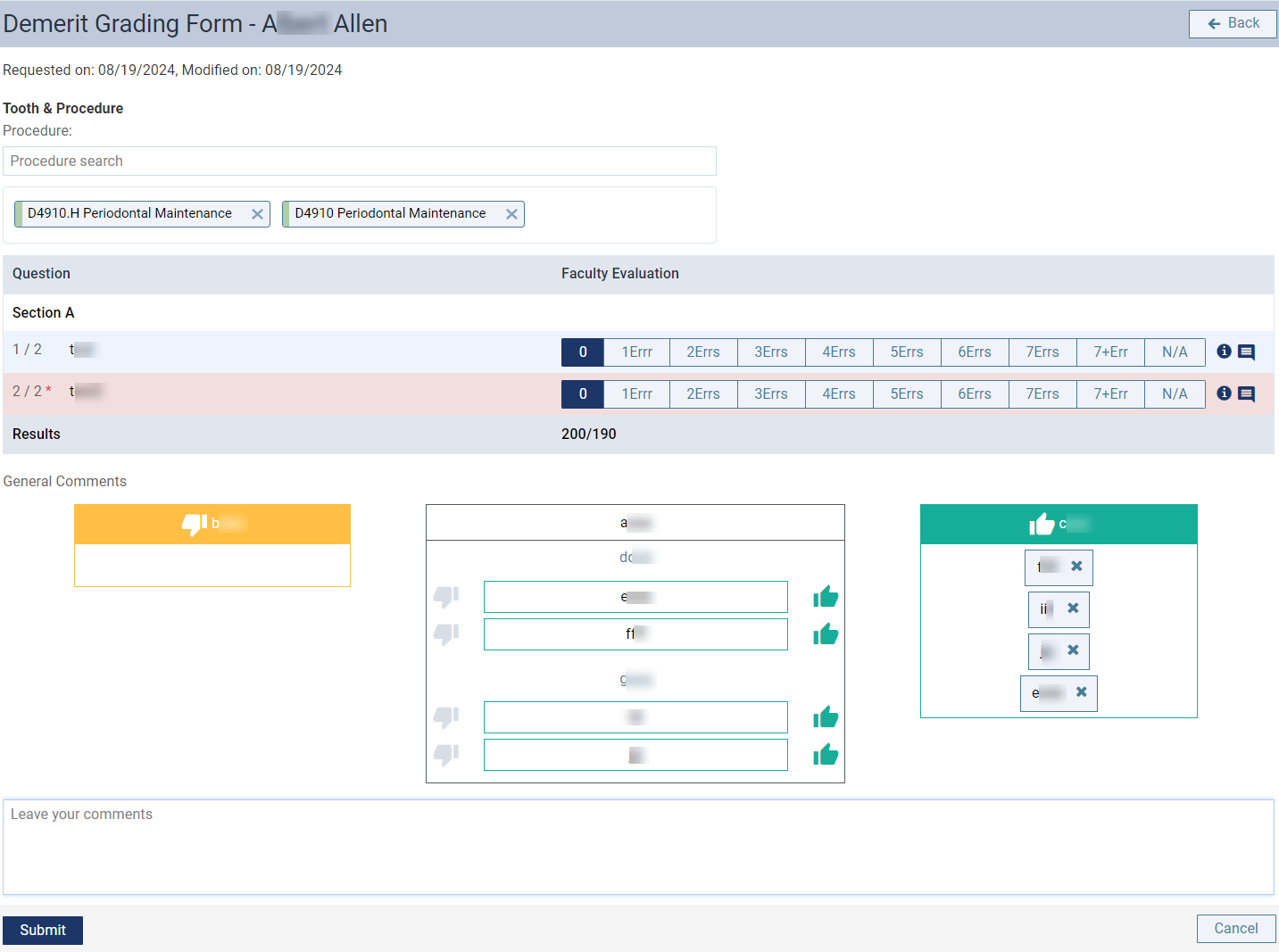
Modify the evaluation as necessary.
-
To modify an answer, clicktap another grade button.
Tip: You can clicktap the
 icon to view the description for each grade in the grading scheme.
 -
To add a question-specific comment, click the
 icon next to a question to display a Comments field and enter the comment.
 -
To modify the Comment Assistant, next to each descriptor, clicktap the
 and
and  icons as necessary.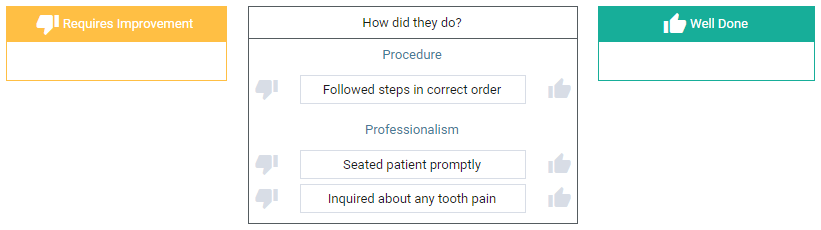
-
To add or modify a general comment, enter the comment in the Leave your comments field.
Notes:
-
Not all evaluations include question-specific comments or a Comment Assistant.
-
Any question-specific comments added by students or other faculty display under the applicable question.
-
If the student provider has already submitted their copy of the form, you can view their answers.
-
-
When ready, clicktap Submit.
-
If prompted with a Fail Confirmation or Pass Confirmation window, clicktap OK to confirm the student failed or passed.
Once edited, the evaluation displays the last edited date in the Modified on field. However, the Completed on Date does not change.
Comments
0 comments
Please sign in to leave a comment.