
A competency evaluation is a formal type of student assessment that directly relates to required coursework and a specific appointment.
Typically, you can request a competency evaluation from an appointment.
Tip: If necessary, you can create a competency evaluation without an appointment.
Notes:
-
You can request competency evaluations according to your security rights for Academic Evaluations.
-
If a sessional evaluation has already been created for this appointment, the competency evaluation replaces the sessional evaluation.
To request a competency evaluation
How to get to there
-
From the Schedule menu, clicktap Calendar.
The Calendar page displays.
-
On the Calendar page, complete one of the following:
-
Locate and clicktap an existing appointment to display the appointment details.

-
Schedule an appointment and open its appointment details.
-
-
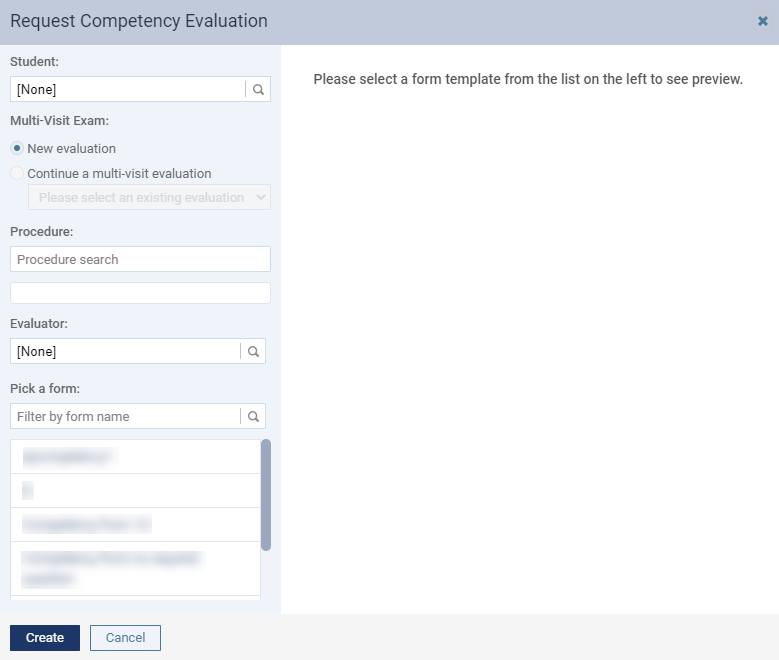
From the selected appointment, clicktap Request Competency Evaluation to display the Request Competency Evaluation window.
Note: If the appointment is not associated with a procedure, the button does not display.
-
Set the following fields as necessary:
-
Student - Displays the appointment provider associated with the appointment. If necessary, enter a different student provider.
-
Multi-Visit Exam
-
New Evaluation - Select the radio button to create a new evaluation.
-
Continue a multi-visit evaluation - Select the radio button to continue an existing evaluation. Once selected, clicktap the enabled Please select an existing evaluation field and select the evaluation in the drop-down list.
Note: If selected, the Student, Procedure, and Select a form fields are disabled as you are continuing an existing evaluation. The existing evaluation's student provider, procedure(s), and the evaluation form will be applied to the new evaluation.
-
-
Procedure - Displays a list of procedure(s) associated with the appointment. If necessary, you can remove procedure(s) from the evaluation by deselecting the checkbox(es).
-
Evaluator - Displays the attending provider associated with the appointment. If there is no attending provider, the field displays [None]. The number of the fields are based on the selected evaluation form.
-
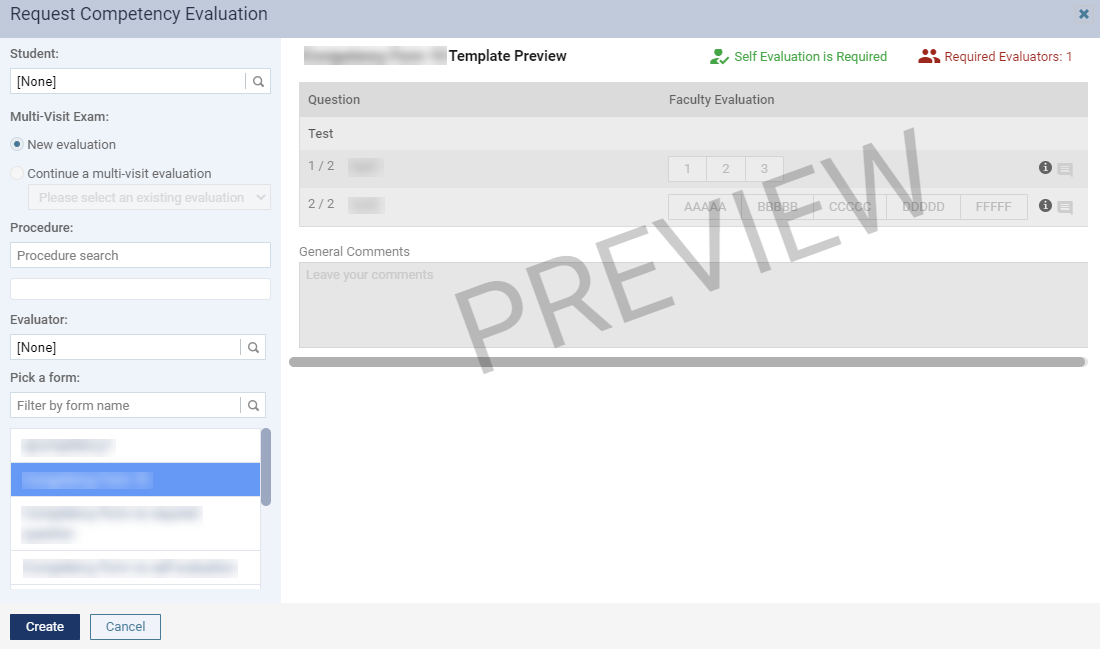
Pick a form - Select a listed evaluation form. If necessary, you can review the preview displayed on the right half of the window and the required number of evaluator(s) for the form.
Tip: You can use the Filter by form name search field to locate a specific evaluation form.
-
-
ClickTap Create.
The new competency evaluation displays on the Faculty Evaluations and Student Evaluations pages.
Notes:
-
When necessary, you can create multiple competency evaluations.
-
The timestamp of the evaluation is set to the date and time that you created the evaluation.
-
Comments
0 comments
Please sign in to leave a comment.