
You can view the contents of a completed evaluation. Depending on your role, you can view student or faculty evaluations. Students can view only their own answers while faculty members can view the answers of all evaluators associated with an evaluation request from two pages:
-
Faculty Evaluations - This page displays pending evaluations based on the evaluation's generation date.
-
Student Evaluation Search - This page displays evaluations based on the associated student's name.
Note: You can view evaluations according to your security rights for Academic Evaluations.
To view a completed evaluation
How to get to there
-
From the Academic menu, clicktap Faculty Evaluations.
The Faculty Evaluations page displays.
How to get to there
-
From the Academic menu, clicktap Evaluation Search.
The Student Evaluation Search page displays.
How to get to there
-
From the Academic menu, clicktap Student Evaluations.
The Student Evaluations page displays.
-
Generate a list of completed evaluations on the applicable page:
-
The Faculty Evaluations page
-
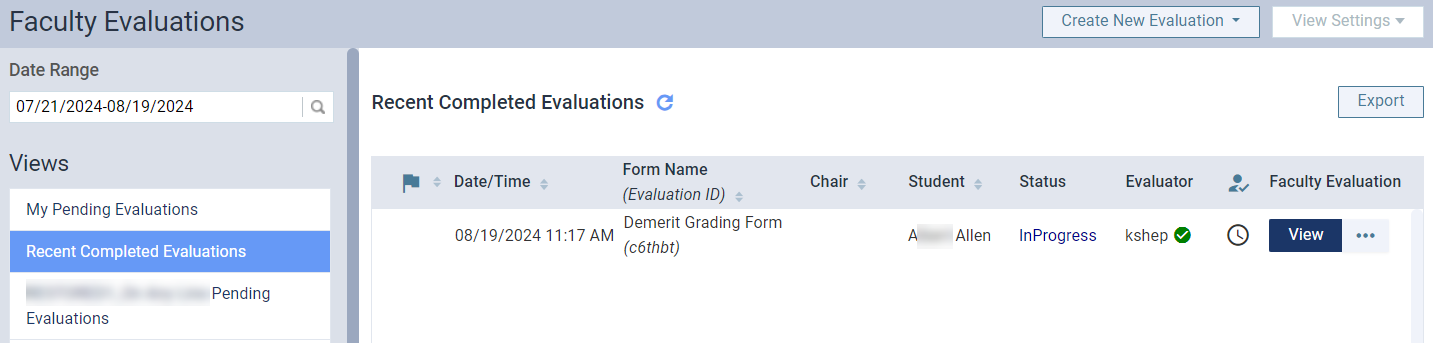
On the Faculty Evaluations page, under Views, clicktap Recent Completed Evaluations.
-
-
The Student Evaluation Search page
-
On the Student Evaluation Search page, under Student List, select a student.

Tip: You can use the search field to locate a specific student quickly.
-
ClickTap the Completed tab.
Tip: If you are looking for an evaluation that is not completed by all assigned parties, leave the Pending tab selected.
A list of evaluation requests displays.
-
-
The Student Evaluations page
-
On the Student Evaluations page, clicktap the Completed tab to generate a list of completed self-evaluations.

-
The displayed page includes the following columns:
-
 - Displays a icon if the request is for a competency evaluation.
 -
Date/Time - Displays the date and time the evaluation request was created.
-
Form Name (Evaluation ID) - Displays the name of the evaluation form used for the request with the evaluation ID number in brackets.
-
Chair - Displays the operatory associated with the request.
-
Student - Displays the full name of the student associated with the request.
Note: This column does not display on the Student Evaluation Search page.
-
Status - Displays the status of the request. If no one has started, the status is New. If a contributor has started, the status is InProgress. If all contributors have completed it, the status is Complete. If the evaluation was canceled, the status is Canceled.
Note: If on the Student Evaluation Search page, New and InProgress evaluations display under the Pending tab, and Complete and Canceled evaluations display under the Completed tab. If on the Student Evaluations page, New evaluations display under the Pending tab, and Complete and Canceled evaluations display under the Completed tab. InProgress evaluations can display under either tab depending whether the student has completed their portion.
-
Evaluator - Displays the short name of the faculty member(s) assigned to the request. If they have completed their copy, a
 icon displays beside their name.
 Important: If the assigned faculty member is not a provider, a masked name such as Faculty 1 and Faculty 2 display instead.
-
 - Displays an icon to indicate the self-evaluation status. If not required or the student has not started, the column is blank. A
  icon indicates the self-evaluation is in progress and a
  icon indicates the self-evaluation is complete.
 Tip: You can also hover overtap and hold an icon to view the status of the self-evaluation.
-
Self Evaluation - Displays a View button that allows you to view your copy of the request.
Note: This column only displays on the Student Evaluations page.
-
Faculty Evaluation - Displays Start, Resume, View, or Remind Faculty buttons depending on your role and the page/tab you are on. They allow you to start, continue, or view your copy of the request, or remind faculty as needed.
Note: If the assigned faculty is not a provider, they will not receive a notification.
-
-
(Optional) Filter the list of evaluations.
Note: Not all filters are available when working on the Student Evaluation Search page or the Student Evaluations page.
-
ClickTap the Date Range field and select an option to display evaluations within a certain range.
Note: The field defaults to today's date.
-
If you selected Specific Date, select a date from the calendar that displays and clicktap Done.
-
If you selected Custom Range, select two dates from the calendar that displays and clicktap Done.
-
-
ClickTap the
column header as necessary to sort the requests by competency or sessional evaluations. 
-
Under Student List, clicktap the Search by student name field and enter the student name to narrow the evaluations list to a particular student.
Tip: Competency evaluation requests display in the list with the
icon. 
-
Under Form List, select an evaluation form to display only evaluation requests with a specific evaluation form.
Tip: If necessary, you can use the Search by form name search field to search for a specific evaluation form.

-
-
Next to a listed evaluation, clicktap View.
Note: If a Start, Resume, or Remind Faculty button displays, not all copies of the evaluation are complete. Depending on your role, you can complete the self-evaluation, complete the faculty evaluation, or remind faculty about the evaluation.
-
(Optional) ClickTap Print to view the print version of the evaluation in a new window tab. If necessary, you can also print or save the print version from the tab.
Note: The Print button only displays when the evaluation has been completed by all assigned parties.
Comments
0 comments
Please sign in to leave a comment.