
As needed, you can add clinical note templates to your organization's shareable set.
Notes:
-
Adding shareable clinical note templates requires the Manage Shareable Set security right. To help prevent unwanted changes to these master templates, you may want to restrict who is granted the Manage Shareable Set security right.
-
When entering or editing a patient's clinical note while logged in to a given location, a person has access to only that location's clinical note templates and their own favorite clinical note templates.
To add a shareable clinical note template
How to get there
-
While viewing any location, on the Settings menu, under Patient Care, select Clinical Note Templates.
The Clinical Note Template Setup page displays.
-
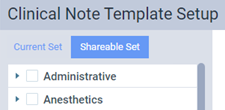
On the Clinical Note Template Setup page, clicktap the Shareable Set tab.
-
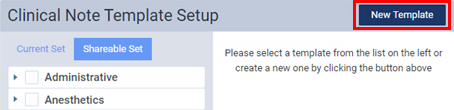
ClickTap New Template.
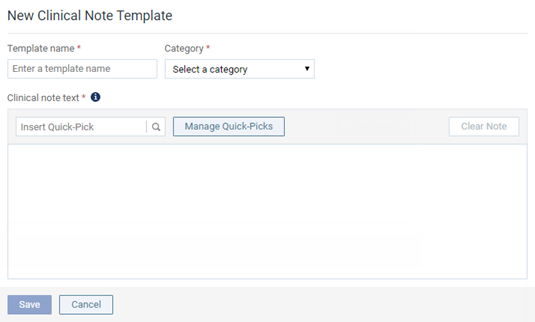
The options for entering a new clinical note template display.
-
Set the following fields as necessary.
-
Template name - Enter a name for the template.
-
Category - Select one of the pre-defined categories for this template.
-
Clinical note text - Enter the text of the note, and insert quick-picks as needed.
-
Quick-picks: A quick-pick allows you to create a clinical note from a template dynamically. When you use a template that has quick-picks to add a clinical note, Ascend Academic will show messages that prompt you to enter responses to the specified questions. To insert a quick-pick where the text cursor is positioned, complete any of the following:
-
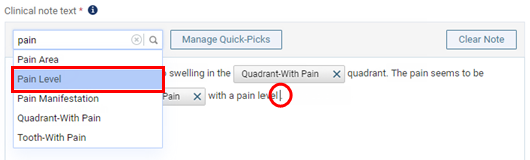
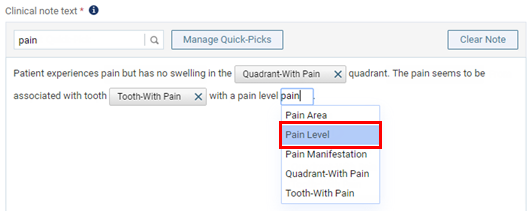
In the Insert Quick-Pick search box, enter text as needed to narrow the results, and select the correct pre-defined quick-pick.
-
Use the Ctrl + , (comma) key combination to display a search box, enter text as needed to narrow the results, and select the correct pre-defined quick-pick.
Tip: You can also use the down arrow key to select the correct quick-pick and press Enter.
-
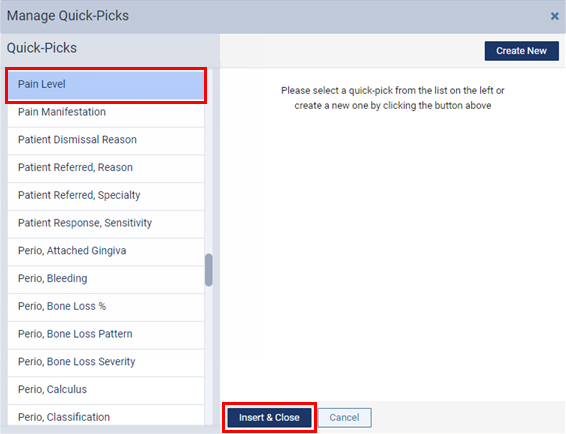
ClickTap Manage Quick-Picks, select a listed quick-pick, and clicktap Insert & Close.
-
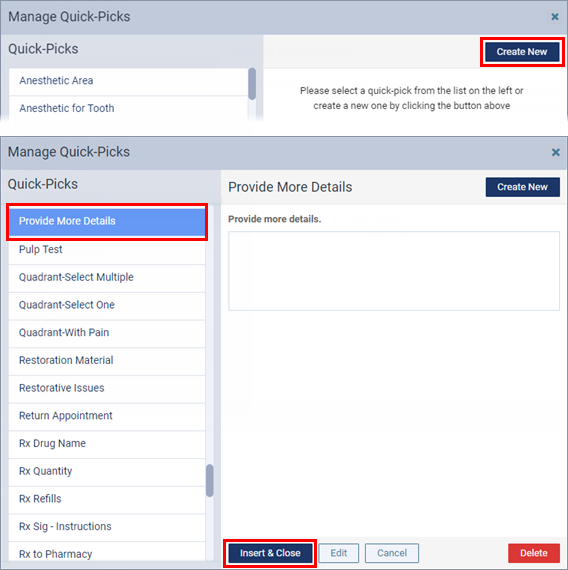
ClickTap Manage Quick-Picks, clicktap Create New, complete the steps to create the quick-pick, then select the newly created quick-pick and clicktap Insert & Close.
-
Tip: To remove a quick-pick from the note text, clicktap the Remove button next to the quick-pick.

-
-
ClickTap Save.
Comments
0 comments
Please sign in to leave a comment.