
In Ascend Academic, insurance carriers, insurance plans, and fee schedules are shared throughout your organization. However, because the preferred (UCR) fee schedule that is assigned to each location in your organization may vary by geography, and a given payer's reimbursement rates (max allowable fee schedules) may vary by geography, managing insurance information across service locations to provide accurate insurance estimates to patients can be complicated and labor intensive.
The more physically distant the locations in your organization are, the more likely it is that you have to use a fee schedule for each location that is priced differently from a centralized standard (for example, Aetna Location #1, Aetna Location #2, and so on). On the other hand, if your locations are tightly clustered in a metropolitan area, they may not vary at all, and you can use the same fee schedule for all locations.
In Ascend Academic, there is no need to create multiples of an insurance plan that vary only by the max allowable fee schedule; instead, for a given insurance plan, you can specify which max allowable fee schedule to use in each location, or you can quickly apply the same max allowable fee schedule to use in all locations.
Notes:
-
Any changes made to a plan's information affect all patients covered by that plan.
-
Updating insurance plans requires the Edit Insurance Plans security right.
To set the max allowable fee schedule for an insurance plan by location
How to get to there
-
From the Home menu, under Insurance, select Carriers.
The Insurance Carriers page displays.
-
On the Insurance Carriers page, select an insurance carrier.
Tip: To help you locate an insurance carrier quickly, in the Filter field, enter a carrier's name, plan/employer, or group number so that only carriers that match display.
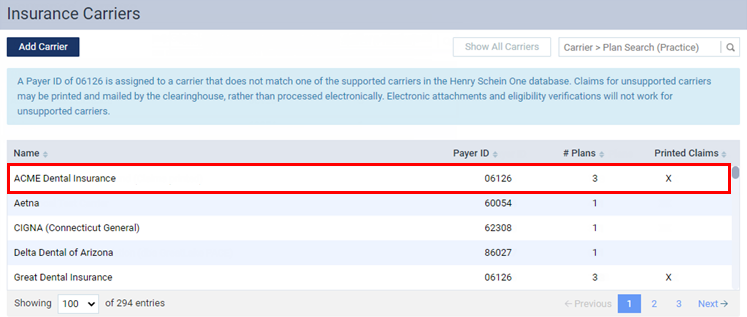
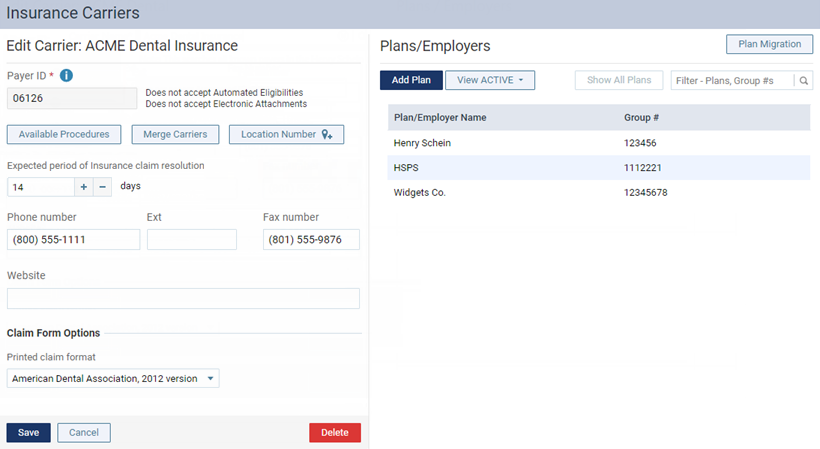
The options to edit the insurance carrier become available.
-
Under Plans/Employers, select an insurance plan.
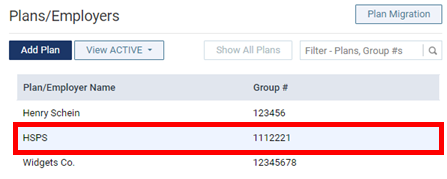
Tip: To help you locate a plan quickly, in the Filter field, enter the plan/employer name or group number so that only plans that match display.
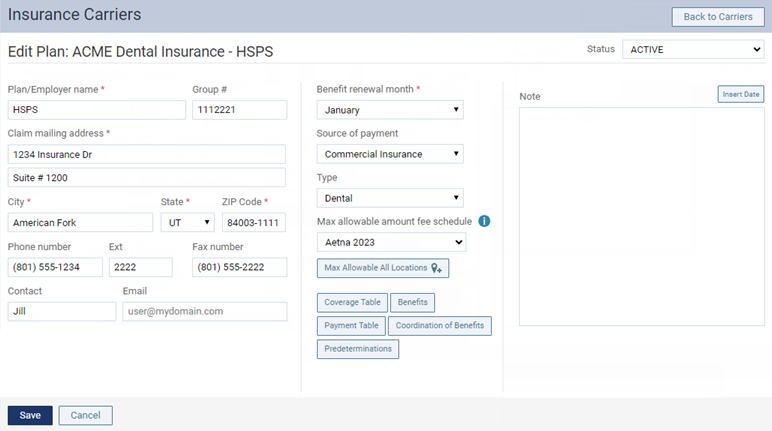
The options for editing the insurance plan become available.
-
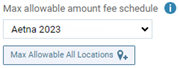
Under Max allowable amount fee schedule, clicktap Set For All Locations.
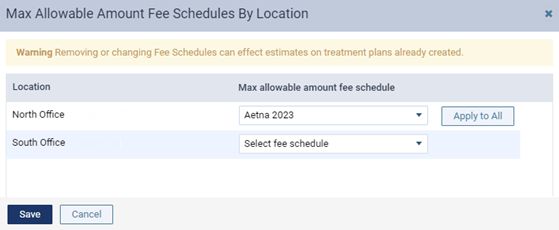
The Max Allowable Amount Fee Schedules By Location window displays.
-
Complete one of the following:
-
Select a fee schedule for each location individually.
-
Select a fee schedule for one location and clicktap Apply to All to apply the change to all other locations.
-
-
Click (or tap) Save.
-
Click (or tap) Save again.
Comments
0 comments
Please sign in to leave a comment.