
The Aged Receivables report displays the aged balances of accounts and the total aging of all receivables, including accounts with pending claims, as of today or for a specified aging bracket. Although the report runs automatically on the first day of each month at a fixed time, you can also run this report manually and send to your accountant monthly.
After running, the report is saved for review.
To view the Aged Receivables report
How to get to there
-
From the Home menu, under Reports, clicktap Aged Receivables Report.
The Aged Receivables page displays.
-
On the Aged Receivables page, complete one of the following:
-
Review an existing report.
-
Under View Reports, select a saved report.

Note: The View Reports section doesn't display saved reports that are more than six months old.

-
-
Run a new report and review it.
-
ClickTap Filter to expand the Filter section and review the default filter settings.

-
Set the following filters as necessary:
-
Locations - The aged receivables and aged totals will be calculated for the selected location(s). Complete one of the following:
-
Select the All check box to view aged receivables and aged totals for all locations and to view the organization aged totals.
-
To select multiple locations, clicktap Select Locations to display the Locations window. Select the desired locations' check boxes and clicktap Save.
-
-
Include Summary - Select the check box to view the organization's aged totals (the sum of the aged totals for all locations in the organization).
-
Exclude Simulation patient guarantors - By default, simulation (sim) patient guarantor data is excluded. If necessary, deselect the check box to include sim patient guarantor data in the report.
Note: If the report includes sim patient guarantor data, the sim patient guarantors will display on the report with a SIM label.
-
Skip accounts with claim pending (CP) - Select the check box to exclude pending claim data from the report.
-
As of - The calculation of the aged receivables are based on the latest insurance estimates and modified transaction from the set date.
-
Period - Select All (as of today), Over 30 days, Over 60 days, or Over 90 days to set how the aged receivables will be calculated.
-
Procedures - From the drop-down list, select Include all procedures or + New Preset to customize a procedure filter preset. If customizing filter presets, repeat as necessary.
-
-
ClickTap Search.
Wait for the report to load. This can take from one to five minutes, depending on the date range.

-
-
-
(Optional) To print the report, clicktap Print.
-
(Optional) To export the report to Excel, clicktap Export.
Note: If you export the report, you can open the .xlsx file from your default downloads folder. When viewing exported reports, you can change the cell format as necessary.
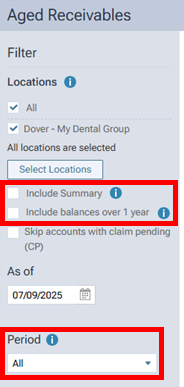
Filter Changes for Aged Receivables Report
The filters for the Aged Receivables Report (Home Aged Receivables) have been changed to allow a reduction in the amount of data for the report, which may speed up queries and provide a clearer report:
-
Include balances over 1 year – This is a new checkbox that allows older data to be included or excluded:
-
With this checkbox selected, the report can include account balances over 365 days old, and the report is limited to no more than 10 locations.
-
With this checkbox clear, the report includes account balances up to 365 days old.
-
-
Include Summary – With this checkbox selected, the report is now limited to the selected locations. (Previously, the summary included all locations that the user had access to, whether or not every one of those locations was selected.)
-
Period – The age of account balances to include on the report can now be limited:
-
All – Includes balances 0-365 days old; however, if the Include balances over 1 year checkbox is selected, balances of any age are included.
-
Over 30 – Includes balances 31-365 days old; however, if the Include balances over 1 year checkbox is selected, any balances 31 days and older are included.
-
Over 60 – Includes balances 61-365 days old; however, if the Include balances over 1 year checkbox is selected, any balances 61 days and older are included.
-
Over 90 – Includes balances 91-365 days old; however, if the Include balances over 1 year checkbox is selected, any balances 91 days and older are included.
-
Tips:
-
You can clicktap the name of a guarantor on the report to open their ledger in a new browser tab.
-
If there is a Statement icon next to a guarantor's Balance, you can clicktap it to open the most recent statement that was generated for that account.
Comments
0 comments
Please sign in to leave a comment.